-
Applies to: NovaBACKUP PC Agent and NovaBACKUP Server Agent version 22 or newer. This article does not apply to NovaBACKUP Managed Backup or NovaStor DataCenter.
Prerequisites- NovaBACKUP is installed and open.
- You have Administrator access to the machine.
- The backup job you want to delete is not currently running.
Important: Deleting the job file removes only the job configuration. Backups that already exist on the backup device are kept. Delete them separately if needed.
Step 1: Set the Job Schedule to "None"Disable the schedule first. This ensures no scheduled run is left behind for a job that no longer exists.
- In NovaBACKUP, click Backup in the left menu.
- Select the job you want to delete from the drop-down at the top.
- Click Schedule.
- In the Schedule window, select None.
- Click OK.
- Click Save to apply the change.
Step 2: Delete the Job File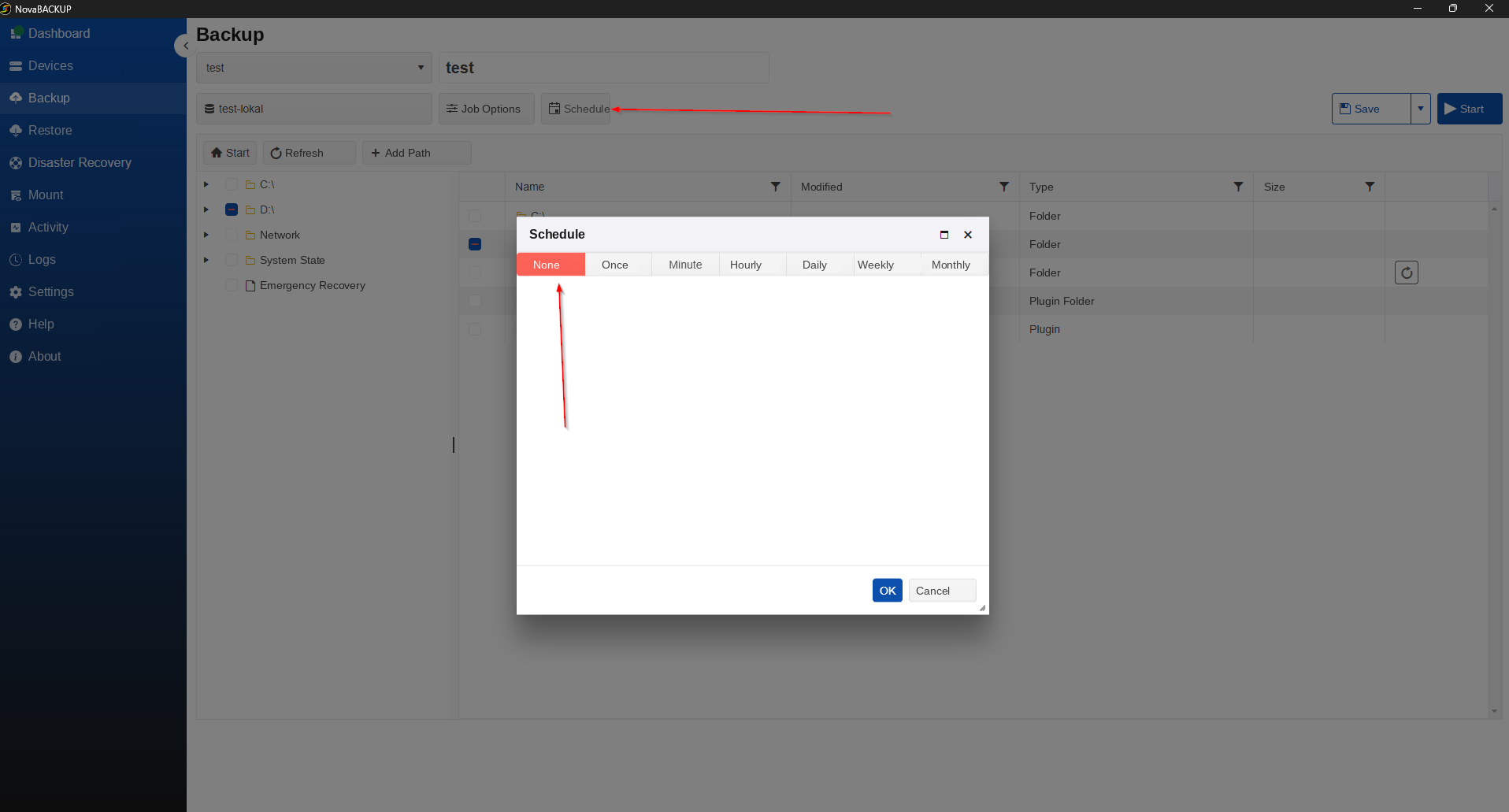
Each backup job is stored as a file with the
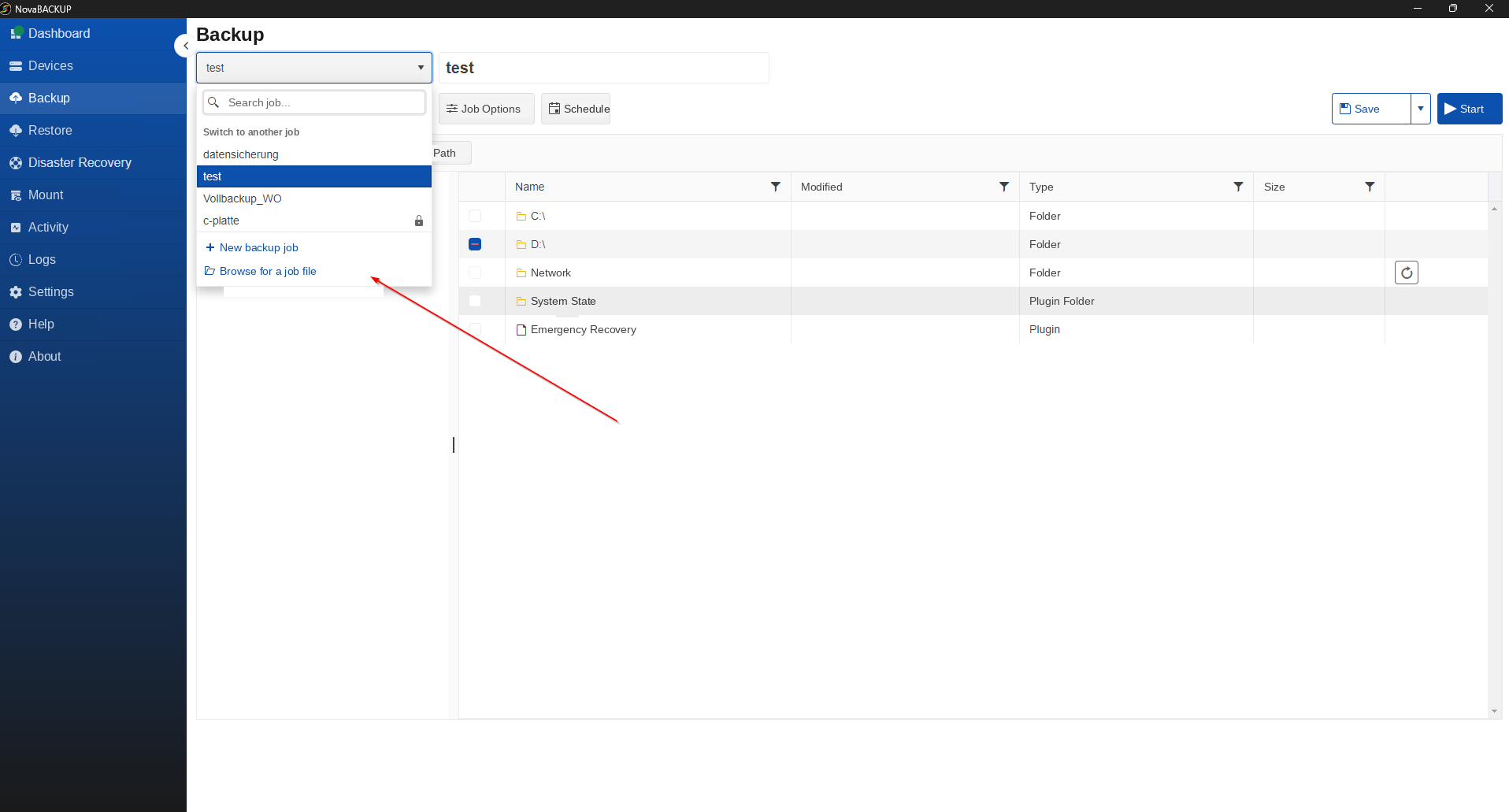
.nbkextension. You delete this file directly from NovaBACKUP's file dialog.- Under Backup, click the drop-down showing the job name.
- Click Browse for a job file in the list.
- The Open the backup job file window shows the folder containing all job files (type NBK File).
- Right-click the job file of the job you want to remove.
- Select Delete from the context menu.
- Close the window with Cancel.
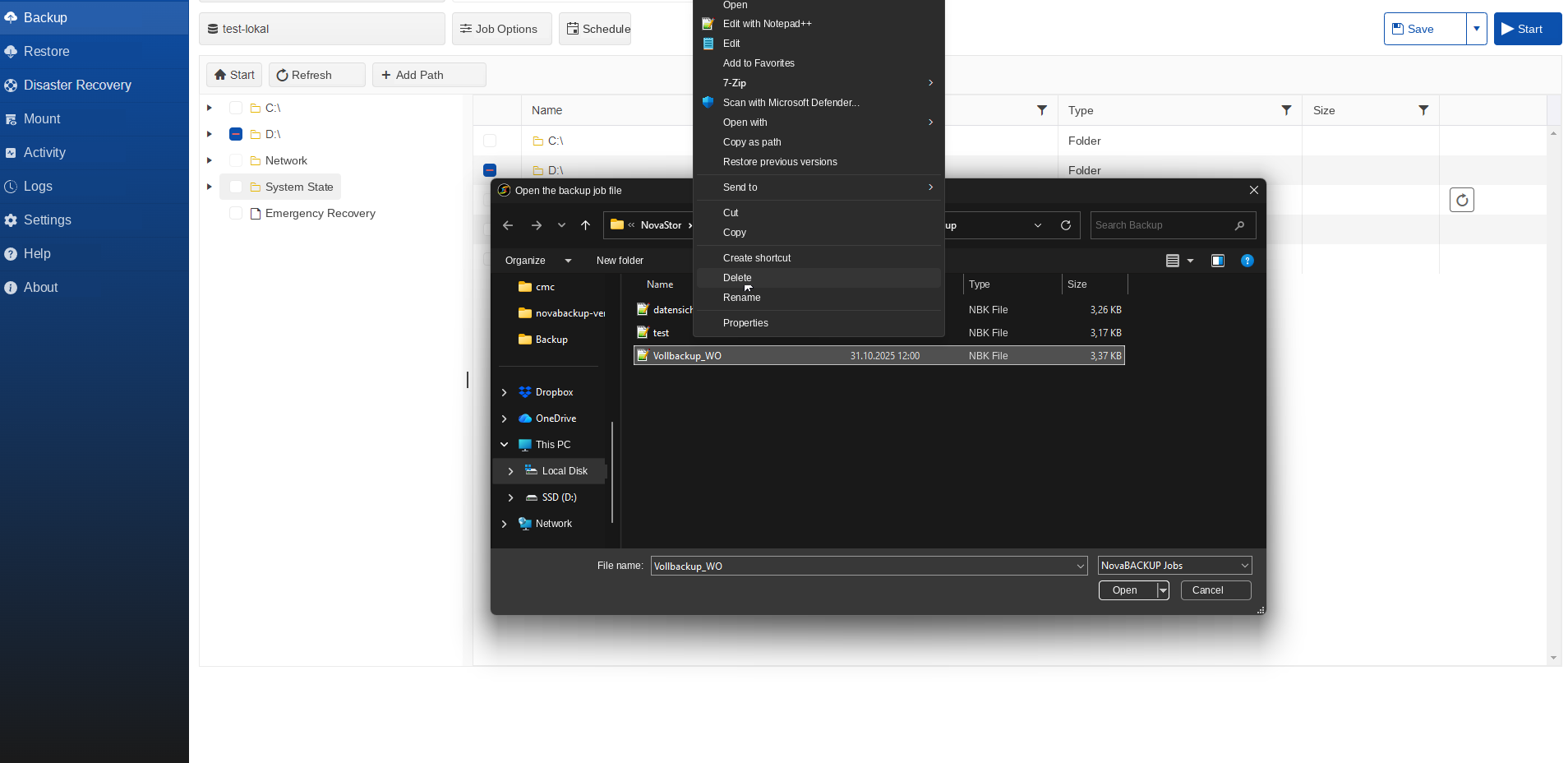
Note: Check the file name before deleting. It matches the job name, for example
Verify the ResultVollbackup_WO.nbkfor the job Vollbackup_WO.Under Backup, open the job drop-down again. The deleted job no longer appears under Switch to another job.
Still Need Help?
Contact NovaBACKUP Support:
- Email: support@novabackup.com
- Phone: +1 805-579-6700 (press 2 for support)
- Submit a ticket: Ticket form
- More options: novabackup.com/support
English