
Applies to: NovaBACKUP PC Agent and NovaBACKUP Server Agent, version 22. The error occurs mostly on Windows Server, including Windows Server 2016, 2019, 2022, and 2025, and on any computer where a Group Policy turns on the setting below.
If NovaBACKUP setup stops while it downloads the Microsoft .NET or ASP.NET Core runtime and shows error 0x800c0008, this article explains the cause and how to finish the installation.
Symptom
The NovaBACKUP Download Installer starts downloading one of these components:
- Microsoft ASP.NET Core 8.0 Runtime (x64)
- Microsoft .NET 8.0 Runtime (x64)
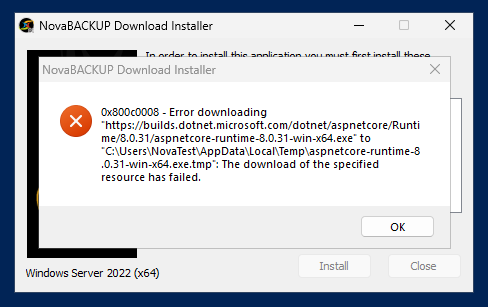
The download stops at Sending request ... and an error message appears:
0x800c0008 - Error downloading "https://builds.dotnet.microsoft.com/dotnet/aspnetcore/Runtime/8.0.31/aspnetcore-runtime-8.0.31-win-x64.exe" to "C:\Users\<user>\AppData\Local\Temp\aspnetcore-runtime-8.0.31-win-x64.exe.tmp": The download of the specified resource has failed.
The same file downloads without a problem in a web browser on the same computer.
Cause
NovaBACKUP setup downloads the .NET and ASP.NET Core runtimes from Microsoft over HTTPS, using the download component built into Windows. That component follows the Windows Internet Options setting Do not save encrypted pages to disk. When the setting is on, the download fails with 0x800c0008.
On Windows Server, IE Enhanced Security Configuration (IE ESC) is on by default, and it turns this setting on for administrator accounts. On Windows 10 and Windows 11, the setting is off by default unless a Group Policy turns it on.
Note: Silent installations that run as the local SYSTEM account are not affected. This includes upgrades pushed from the NovaBACKUP Management Console (CMon) and installations from most remote monitoring and management tools.
Solution 1: Turn off IE Enhanced Security Configuration for Administrators
- Close NovaBACKUP setup if it is still open.
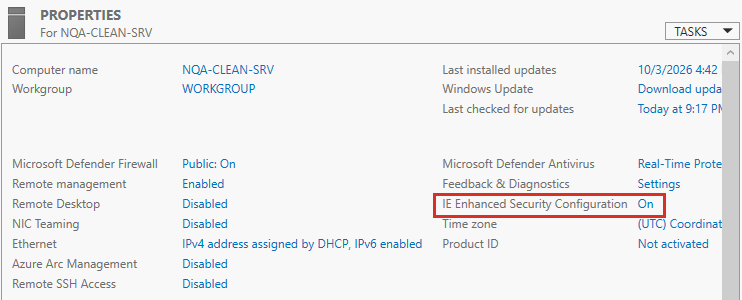
- Open Server Manager and select Local Server.
- In the Properties section, click On next to IE Enhanced Security Configuration.
- Under Administrators, select Off. You can leave Users set to On.
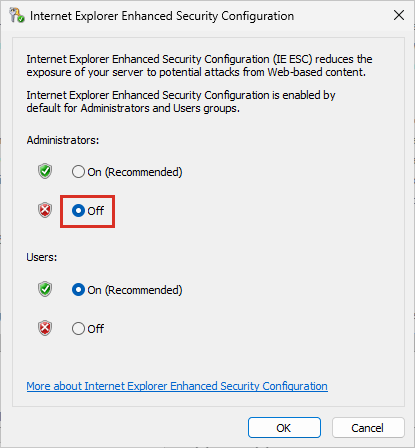
- Click OK.
- Run NovaBACKUP setup again. The runtimes now download and install. You do not need to sign out or restart first.
If your security policy requires IE Enhanced Security Configuration, you can turn it back on for Administrators after NovaBACKUP is installed.
Note: Change the setting while signed in with the account you use to run NovaBACKUP setup. The change takes effect for that account right away.
Solution 2: Turn off "Do not save encrypted pages to disk"
Use this method on Windows 10 or Windows 11, or when IE Enhanced Security Configuration is already off and setup still shows the error. This is a per-user setting, so sign in with the account you use to run NovaBACKUP setup.
- Close NovaBACKUP setup if it is still open.
- Press Windows + R, type
inetcpl.cpl, and press Enter. The Internet Properties window opens. - Select the Advanced tab.
- Scroll down to the Security section and clear the Do not save encrypted pages to disk check box.
- Click OK.
- Run NovaBACKUP setup again.
To make the same change from a Command Prompt, run:
reg add "HKCU\Software\Microsoft\Windows\CurrentVersion\Internet Settings" /v DisableCachingOfSSLPages /t REG_DWORD /d 0 /f
Important: If the check box is grayed out, or turns itself back on, a Group Policy controls it. The policy is Do not save encrypted pages to disk under Administrative Templates > Windows Components > Internet Explorer > Internet Control Panel > Advanced Page. Ask your domain administrator to change it, or use Solution 3.
Solution 3: Install the runtimes manually
Use this method when you cannot change either setting. When the runtimes are already installed, NovaBACKUP setup skips the download.
- Open https://dotnet.microsoft.com/download/dotnet/8.0 in a web browser.
- Under the latest 8.0 release, download the Windows x64 installer for the .NET Runtime.
- From the same release, download the Windows x64 installer for the ASP.NET Core Runtime.
- Run both installers and follow their prompts.
- Run NovaBACKUP setup again. Both runtimes show as installed, and setup continues.
Important: Install the .NET Runtime and the ASP.NET Core Runtime from the same 8.0 release, version 8.0.31 or newer. The NovaBACKUP service cannot start if the ASP.NET Core Runtime is a newer 8.0 version than the .NET Runtime. In that case, setup stops and names the .NET Runtime version it needs.
Note: Install the 8.0 runtimes. Other versions, such as .NET 9 or .NET 10, do not meet the requirements of NovaBACKUP setup.
Related Articles
Still Need Help?
Contact NovaBACKUP Support:
- Email: support@novabackup.com
- Phone: +1 805-579-6700 (press 2 for support)
- Submit a ticket: https://16246.share.hsforms.com/21oWGOmxeQpKD1M8jmfKBAQ
- More options: https://www.novabackup.com/support