
Applies to: NovaBACKUP PC Agent and NovaBACKUP Server Agent. The behavior was reproduced on NovaBACKUP version 22. It does not apply to NovaBACKUP Managed Backup
A backup job with the Disaster Recovery selection finishes with warnings. Each warning names a file in the OneDrive folder and reports the following message:
unable to store objectThe rest of the backup is not affected.
Cause
The files named in the warnings are OneDrive "online-only" files. They appear in the OneDrive folder, but their content is stored in OneDrive and not on the PC.
The backup reads from a read-only snapshot of the drive. Windows does not allow an online-only file to be downloaded through a snapshot, so NovaBACKUP reports each of these files as unable to store object.
Why the exclusion list does not remove the warnings
A backup job with the Disaster Recovery selection always includes the complete system drive. For such a job:
- The general exclusion list in the program settings is not applied.
- Folders deselected on the system drive are not applied.
- The Exclude Wildcard filter in the job itself is applied.
Solution
Choose one of the two options below.
Option 1: Exclude the OneDrive folder from the job
Prerequisites
- Administrator access to the PC or server
- An existing Disaster Recovery job (this example uses a job named
DR_Backup)
Steps
- Open the
DR_Backupjob and go to its Filters settings. - Enter the following in the Exclude Wildcard field, with forward slashes exactly as shown:
*/OneDrive/*
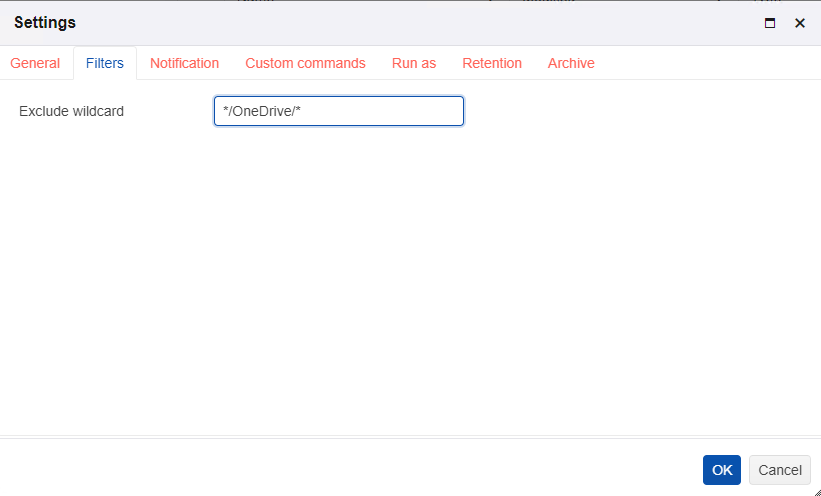
- Save the job.
- Run the job and confirm that it completes without warnings.
Note: Use forward slashes only in the Exclude Wildcard field. Backslashes do not work. To exclude more than one folder, separate the entries with a comma.
Important: With this filter, nothing in the OneDrive folder is part of the backup, including files that are stored on the PC. Those files then exist only in OneDrive.
Option 2: Keep the OneDrive files on the device
Use this option if you want the OneDrive files in the backup.
- Open File Explorer.
- Right-click the OneDrive folder.
- Select Always keep on this device.
- Wait for OneDrive to finish downloading the files.
- Run the backup job again.
OneDrive downloads the files, and they are backed up without warnings.
Important: This option uses local disk space for everything in OneDrive. Check the free space on the drive before you select it.