
Applies to: NovaBACKUP Managed Backup, NovaBACKUP PC Agent, and NovaBACKUP Server Agent. Written for MSP and IT reseller partners.
The NovaBACKUP October 2026 Release is available on October 22, 2026. This FAQ covers what is in the release, how to upgrade, and what to check before you roll it out to your clients.
What You'll Learn- What is in the October 2026 Release
- Which features are being removed
- Who gets the upgrade and how to get it
- What happens to your existing backup jobs
- Which systems are supported
What's in the October 2026 Release?
We revamped how system restores are done.
System backups and restores are now fully integrated into the backup engine and not a separate add-on anymore. You can set up a system backup in the backup tab called Disaster Recovery and store it on any of your connected local or cloud storage devices.
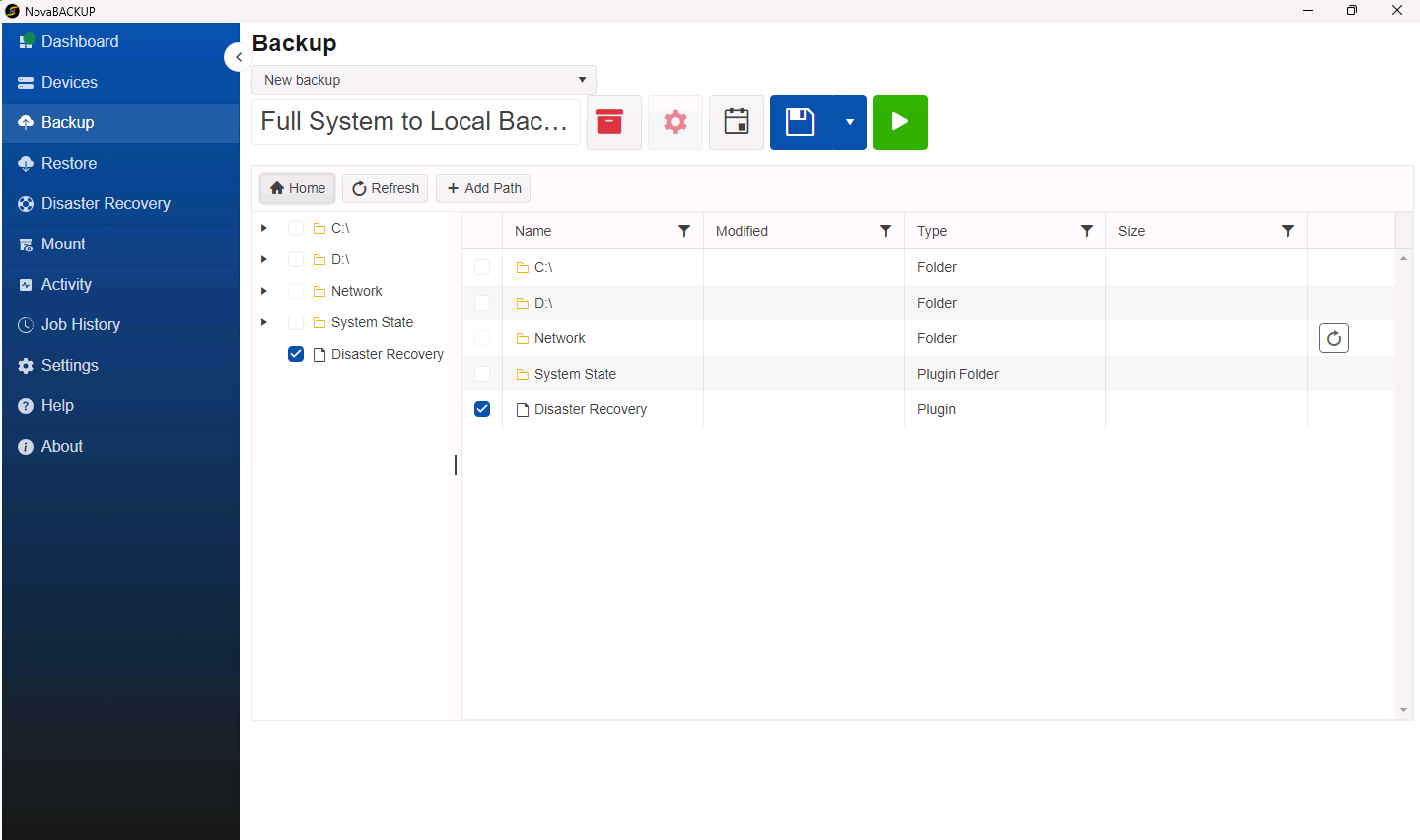
System backups are now file-based, which means they use the incremental forever backup scheme. The result stays the same: during a system restore you get the complete system back, including the operating system, drivers, applications, data, and everything the machine needs to boot.
Important: A system backup covers the drive Windows runs from (usually C:). Data on other drives, such as D: or E:, is protected only when those drives are selected in the same backup job as well.
In addition:
- You can set up and monitor system backups from the CMon or the local client.
- You can restore a single file or the entire system from the same system backup.
- You can recover your system from local or cloud storage to:
- The same hardware
- Dissimilar hardware
- A different disk
- A Hyper-V virtual machine
- A smaller disk, as long as the backed-up data fits on it
How does recovery to Hyper-V work?
In the local client, you pick the backup and point in time, then set the VM name, location, number of processors, memory, and virtual switch. NovaBACKUP creates the virtual machine and its disks and restores the system directly into it. When the restore finishes, start the VM.
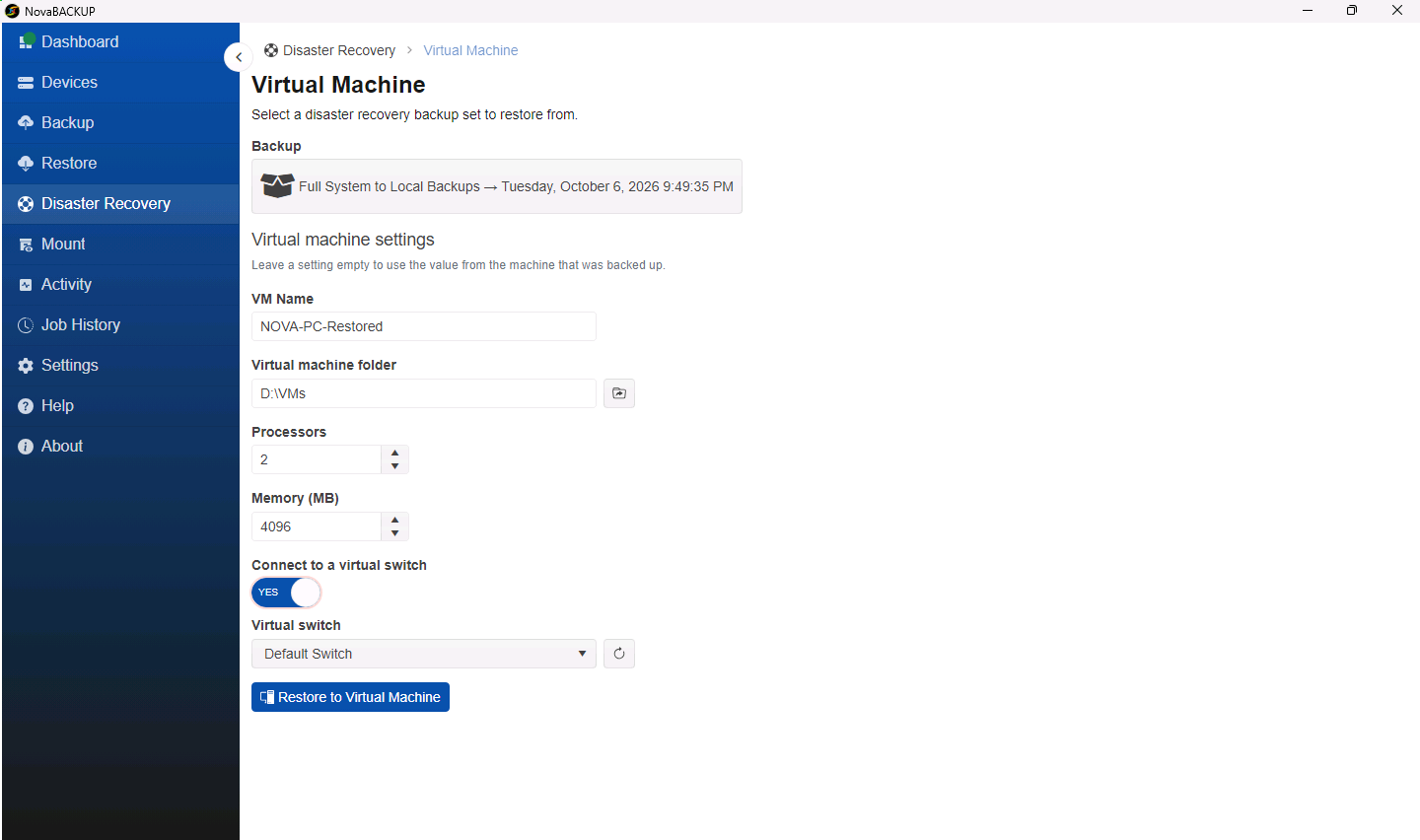
As a requirement, you need an existing Hyper-V host with the Hyper-V role turned on. Windows 10 or 11 Pro or Enterprise, or Windows Server all work. The recovery to Hyper-V runs on your own host.
What recovery media options are there?
You can create an ISO file, a USB drive, or a recovery partition on the local disk. The device configuration is embedded in the media.
[New] Multi-Stream Restore for Systems and Files
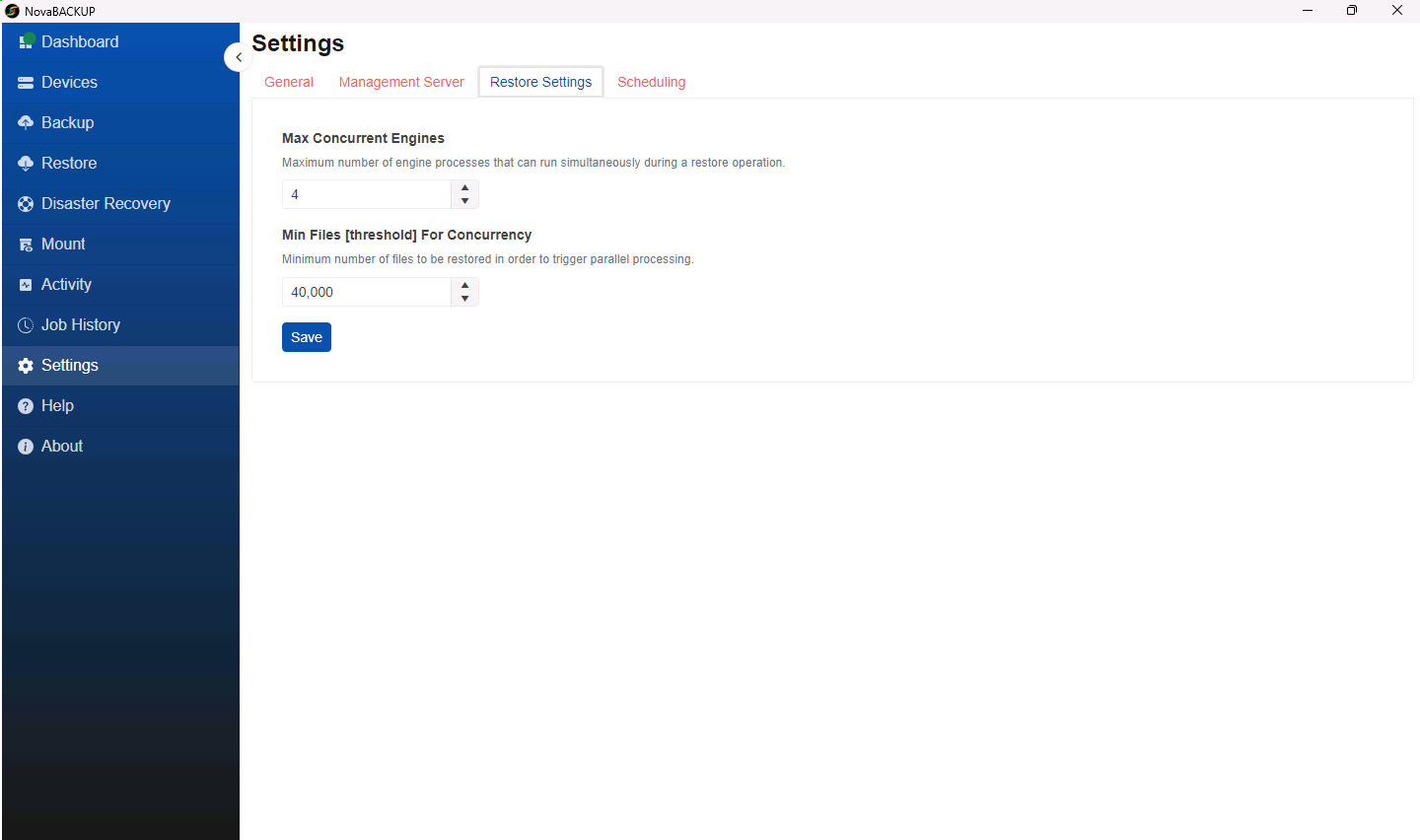
Multi-stream restore runs a restore over several parallel data streams. It works for file restores and system restores, from local and cloud storage. You choose the number of streams in the client's restore settings, as well as the threshold for the number of files before a new stream spawns.
Note: Multi-stream restore applies to restores started on the local client.
What are the benefits for my clients?
- Shorter backup windows. After the first full backup, only changes are backed up, so you can back up more often.
- Less storage. System backups take up less space on local and cloud storage, which lowers the storage costs. The backup calculator shows the difference for a given data set.
- One damaged increment doesn't break the backup. Each incremental forever backup file holds the changed data plus references to the entire backup set, so everything else stays restorable.
- Backup verification. Before each backup, NovaBACKUP checks that every indexed file is present on the backup storage. File backups already did this, and system backups now get the same check because they use the same engine.
- Flexible restores. Bring back one file or the whole server from the same backup.
How does a file-based system backup compare to an image backup?
An image backup copies the sectors of a disk without knowing what's stored in them. A file-based system backup reads the actual files and only backs up the data that's there, so no empty space is sent to the backup storage. That also means that less information needs to be kept in each backup file, further reducing the required backup storage. The end result is still the same: you can restore an entire system, including everything you need to boot it.
[New] APIs for the local agent
Every agent now has its own API, and every action in the client runs through it. You can connect the backup to your RMM or scripts and call each agent directly, for example to start a backup or pull job status, without going through the CMon.
[New] Updated client UI
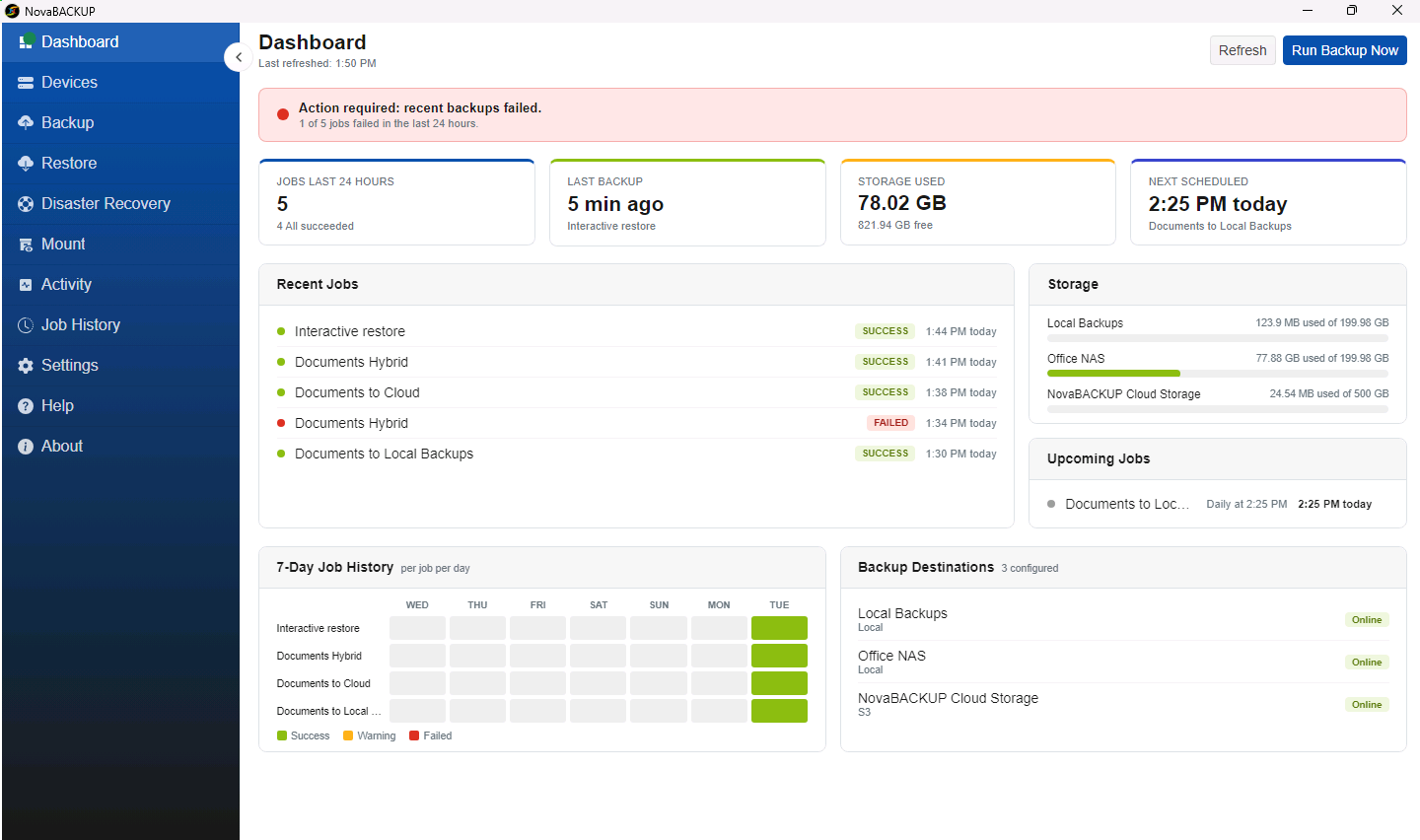
The client UI didn't only get a redesign. We also made it more intuitive to set up and maintain your backups, including the analysis of your backup jobs. You now have:
- A dashboard that shows the recent jobs (each linked to its log), a job history heat map, storage use per device, and upcoming jobs
- Live activity for running and recently finished jobs
- A unified job history you can filter and sort
- Holiday-aware backup scheduling
- Backup, restore, and device views that match the CMon
- Settings that only show the options that apply to the job
Plus, backup jobs pushed from the CMon are visible in the local client but locked, so end users can't change them, and restores, imports, and other tasks can run while a backup job is running.
What else is in the release?
- NAS credentials: Credentials for NAS devices and network shares are now persistent.
- Central management: Per-tenant role scoping, faster tenant switching, and responsive views on large fleets.
- Log collection: Collect logs with one click from the client's About page.
- Help: The in-product help is updated, available in multiple languages, and downloadable as a PDF.
What features are being removed?
- Copy jobs
- Support for backups of VMware hosts (individual VMs can still be backed up from inside the VM)
- The Virtual Dashboard add-on
- The image backup add-on
About the October 2026 Release
When is it available?
The new version is being released on October 22, 2026.
Who gets the upgrade?
Everyone with an active subscription for NovaBACKUP Managed Backup or NovaBACKUP PC Agent or Server Agent is eligible for an upgrade to the latest version.
If your subscription has expired before the release date and you would like to renew it to gain access, please contact your account manager or send an email to sales@novabackup.com.
How do I get the latest version?
- Managed Backup: For agents on version 21.3.410 or later that are connected to the CMon, push the upgrade from the agent's Updates tab in the CMon. You can start upgrades on several agents at once without waiting for each one to finish. For agents on an earlier version, or agents that aren't connected to the CMon, run a silent install of the new version through your RMM tool. Agents aren't upgraded automatically, so you decide when each client moves to the new version.
- PC Agent or Server Agent: The local client shows a notification when the upgrade is available. From October 22, the latest version is also available for download on our website.
Do I have to update my backup jobs before I upgrade?
No. You can upgrade to the latest version and everything keeps running.
Note: Some backup jobs (image backup jobs, copy jobs, Virtual Dashboard jobs, and jobs that back up to legacy devices) likely still use legacy devices or job types. They keep running after the upgrade, but if you want to edit them, you would have to revert to the legacy UI. NovaBACKUP will alert you if a backup job you're trying to edit can only be edited in the legacy UI.
How do I replace a legacy image backup job with a new Disaster Recovery job?
- Remove the schedule from the legacy image backup job. Keep its backups until their retention runs out. You can still restore from them, if needed.
- In NovaBACKUP, create a backup job with the Disaster Recovery option, from the CMon or the local client. If the image backup job also covered other drives, select those drives in the new job too.
Once you're confident in your Disaster Recovery backups, remove the image backup schedule.
If you'd like to run both during the transition, image backup jobs and Disaster Recovery backups can coexist.
Can I run different versions of NovaBACKUP?
Yes. When using NovaBACKUP Managed Backup, you can upgrade some of your clients to the new version while at the same time keeping the legacy version on those machines that, for example, still need support for older operating systems.
Supported Systems and Environments
Which systems are supported with the latest release?
NovaBACKUP runs on 64-bit editions of Windows 10, Windows 11, and Windows Server 2016, 2019, 2022, and 2025.
Do I need to update antivirus or EDR exclusions?
Yes. The latest version runs as a desktop application that talks to a local Windows service. If your antivirus or EDR software blocks its files, processes, or the local connection to the service, the application can't connect and backups can fail. Add the exclusions before you upgrade agents that run security software.
Help and Resources
Where can I find more information?
After the release on October 22, 2026, we will make the following information available:
- Upgrade landing page: Details on what to expect when you upgrade.
- Knowledge base: The upgrade path for existing customers and step-by-step articles.
- Videos: An upgrade series for anyone upgrading, plus updated how-to videos.
- Release notes: The full list of changes, with a summary on the What's New page.
- Launch webinar: See the new version in action on October 29, 2026. Register here.
Who do I contact with questions or issues?
Contact your account manager or our support team. See Still Need Help? below.
Still Need Help?
Contact NovaBACKUP Support:
- Email: support@novabackup.com
- Phone: +1 805-579-6700 (press 2 for support)
- Submit a ticket: https://16246.share.hsforms.com/21oWGOmxeQpKD1M8jmfKBAQ
- More options: https://www.novabackup.com/support