
Why is this needed?
NovaBACKUP agents are normally deployed directly from the CMon. However, we saw that test build may be pushed to agents . This can result in the installed version displaying "Trial Version" or "License Expired," even for fully licensed customers. In some cases, antivirus software or firewall rules also block the CMon-based deployment from completing correctly.
If AV or Firewall can be ruled out, the most reliable fix is to bypass it entirely. Install the agent manually using the official setup file, and then connect it back to CMon by entering the server credentials directly in the software settings.
Step-by-Step Instructions
Step 1: Download the official setup file
- Open the following link on the target machine:
https://www.novabackup.com/resources/downloads - Download the current version of NovaBACKUP PC Agent or Server Agent (depending on your use case).
Step 2: Remove the previous installation (if present)
- Open Control Panel > Programs > Programs and Features.
- Find NovaBACKUP in the list.
- Right-click the entry and select Uninstall.
- Follow the uninstall wizard and restart the machine if prompted.
Important: Make sure the old agent has been fully removed before installing the new version.
Step 3: Install NovaBACKUP
- Run the downloaded setup file.
- Follow the installation wizard.
- Complete the installation and launch NovaBACKUP.
Step 4: Enter the CMon connection manually
After installation, you need to establish the connection to the Management Console manually:
- Open NovaBACKUP on the target machine.
- Navigate to Default Settings > CMon Server.
- Enter the following details:
- Server name:
https://portal.online-backup.com - Port number:
4502
- Server name:
- Click Start Service.
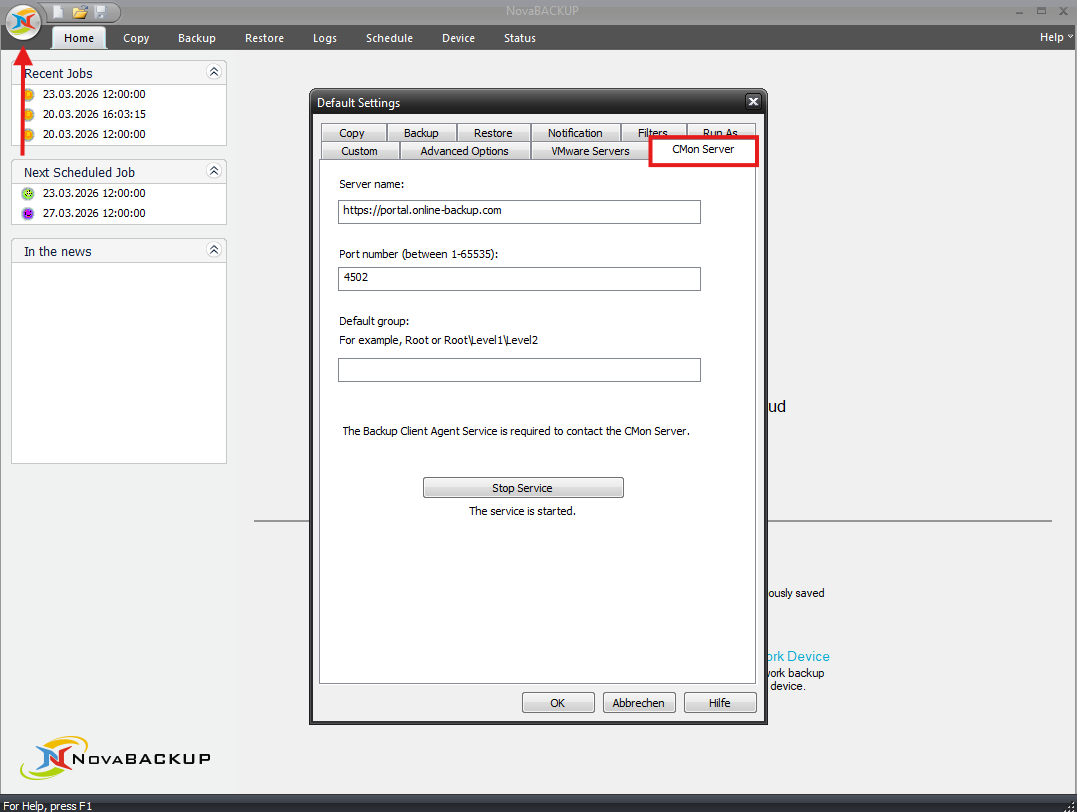
Step 5: Contact Support for group assignment
After connecting, the machine will initially appear in the Pending Pool in CMon. It will only become visible and fully manageable once it has been moved to the correct group.
Contact NovaBACKUP Support and provide the following information:
- The computer name of the newly connected device
- The target group the device should be moved to
Support will then move the machine from the Pending Pool into the appropriate group.
Notes
Note: If the agent still shows "License expired" after connecting, please contact NovaBACKUP Support. The license may need to be manually reassigned on the server side.
Important: Do not install test versions via CMon while NovaBACKUP is actively testing a new release. Wait for the official release or use the manual installation method described above.
Related Articles
- Getting Started: Connecting to the NovaBACKUP Management Console
- Installing and Licensing the NovaBACKUP Agent
- Troubleshooting: License Expired or Invalid
- CMon: Managing and Monitoring Agents
Still Need Help?
Contact NovaBACKUP Support:
- Email: support@novabackup.com
- Phone: +1 805-579-6700 (press 2 for support)
- Submit a ticket: https://16246.share.hsforms.com/21oWGOmxeQpKD1M8jmfKBAQ
- More options: https://www.novabackup.com/support