
Applies to: NovaBACKUP 22 PC Agent and Server Agent, on a computer that does not have NovaBACKUP installed yet.
This article walks you through installing NovaBACKUP 22 and activating it with a license key or as an evaluation. The whole installation takes about five minutes.
Prerequisites
- A 64-bit edition of Windows 10, Windows 11, or Windows Server
- A Windows account with administrator rights on the computer
- An internet connection to download the required Microsoft components and activate the license
- Your NovaBACKUP license key, or an email address to start an evaluation
Step 1: Run the installer
- Download the NovaBACKUP 22 installer from the link in your purchase or evaluation email.
- Run the downloaded file. If Windows asks whether to allow the app to make changes, click Yes.
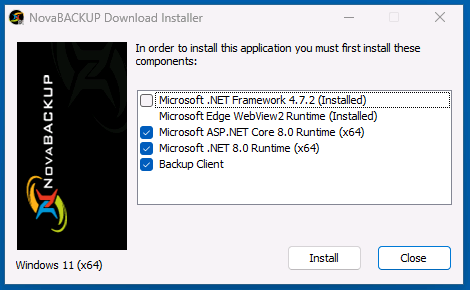
- The installer checks for the Microsoft components NovaBACKUP needs, such as the .NET 8.0 Runtime and the ASP.NET Core 8.0 Runtime. Components that are already installed are marked (Installed). Leave the remaining components selected and click Install.
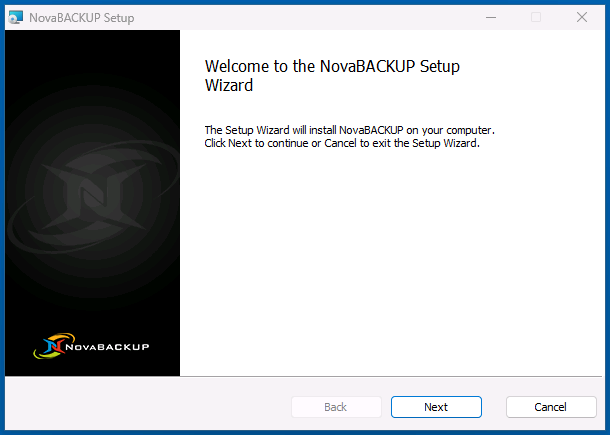
- When the Welcome to the NovaBACKUP Setup Wizard page opens, click Next.
- Read the license agreement, accept it, and click Next.
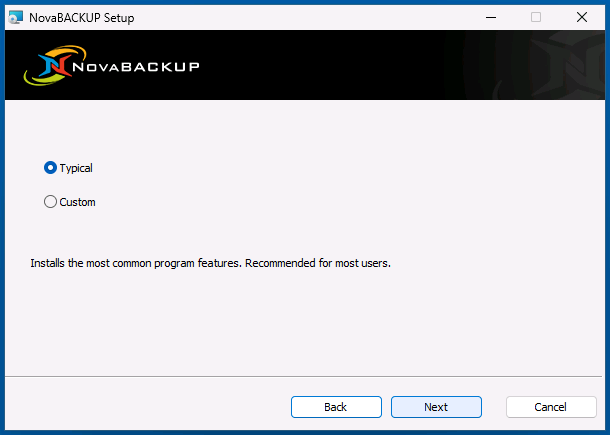
- Select Typical and click Next. Custom lets you change the installation folder, which most installations do not need.
Step 2: Activate your license
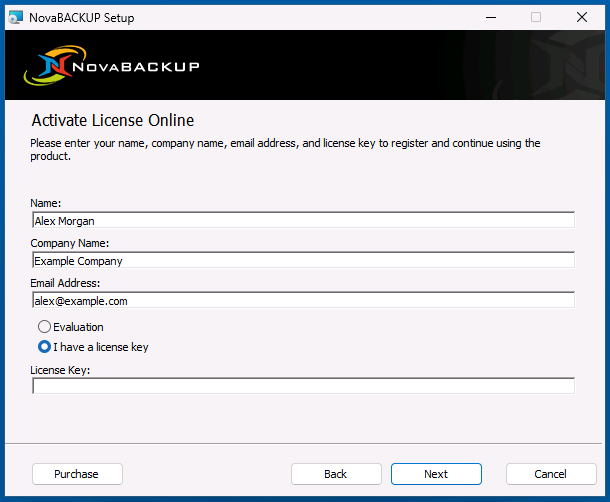
The Activate License Online page registers the installation with NovaBACKUP.
- Enter your Name, Company Name, and Email Address.
- Choose how to activate:
- Evaluation starts a free trial. You can enter a license key later without reinstalling.
- I have a license key shows a License Key box. Enter the key from your purchase email, including the hyphens.
- Click Next, then click Install on the following page.
Note: Activation requires an internet connection. If the page reports that the key could not be validated, check the key for typos, and then make sure that the computer can reach the internet.
Step 3: Finish the installation
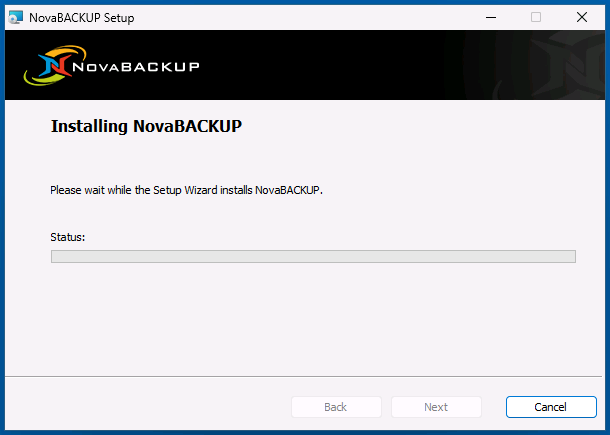
- Wait while the Setup Wizard installs NovaBACKUP.
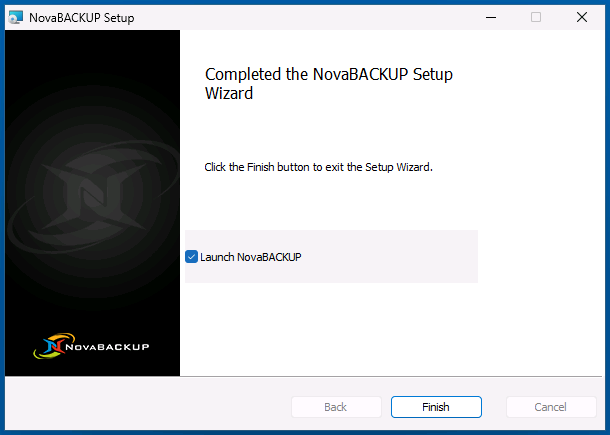
- On the Completed the NovaBACKUP Setup Wizard page, click Finish.
- Open NovaBACKUP from the NovaBACKUP shortcut on the desktop or in the Start menu.
What you see the first time
NovaBACKUP opens on the Dashboard. Because nothing has been set up, it shows No backups in the last 24 hours and a reminder that you don't have a backup device yet.
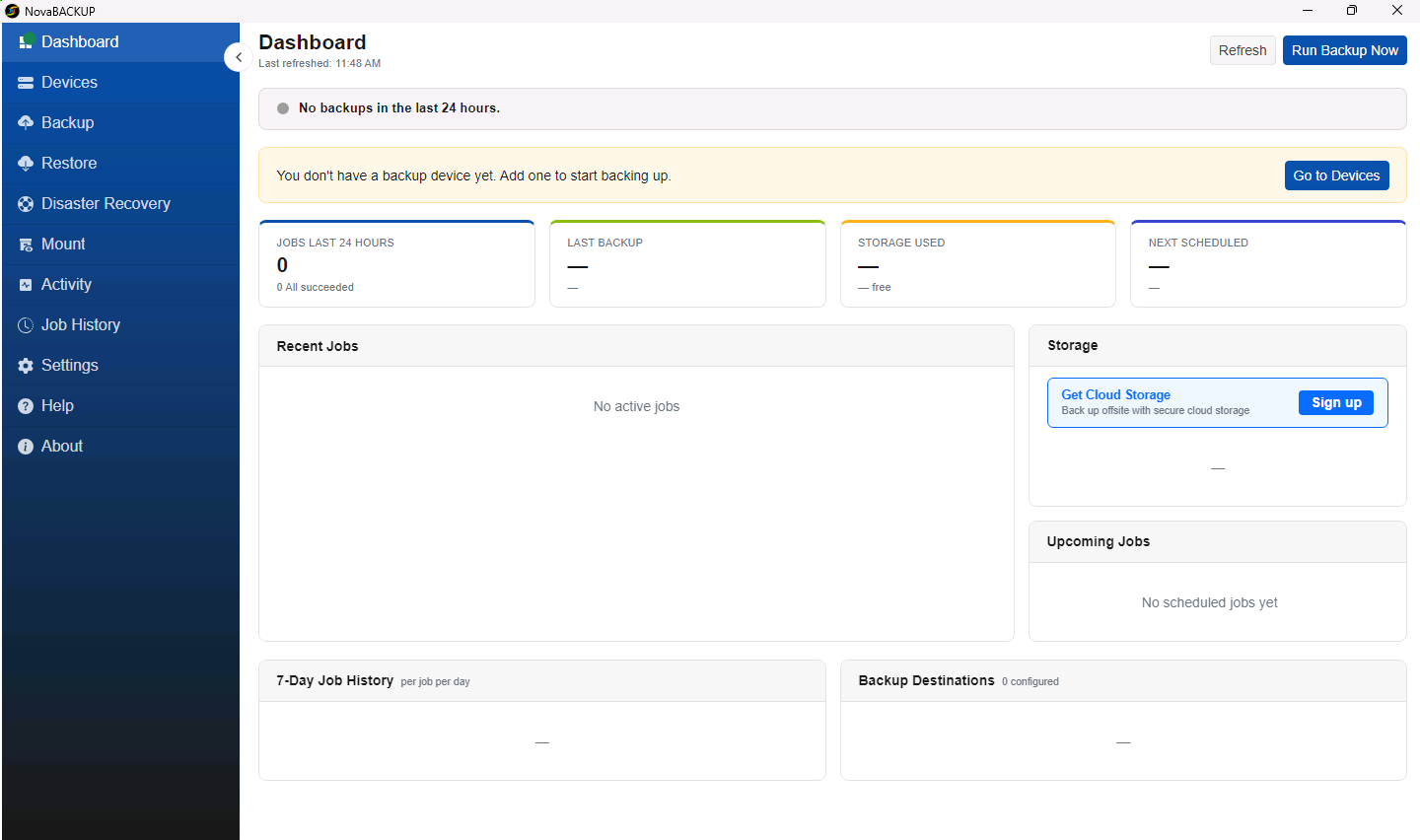
The next step is to add a place to store your backups. Click Go to Devices on the Dashboard, or follow Getting Started with NovaBACKUP 22 for the complete first-day setup.
Related Articles
- Getting Started with NovaBACKUP 22
- Adding a Local or Network Backup Device
- Signing Up for NovaBACKUP Cloud Storage
- A Tour of the NovaBACKUP 22 Dashboard
Still Need Help?
Contact NovaBACKUP Support:
- Email: support@novabackup.com
- Phone: +1 805-579-6700 (press 2 for support)
- Submit a ticket: https://16246.share.hsforms.com/21oWGOmxeQpKD1M8jmfKBAQ
- More options: https://www.novabackup.com/support