
Applies to: NovaBACKUP 22 PC Agent and Server Agent.
The Settings page holds the options that apply to the whole program rather than to one job. This article explains each tab. On most computers, you never need to change these settings.
Click Settings in the menu on the left. Each tab has its own Save button.
General
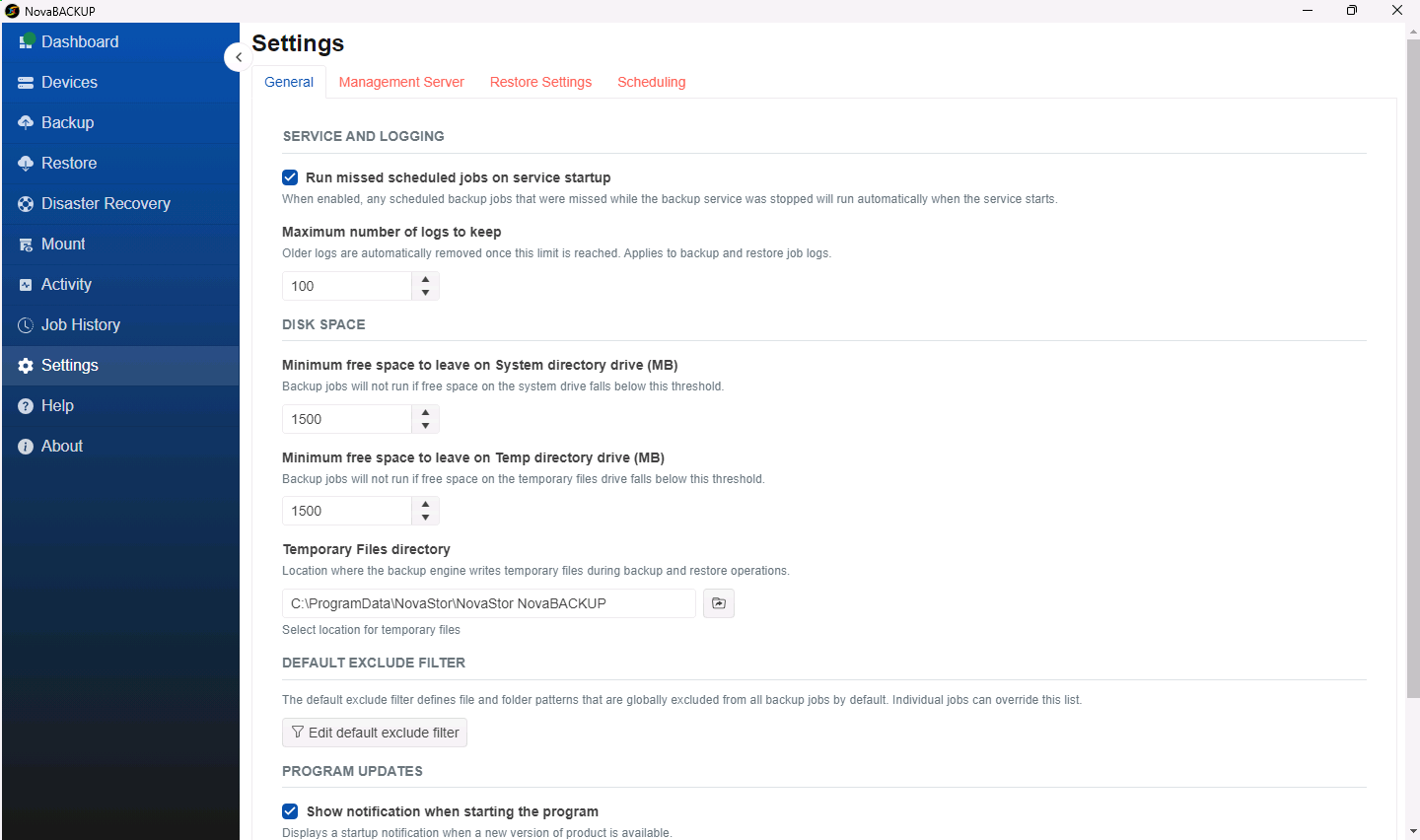
| Setting | What it does |
|---|---|
| Run missed scheduled jobs on service startup | On by default. If a job's scheduled time passes while the computer is off, the job runs when the computer starts again. Leave it on for laptops and computers that are shut down at night. |
| Maximum number of logs to keep | How many backup and restore logs are kept in Job History. Older logs are removed. The default is 100. |
| Minimum free space to leave on System directory drive (MB) | Backups do not run when the Windows drive has less free space than this. The default is 1500 MB. |
| Minimum free space to leave on Temp directory drive (MB) | The same check for the drive that holds the temporary files. The default is 1500 MB. |
| Temporary Files directory | Where the backup engine writes temporary files. Change it only if the Windows drive is low on space. A change takes effect after the NovaBACKUP service restarts. |
| Edit default exclude filter | File and folder patterns that every backup job skips, such as temporary files. Add, edit, or remove patterns, then click Save. |
| Show notification when starting the program | Shows a message when a newer version of NovaBACKUP is available. |
| Automatically update before running a backup | Checks for and installs updates before each backup runs. |
Management Server
This tab connects the computer to a NovaBACKUP Management Console (CMon) for central monitoring and management.
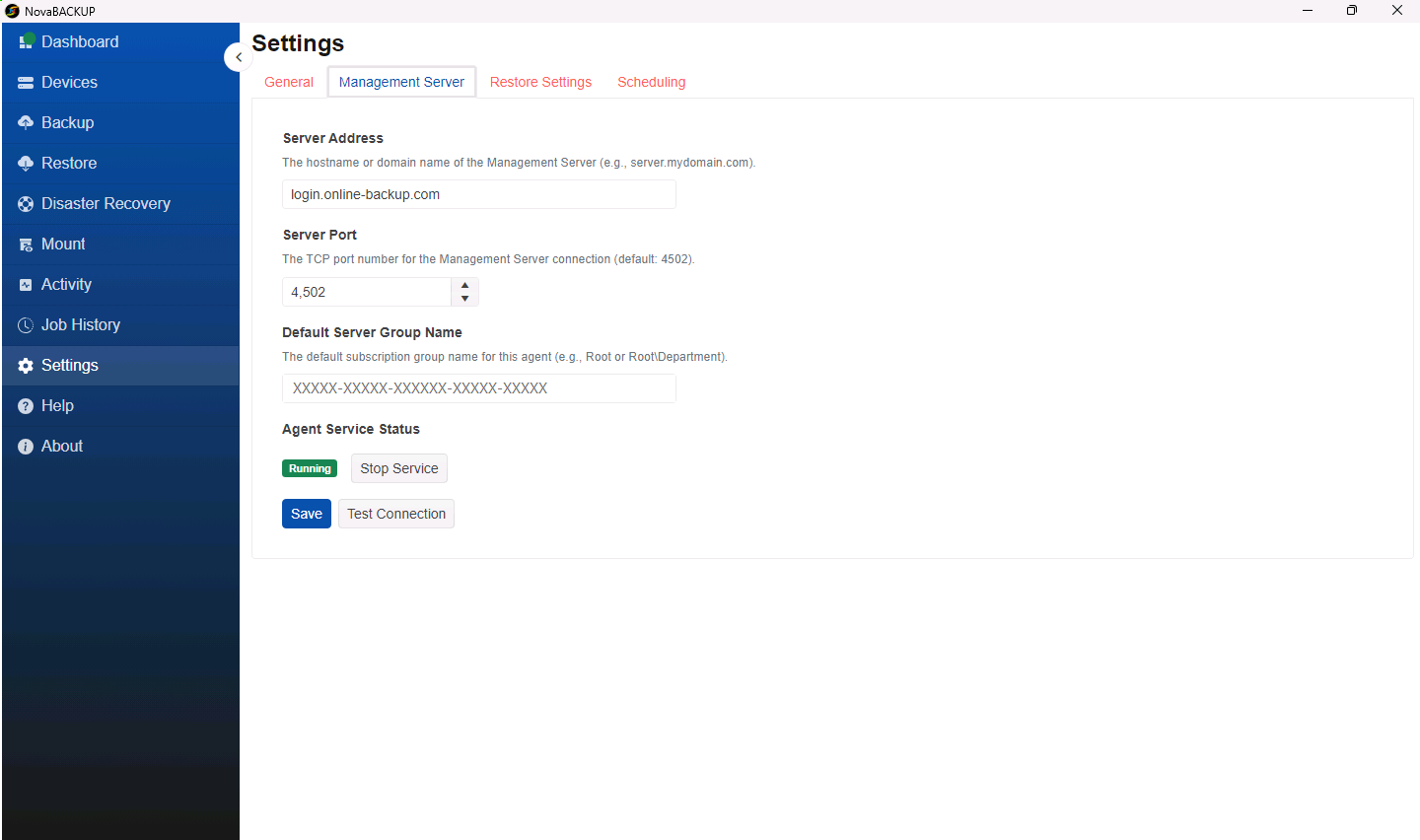
- Server Address and Server Port: the address of the Management Server and its port,
4502by default. - Default Server Group Name: the group the computer joins on the Management Server.
- Agent Service Status: shows whether the agent service is Running, with a button to start or stop it. The computer appears in the Management Console only while the service is running.
- Test Connection: checks that the server can be reached. Click Save to store the settings.
Important: If you signed up for NovaBACKUP Cloud or your computer is managed by an MSP, this tab is already filled in. Do not change it unless your MSP or NovaBACKUP Support asks you to. If you use NovaBACKUP Cloud, this connection keeps your cloud device working. If the computer cannot reach the server for 30 days, backups to the cloud device fail with error e0010029.
Restore Settings
This tab holds options for large restores. For details, see the Global restore settings section of Restoring Files and Folders.
Scheduling
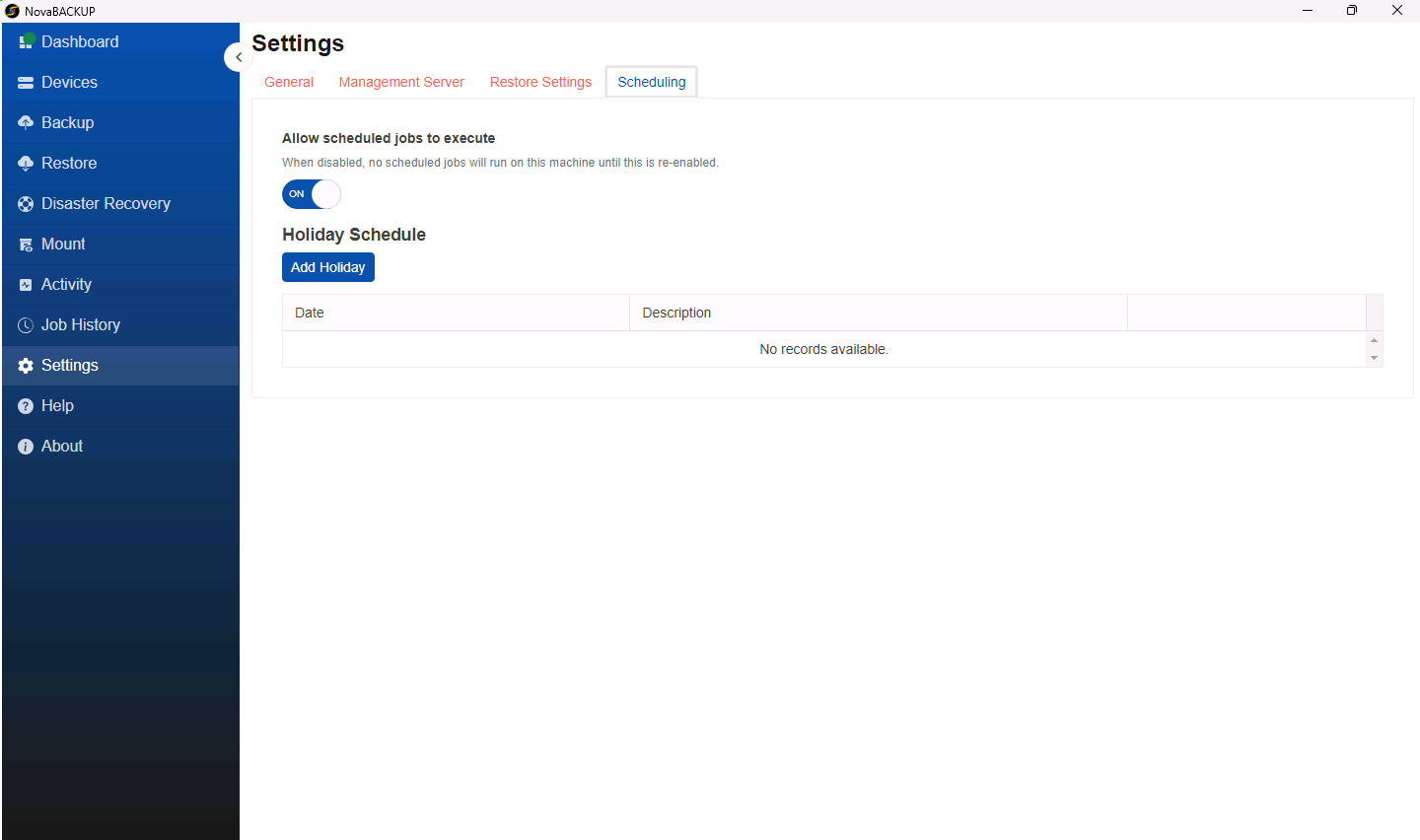
- Allow scheduled jobs to execute: on by default. Turn it off to stop all scheduled jobs on this computer, for example during maintenance. Jobs you start manually still run. Turn it back on afterward.
- Holiday Schedule: dates on which scheduled jobs do not run, for example when the office is closed. Click Add Holiday, choose a date, enter a description, and click OK. You can edit or delete each holiday later.
A job you start with Start on the Backup page runs even while Allow scheduled jobs to execute is off. A job started from the CMon waits until the setting is turned back on.
Related Articles
- A Tour of the NovaBACKUP 22 Dashboard
- Restoring Files and Folders
- Creating and Scheduling Your First Backup Job
Still Need Help?
Contact NovaBACKUP Support:
- Email: support@novabackup.com
- Phone: +1 805-579-6700 (press 2 for support)
- Submit a ticket: https://16246.share.hsforms.com/21oWGOmxeQpKD1M8jmfKBAQ
- More options: https://www.novabackup.com/support