
Applies to: NovaBACKUP 22 PC Agent and Server Agent.
A backup job defines what to back up, where to store it, and when to run. In this article, you create a job that backs up a user's Documents folder to a local device every day, and then run it once by hand to confirm that it works.
Prerequisites
- At least one backup device. See Adding a Local or Network Backup Device or Signing Up for NovaBACKUP Cloud Storage.
Step 1: Start a new job
- Click Backup in the menu on the left.
- Open the job list at the top of the page and select New backup job. If you have no jobs yet, the page starts a new job for you.
- Click the job name, which is My File Backup Job by default, and type a name that says what the job does, for example
Documents to Local Backups.
Step 2: Choose what to back up
- In the tree on the left, expand the drive and browse to the folder you want, for example
C:\Users\<user name>. - Select the check box of each folder or file to include. Selecting a folder includes everything in it, even files added later.
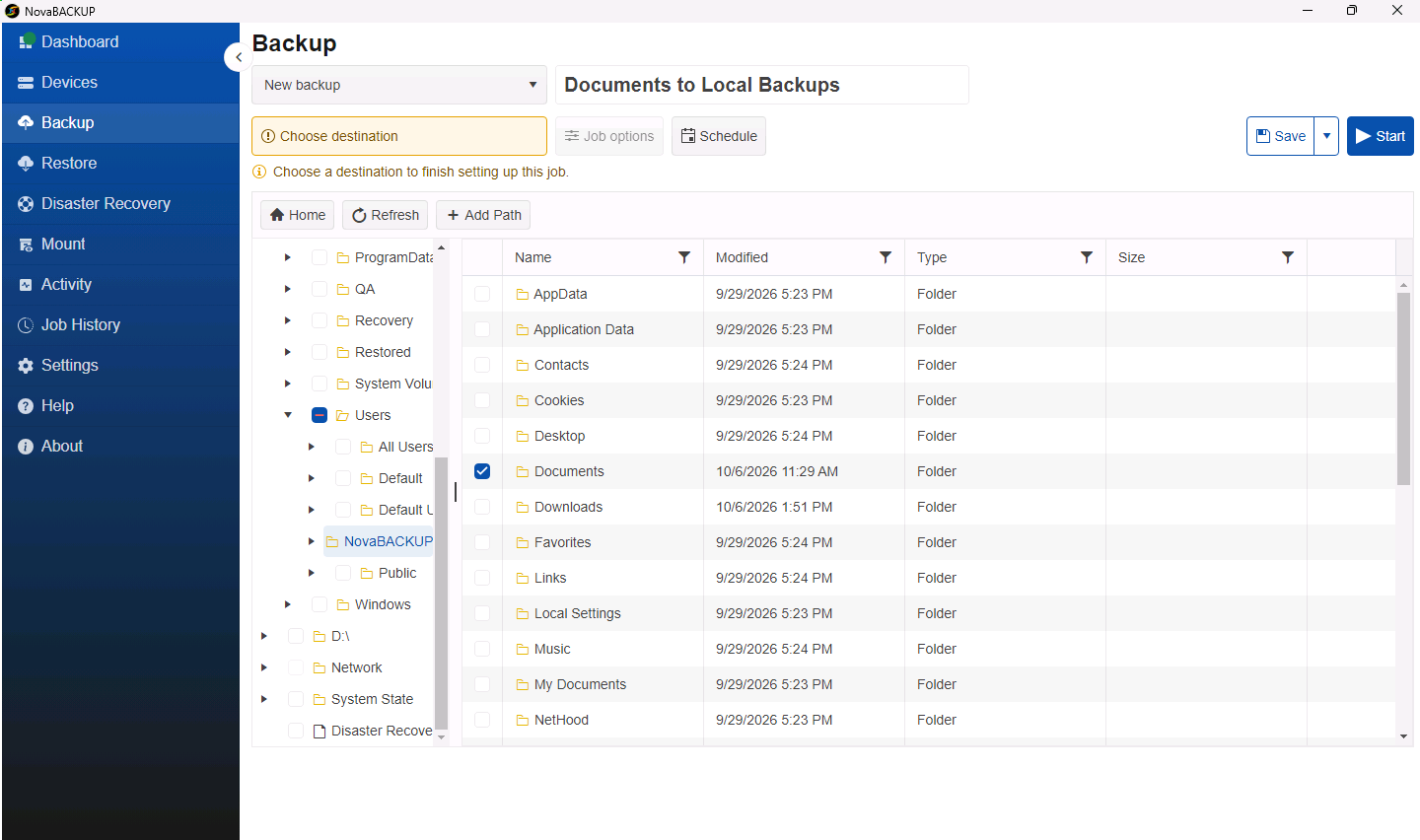
Note: A partly filled check box on a parent folder means that some of the items in it are selected.
The tree also lists Network for network shares, plug-ins such as System State, and Disaster Recovery for a full system backup. See Backing Up a Computer for Full System Recovery.
Step 3: Choose where to store it
- Click Choose destination below the job list. Until a destination is chosen, the button is highlighted in yellow and the line under it reads Choose a destination to finish setting up this job.
- Select the device, for example Local Backups, and click OK. The button now shows the device name, and the reminder disappears.
Step 4: Set a schedule
- Click Schedule.
- Select Daily.
- Set the Start time to a time when the computer is on, for example
12:30 PMor8:00 PM. - Leave Repeat at
1day. Under Repeat on, the highlighted days are the days the job runs. Click a day to turn it off, for example Saturday and Sunday for an office computer.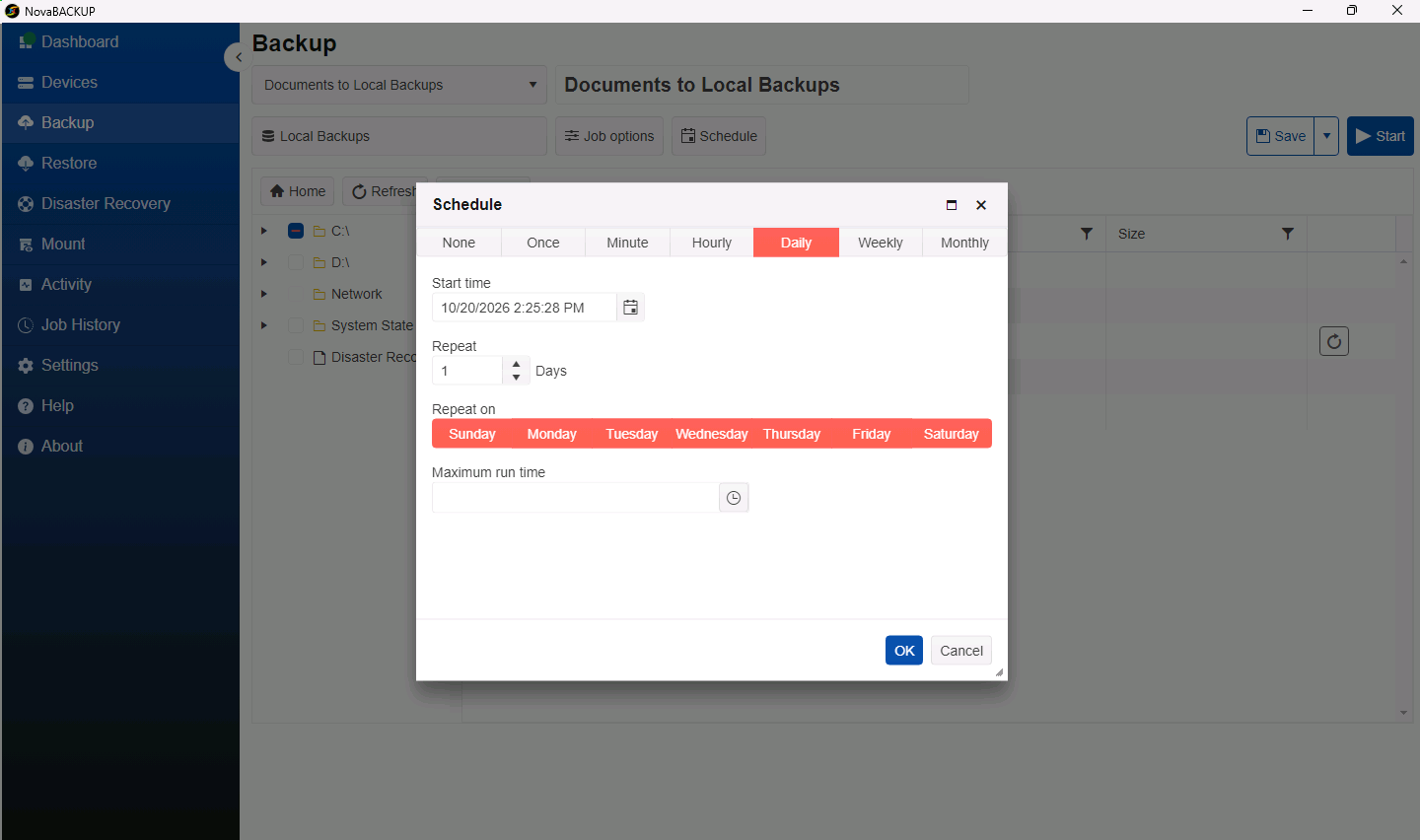
- Optionally, set a Maximum run time, after which NovaBACKUP stops any run that is still in progress.
- Click OK.
The other schedule types are Once, Minute, Hourly, Weekly, and Monthly. None means the job runs only when you start it.
Step 5: Review the job settings (optional)
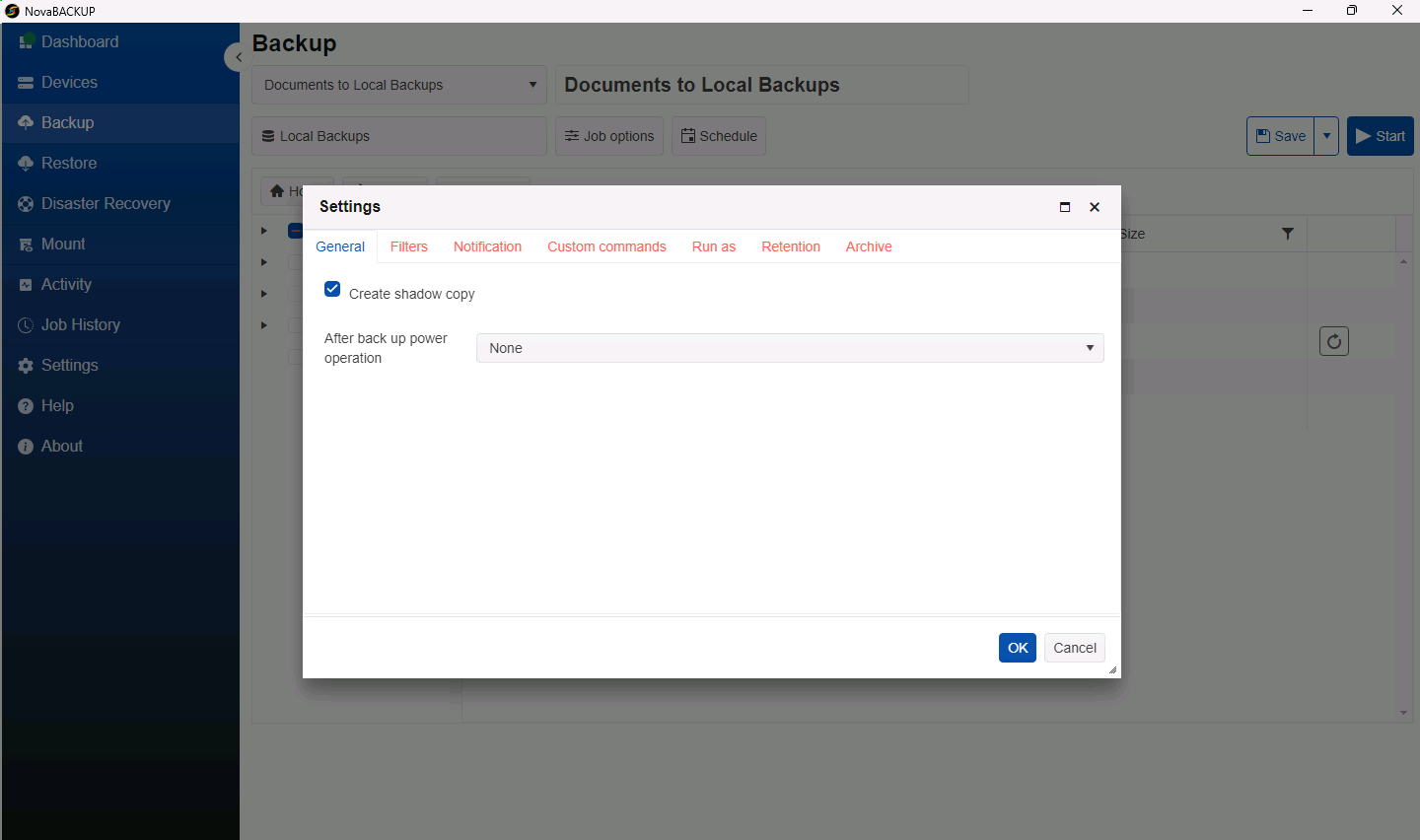
Click Job options to open the job's Settings. The defaults suit most jobs. The tabs are:
| Tab | Use it to |
|---|---|
| General | Keep Create shadow copy on so that open files, such as Outlook data files, are backed up. Choose an After back up power operation, such as shutting down the computer. |
| Filters | Exclude files by name, for example *.tmp, *.iso. |
| Notification | Send an email when the job finishes. See Setting Up Email Notifications for Backup Jobs. |
| Custom commands | Run a command before or after the backup. |
| Run as | Run the job as a specific Windows account, for example to reach a network share. |
| Retention | Decide how long old versions are kept. See Understanding Backup Retention. |
| Archive | Copy each backup to a second device. See Setting Up a Hybrid Backup (Local and Cloud). |
Step 6: Save and run the job
- Click Save. The message Backup saved successfully. confirms the save. To save a copy as a job file, click the arrow next to Save and select Save as.
- Click Start to run the job now, without waiting for the schedule.
- NovaBACKUP switches to the Activity page, where you can follow the progress.
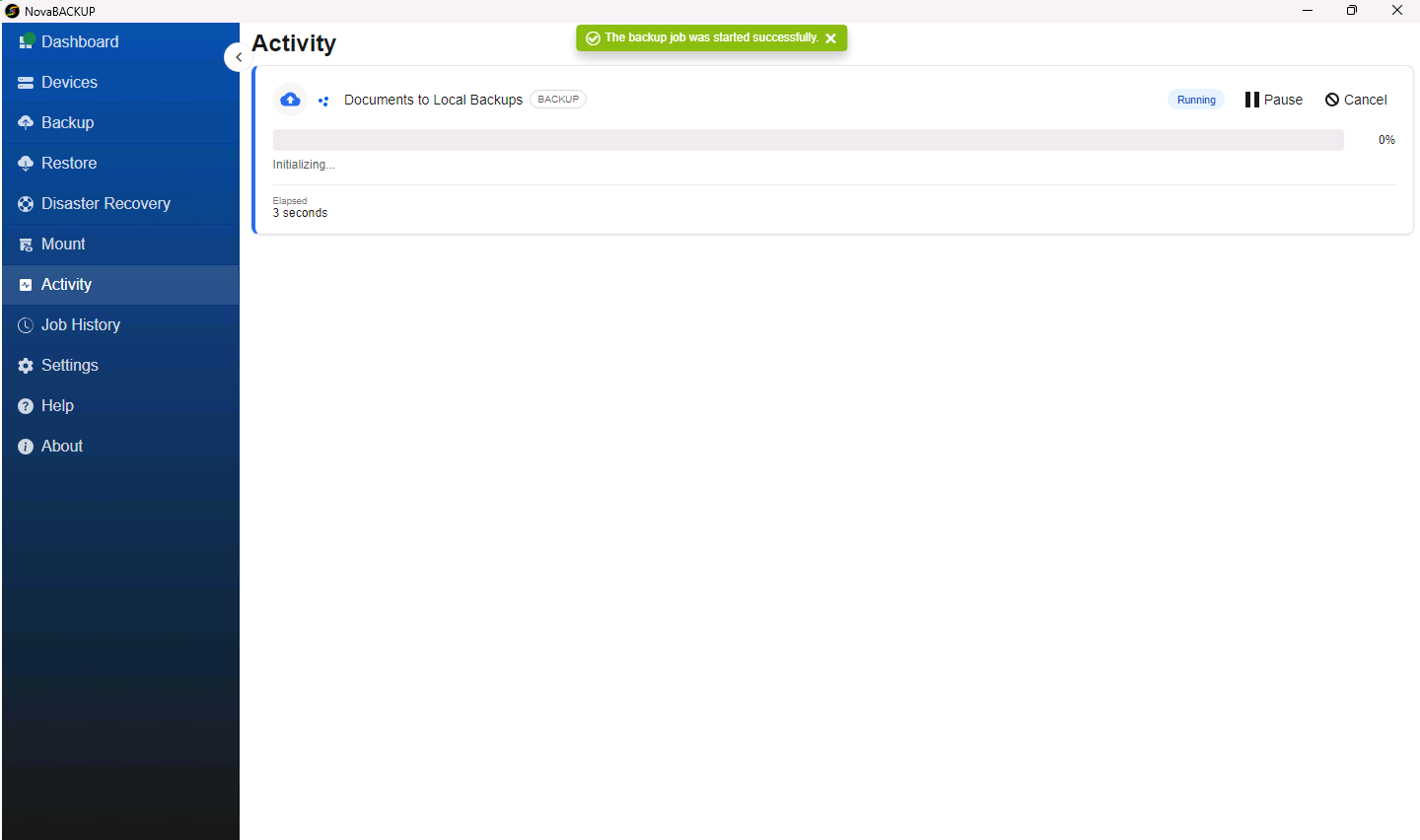
When the run finishes, its result is listed on the Dashboard and in Job History.
Note: If you leave the Backup page with unsaved changes, NovaBACKUP asks whether to save them first.
Best practices
- Run every new job once by hand and check its result before you rely on the schedule.
- Restore a few files from the first backup to confirm that you can get them back. See Restoring Files and Folders.
- Give each job a name that says what it backs up and where, so restore lists stay clear.
Related Articles
- Understanding Backup Retention
- Setting Up a Hybrid Backup (Local and Cloud)
- Restoring Files and Folders
- Reviewing Job History
Still Need Help?
Contact NovaBACKUP Support:
- Email: support@novabackup.com
- Phone: +1 805-579-6700 (press 2 for support)
- Submit a ticket: https://16246.share.hsforms.com/21oWGOmxeQpKD1M8jmfKBAQ
- More options: https://www.novabackup.com/support