
Applies to: NovaBACKUP 22 PC Agent and Server Agent.
This article shows how to restore files and folders from a backup, either to where they came from or to a different folder, and explains the restore options. To restore a whole computer, see Backing Up a Computer for Full System Recovery instead.
Prerequisites
- At least one completed backup
- The device that holds the backup is connected and reachable
Tip: If you need only one or two files back, mounting the backup can be quicker, because it shows the backup as a folder in File Explorer. See Mounting a Backup to Browse and Copy Files.
Step 1: Choose the backup to restore from
- Click Restore in the menu on the left.
- Click the backup set button at the top of the page. It shows the job and date of the selected backup set. Before you choose one, it reads Select backup set and is highlighted in yellow.
- In the Select the backup job to recover from dialog, choose the job under Backup Job.
- Days with backups are marked in the calendar. Select a day, then select the backup set in the list on the right. The Source Device column shows which device holds it.
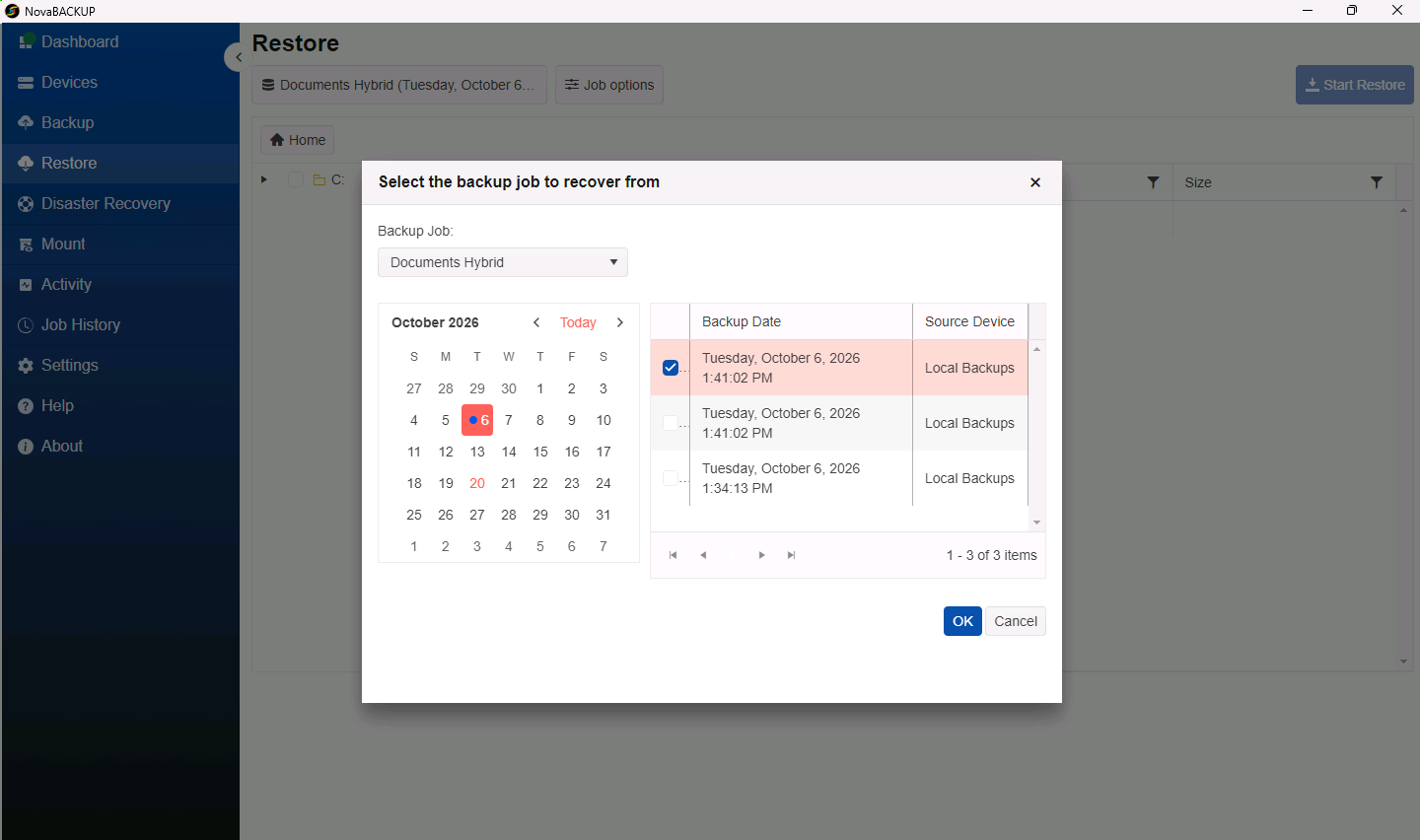
- Click OK.
Step 2: Select the files and folders
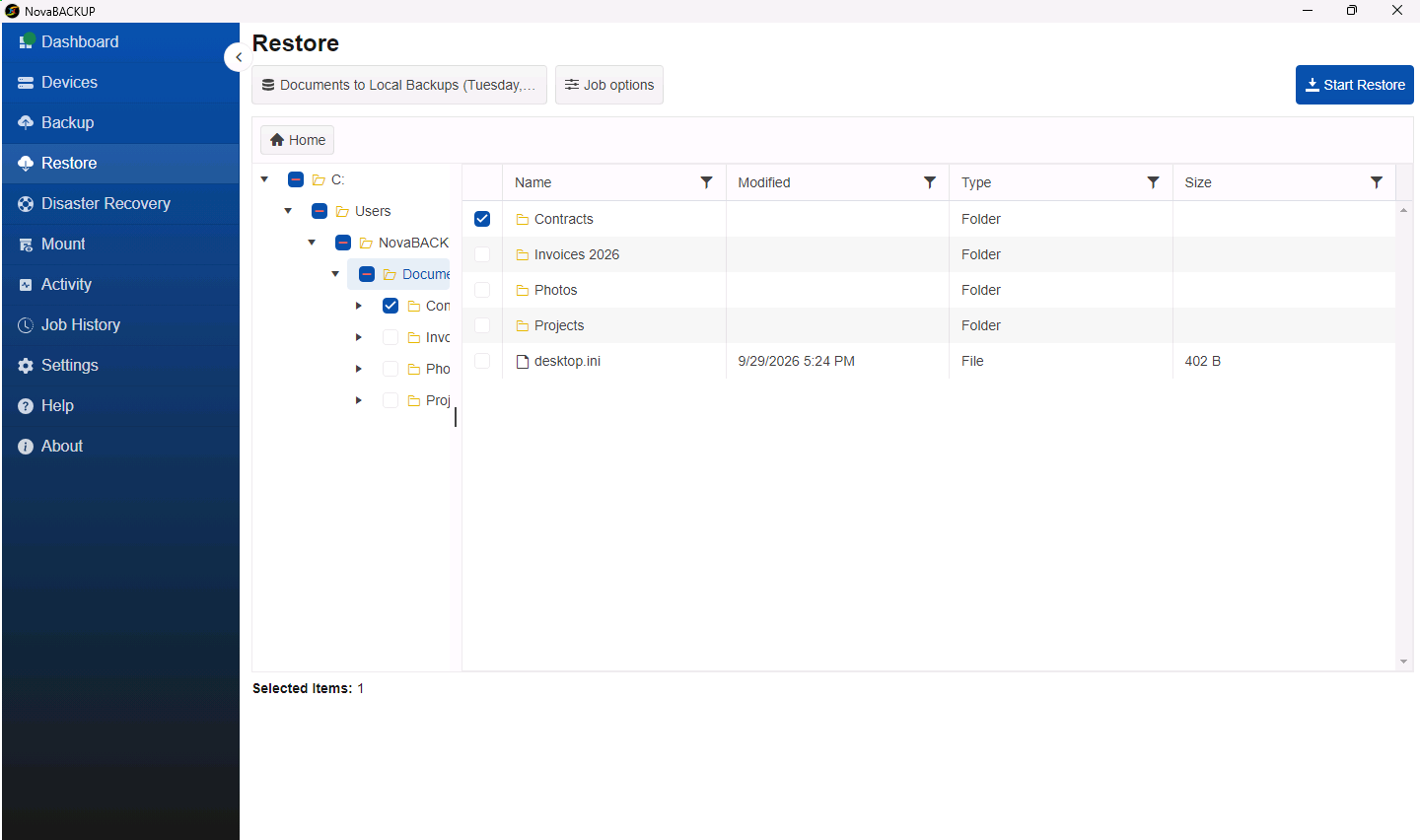
- Browse the backup in the tree on the left, the same way you would in File Explorer.
- Select the check box of each folder or file to restore. Selected Items at the bottom of the page shows how many items you selected.
Step 3: Choose where to restore and what to overwrite
- Click Job options to open the restore Settings.
- On the General tab:
- Leave Restore to alternate location off to put the files back where they were.
- Turn it on and enter a folder, for example
C:\Restored, to restore a copy next to the current files. To browse for the folder instead, click the folder icon.
- Choose the Overwrite mode:
Option When a file with the same name already exists Always overwrite existing files It is replaced with the backup copy. Overwrite existing files if they are older It is replaced only if it is older than the backup copy. Do not overwrite existing files It is left alone, and the backup copy is skipped. 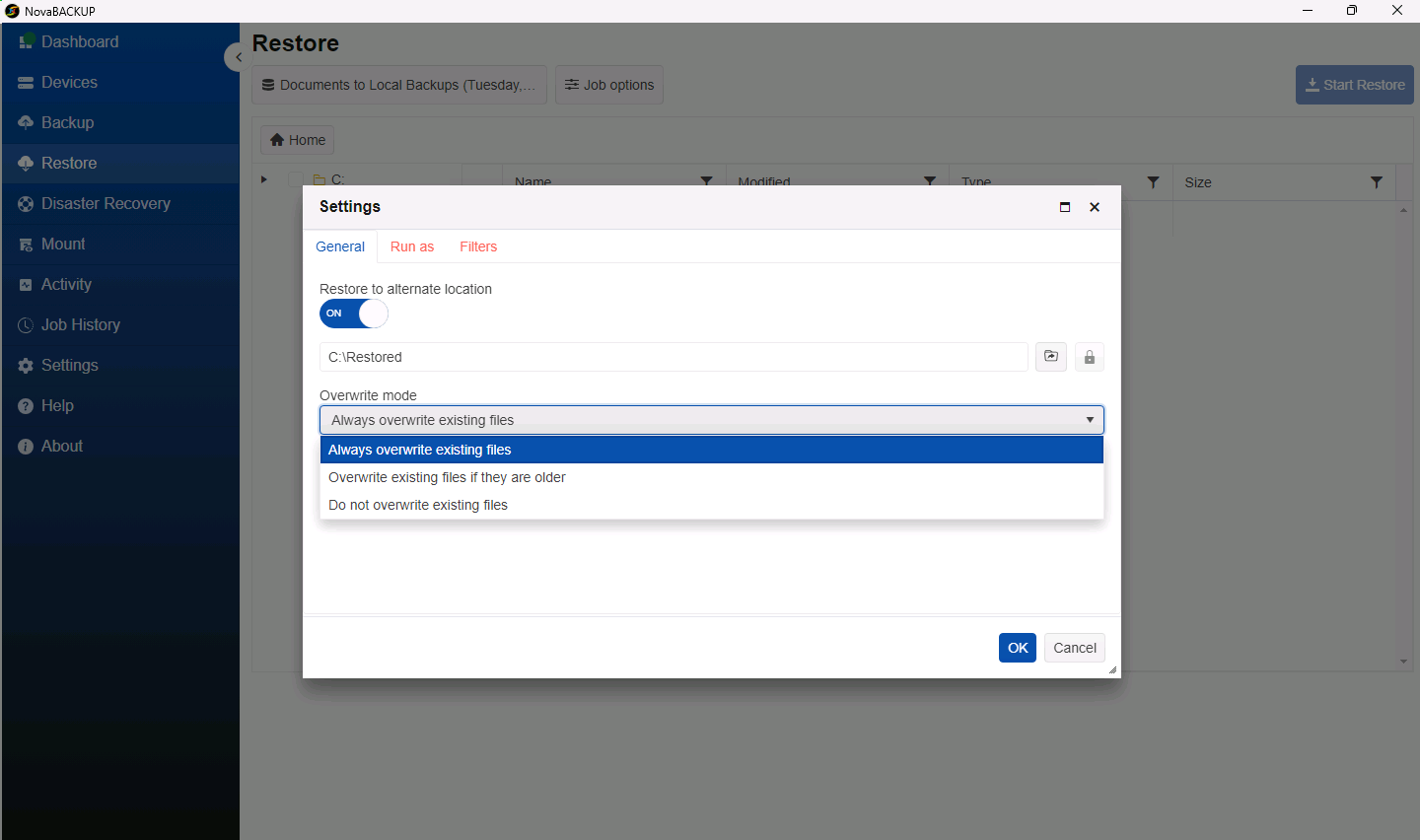
- Optionally, use Run as to restore as a specific Windows account, for example to write to a network share, and Filters to skip files by name.
- Click OK.
Important: When you restore to the original location, Always overwrite existing files replaces the current version of each file with the backup copy. If you are not sure which version you need, restore to an alternate location first and compare.
Step 4: Start the restore
- Click Start Restore.
- Follow the progress on the Activity page. When the restore finishes, it is also listed in Job History as Interactive restore.
Global restore settings
Large restores can run several restore engines at once. These settings apply to every restore on the computer and are under Settings > Restore Settings:
| Setting | What it does |
|---|---|
| Max Concurrent Engines | The maximum number of engine processes that can run at the same time during one restore. The default is 4. |
| Min Files [threshold] For Concurrency | A restore of fewer files than this runs in one engine. A larger restore is split into groups of this many files, which run in parallel engines. The default is 40,000. |
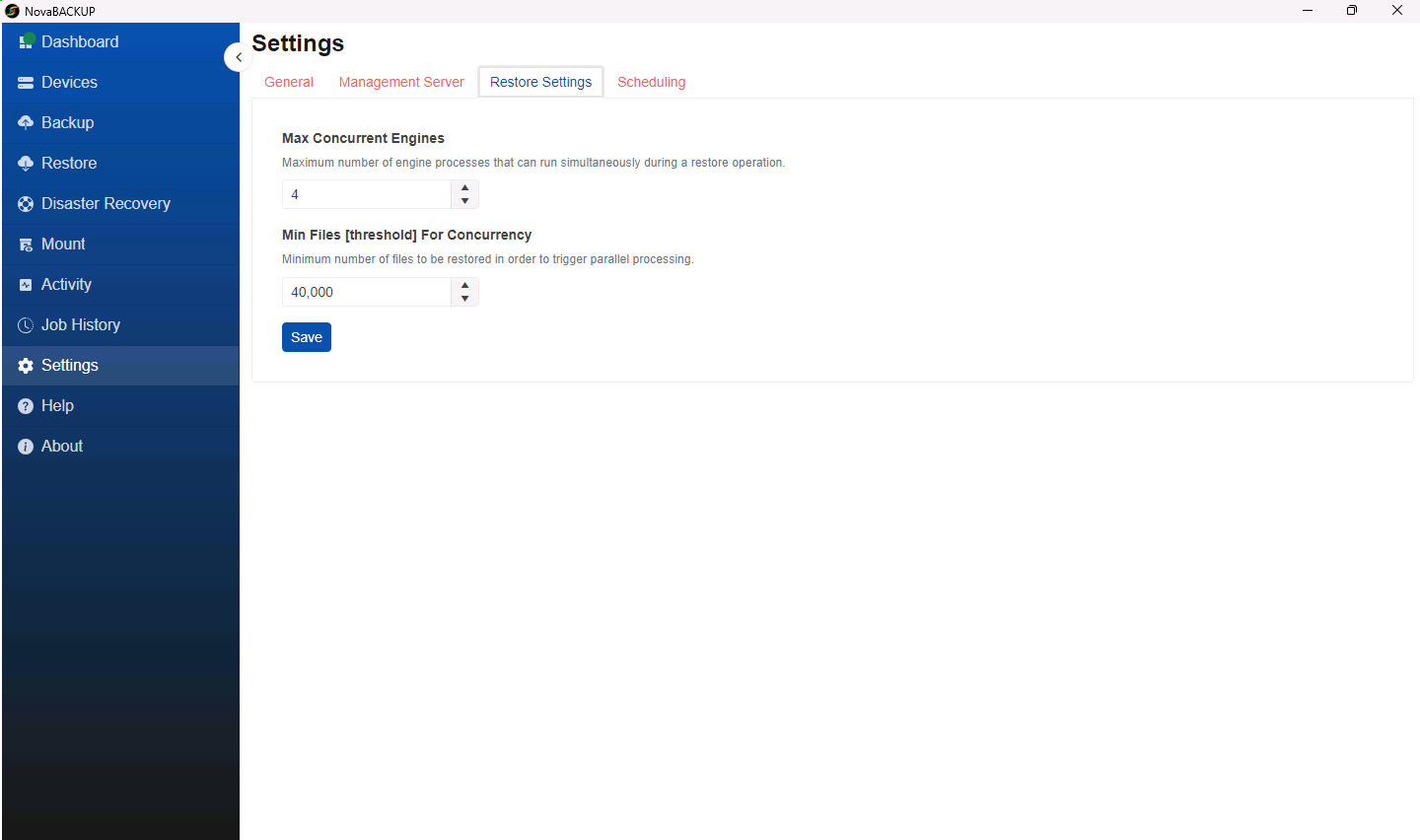
The defaults suit most computers. Lower Max Concurrent Engines if a large restore makes a computer with little memory slow to respond. Click Save after you make a change.
Related Articles
- Mounting a Backup to Browse and Copy Files
- Restoring to a New Computer: Importing Your Backups
- Reviewing Job History
- Creating and Scheduling Your First Backup Job
Still Need Help?
Contact NovaBACKUP Support:
- Email: support@novabackup.com
- Phone: +1 805-579-6700 (press 2 for support)
- Submit a ticket: https://16246.share.hsforms.com/21oWGOmxeQpKD1M8jmfKBAQ
- More options: https://www.novabackup.com/support