
Applies to: NovaBACKUP 22 PC Agent and Server Agent.
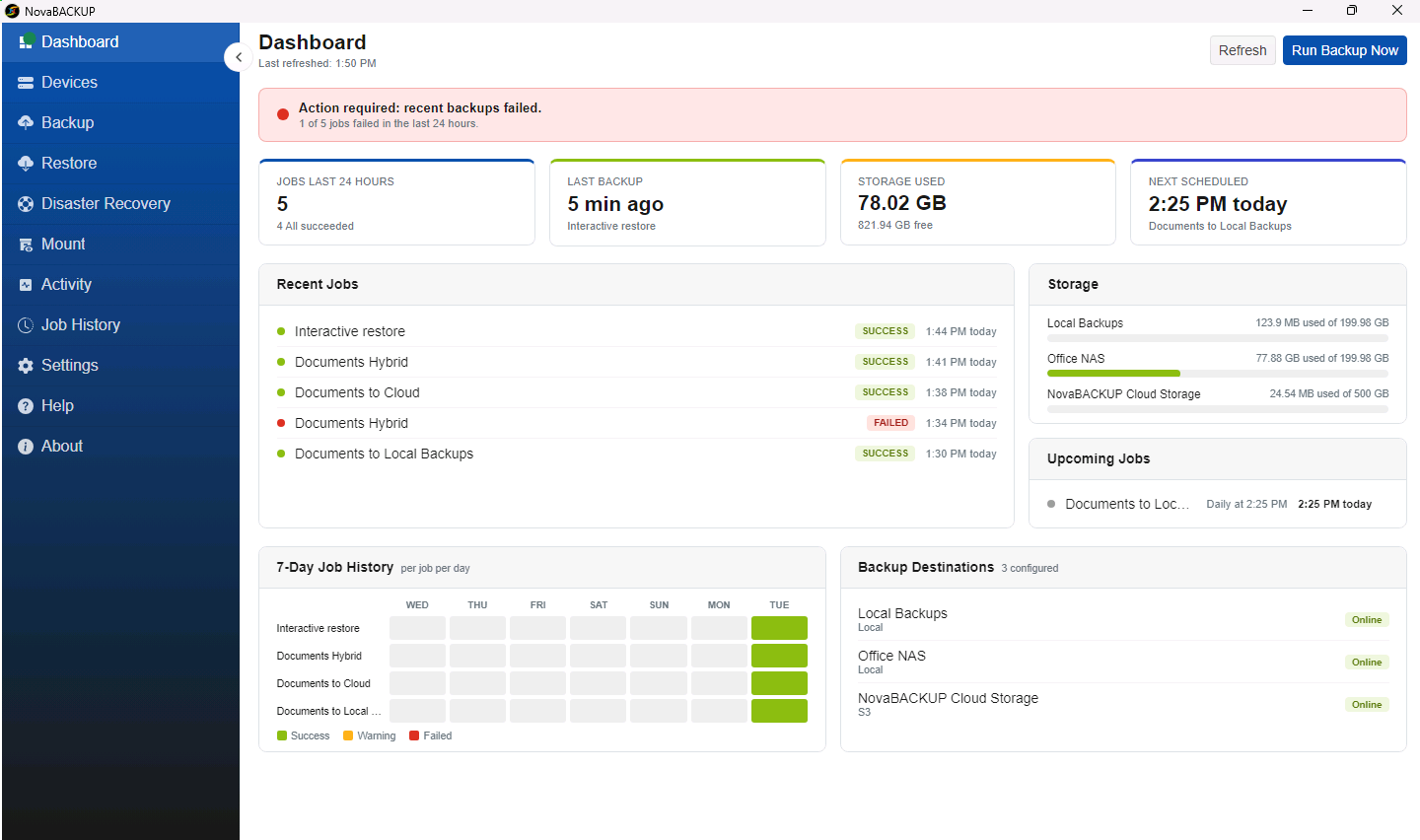
The Dashboard is the first page you see when you open NovaBACKUP. It answers the questions you have most often: did last night's backups work, where are they stored, how much space is left, and what runs next. This article explains each part of the page.
Status banner
The banner at the top summarizes the last 24 hours in one line:
| Banner | Meaning |
|---|---|
| No backups in the last 24 hours. | No backup job has run in the last day. This is expected on a new installation. Otherwise, check that your jobs have a schedule. |
| Recent backups successful. | Every job in the last 24 hours succeeded. |
| Recent backups completed with warnings. | No job failed, but at least one reported a warning. The line below says how many. |
| Action required: recent backups failed. | At least one job failed. The line below says how many. Open Job History to see why. |
If you have not added a backup device yet, a second banner appears with a Go to Devices button.
Summary cards
| Card | What it shows |
|---|---|
| Jobs last 24 hours | How many jobs ran in the last day, and how many of them succeeded. |
| Last backup | How long ago the most recent job finished, and which job it was. |
| Storage used | The space your backups use across all devices, and the free space that remains. |
| Next scheduled | When the next scheduled job starts, and which job it is. |
Recent Jobs
This panel lists the last few backup and restore jobs, newest first, each with its result (SUCCESS, WARNING, or FAILED) and the time it finished. For the full record of every run, open Job History.
Storage
This panel shows each backup device with its used space and total size. Until you add NovaBACKUP Cloud Storage, this panel also shows a Get Cloud Storage box with a Sign up button. See Signing Up for NovaBACKUP Cloud Storage.
Upcoming Jobs
This panel lists the jobs that have a schedule, with their schedule and next run time. A run that should already have started is marked Overdue, and a job whose schedule is paused is marked Paused. A job without a schedule does not appear here; it runs only when you start it.
7-Day Job History
The grid shows one row per job and one column per day. Each square is colored by the worst result of that job on that day: green for success, yellow for warning, and red for failure. A gray square means the job did not run that day. This grid makes a job that quietly stopped running easy to spot.
Backup Destinations
This panel lists every device you have added, its type (for example Local or S3), and whether NovaBACKUP can reach it right now (Online). If a destination is offline when a job starts, the job fails, so check this panel first when a backup fails.
Buttons
- Refresh reloads the page. The time it was last refreshed is shown under the page title.
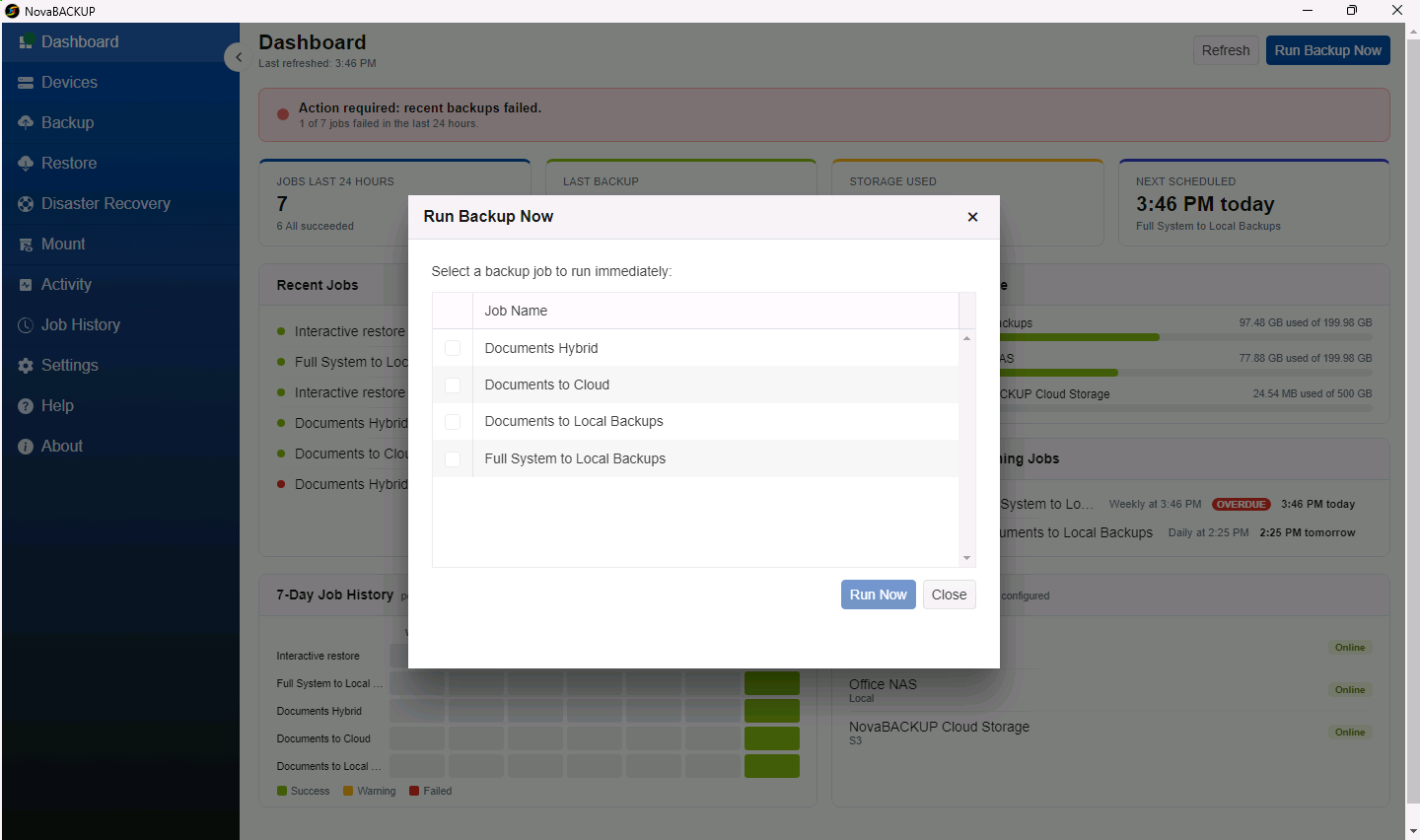
- Run Backup Now lists your backup jobs. Select a job and click Run Now to start it immediately, outside its schedule. If you have no jobs yet, it offers Create a backup job instead.
Related Articles
- Getting Started with NovaBACKUP 22
- Reviewing Job History
- Monitoring Running Jobs on the Activity Page
- Adding a Local or Network Backup Device
Still Need Help?
Contact NovaBACKUP Support:
- Email: support@novabackup.com
- Phone: +1 805-579-6700 (press 2 for support)
- Submit a ticket: https://16246.share.hsforms.com/21oWGOmxeQpKD1M8jmfKBAQ
- More options: https://www.novabackup.com/support