
Applies to: NovaBACKUP 22 PC Agent and Server Agent.
Job History keeps a record of every backup, restore, and other job that has run on this computer. Use it to confirm that backups ran, to find out why one failed, and to run a backup again.
The job list
Click Job History in the menu on the left. The newest job is at the top.
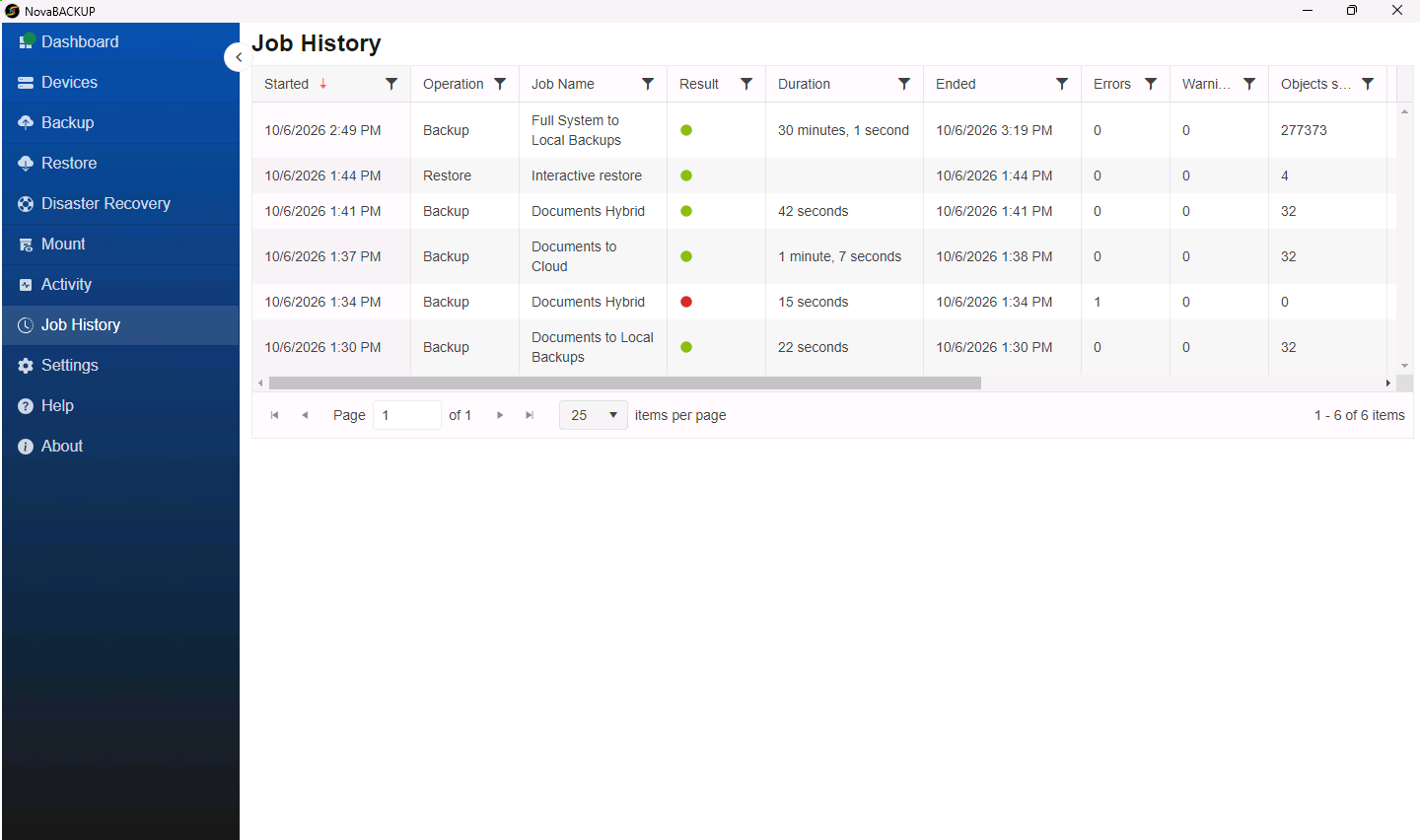
| Column | What it shows |
|---|---|
| Started and Ended | When the job started and finished. |
| Operation | The kind of job, for example Backup, Restore, or Disaster Recovery Backup. |
| Job Name | The name of the backup job. Restores started from the Restore page are named Interactive restore. |
| Result | A green circle for successful, yellow for completed with warnings, and red for failed. |
| Duration | How long the job took. |
| Errors and Warnings | How many errors and warnings the job reported. |
| Objects Selected, Objects Completed, Objects Skipped, and Size Completed | How many files and how much data the job processed. Scroll to the right to see all columns. |
Find a job
- Click a column header to sort by it.
- Click the filter icon in a column header to show only matching jobs, for example only Failed results, or only jobs whose name contains
Cloud. - Use the controls at the bottom to move between pages and to show 10, 25, 50, or 100 jobs per page.
Open a job run
Click a job to open its details.
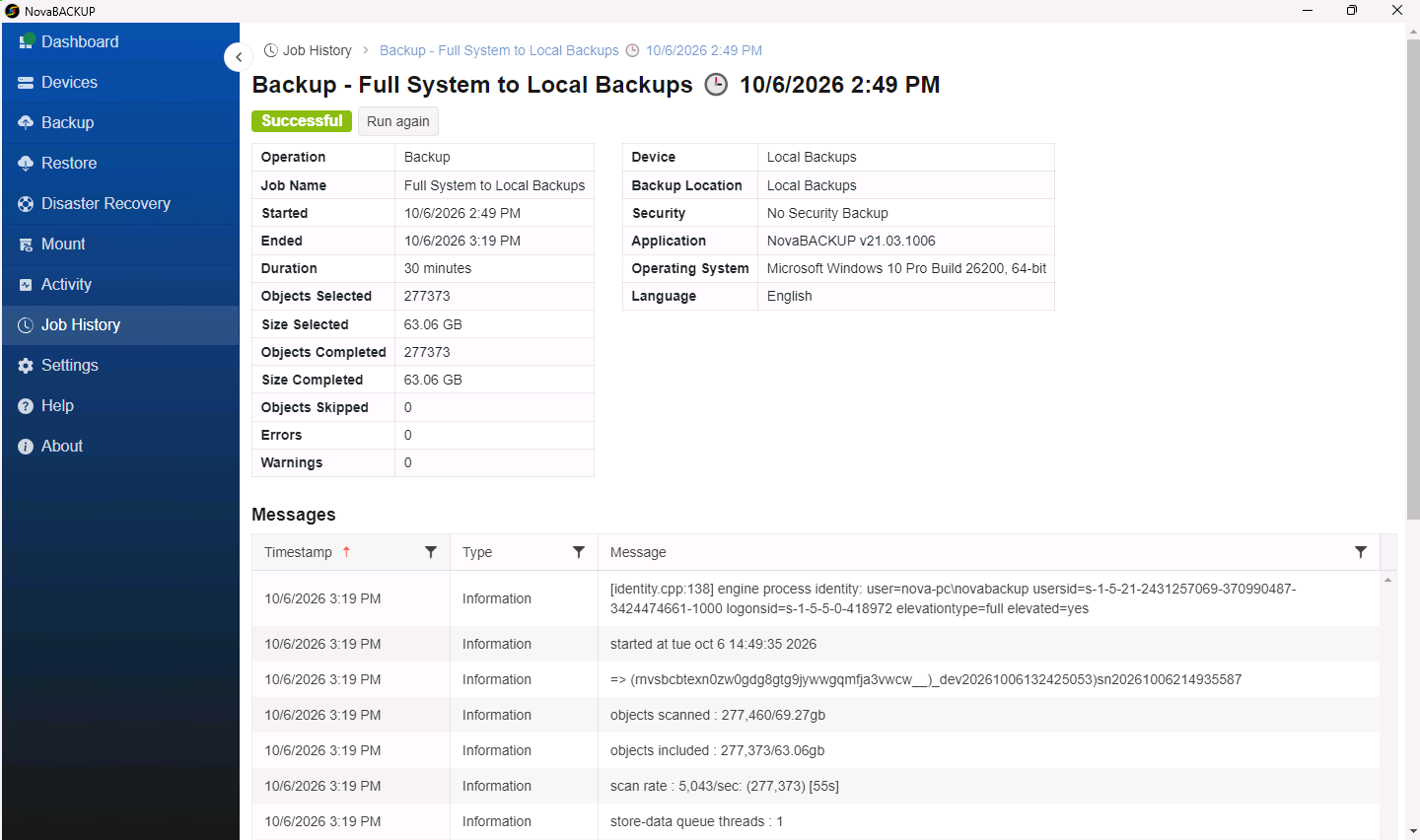
- The summary at the top shows the result, the times, the device, and the counts.
- The Messages list below shows each message the job logged, with its Type: Information, Warning, or Error. Filter the Type column to show only warnings and errors.
Run a backup again
The details of a backup run include a Run again button. It runs the backup job again with its current settings and opens the Activity page. Restore jobs cannot be run again from here.
When a job fails
- Open the run and filter Messages to Error.
- Check the first error. It is usually the cause, and later errors follow from it.
- If the error names the device, check the Backup Destinations panel on the Dashboard to confirm that the device is Online.
- Fix the cause, then click Run again.
If you contact NovaBACKUP Support about a failed job, include the error message text and the time the job ran.
Related Articles
- Monitoring Running Jobs on the Activity Page
- A Tour of the NovaBACKUP 22 Dashboard
- Setting Up Email Notifications for Backup Jobs
Still Need Help?
Contact NovaBACKUP Support:
- Email: support@novabackup.com
- Phone: +1 805-579-6700 (press 2 for support)
- Submit a ticket: https://16246.share.hsforms.com/21oWGOmxeQpKD1M8jmfKBAQ
- More options: https://www.novabackup.com/support