
Applies to: NovaBACKUP 22 PC Agent and Server Agent.
Email notifications tell you how each backup went, so you don't have to open NovaBACKUP to check. This article shows how to turn them on for a backup job, using the NovaBACKUP email service or your own mail server.
Step 1: Open the job's notification settings
- Click Backup and select the job in the job list.
- Click Job options to open the job's Settings, then select the Notification tab.
- Select Send e-mail notifications.
Step 2: Choose how the email is sent
Under Email Server Type, choose one of these:
| Option | When to use it |
|---|---|
| NovaBACKUP Email Server | The simplest choice. NovaBACKUP sends the email for you, and you enter only the recipients. |
| Custom Email Server | Your company requires email to go through its own mail server, or you want the email to come from your own address. |
Step 3: Enter the recipients
- In To, enter the address that receives the report, for example
it@example.com. Separate multiple addresses with a semicolon (;). - Optionally add more recipients in Cc and change the Subject.
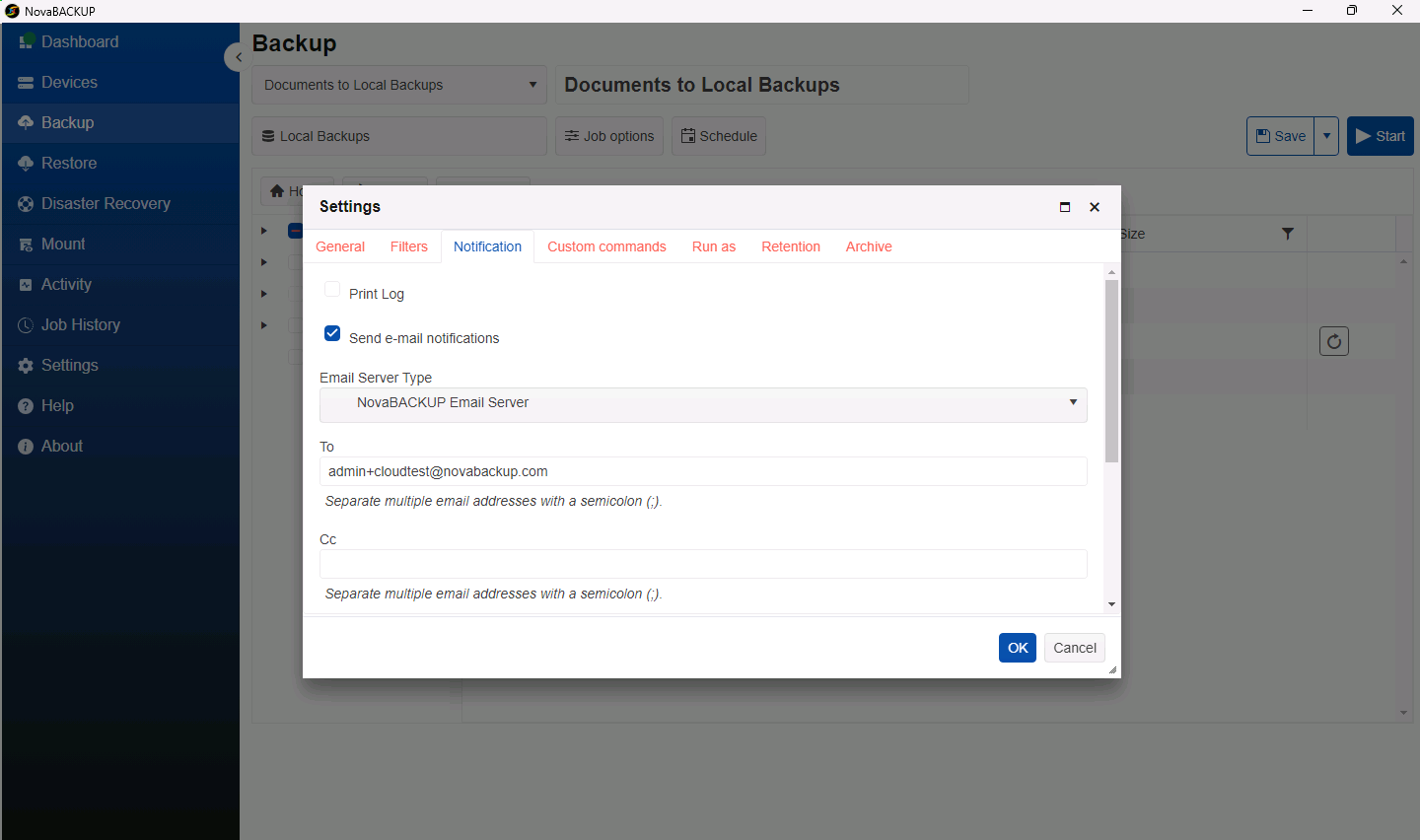
- Select Attach Log Files if you want the job log attached to the email.
Step 4 (Custom Email Server only): Enter your mail server settings
| Field | Example |
|---|---|
| Sender Name | NovaBACKUP on OFFICE-PC |
| Sender Email Address | backup@example.com |
| Server Address | smtp.example.com |
| Server Port | 587 for most providers |
| Enable SSL | On if your server supports encrypted connections |
| Enable Authentication, User Name, and Password | The account that is allowed to send from the sender address |
| Retry Count and Timeout (Seconds) | How many times to retry a failed send (1 to 5), and how long to wait for the server (1 to 30 seconds) |
Step 5: Choose when to send
The options at the bottom of the Notification tab determine when an email is sent:
| Condition | Email is sent |
|---|---|
| Always | After every run. Recommended at first, so you can confirm that the notifications work. |
| When messages, warnings, or errors occur | When the log contains any messages, warnings, or errors. |
| When warnings or errors occur | Only when something needs your attention. |
| When errors occur | Only when something goes wrong. |
Step 6: Save and test
- Click OK, then click Save.
- Click Start to run the job once, and check that the email arrives. If it does not, check your spam folder.
Best practices
- Send notifications to a shared mailbox rather than to one person, so reports are seen when someone is away.
- After you confirm that the emails arrive, switch to When warnings or errors occur if daily emails become noise. With this setting, no email means all is well, but also check the Dashboard regularly.
Related Articles
- Creating and Scheduling Your First Backup Job
- Reviewing Job History
- A Tour of the NovaBACKUP 22 Dashboard
Still Need Help?
Contact NovaBACKUP Support:
- Email: support@novabackup.com
- Phone: +1 805-579-6700 (press 2 for support)
- Submit a ticket: https://16246.share.hsforms.com/21oWGOmxeQpKD1M8jmfKBAQ
- More options: https://www.novabackup.com/support