
Applies to: NovaBACKUP 22 PC Agent and Server Agent, with your own Amazon S3 or S3-compatible storage (for example Wasabi, Backblaze B2, MinIO, or a NAS with an S3 service).
If you use NovaBACKUP Cloud, you do not need this article. NovaBACKUP adds the cloud device for you when you sign up. See Signing Up for NovaBACKUP Cloud Storage. This article is for MSPs and IT admins who back up to object storage they manage themselves.
Prerequisites
- A bucket that already exists
- The service endpoint URL of your provider, including the region where the provider uses one
- An access key ID and secret access key with permission to list, read, write, and delete objects in that bucket
Step 1: Open the cloud device form
- Click Devices in the menu on the left.
- Click Add new device, then select Cloud.
Step 2: Fill in the device settings
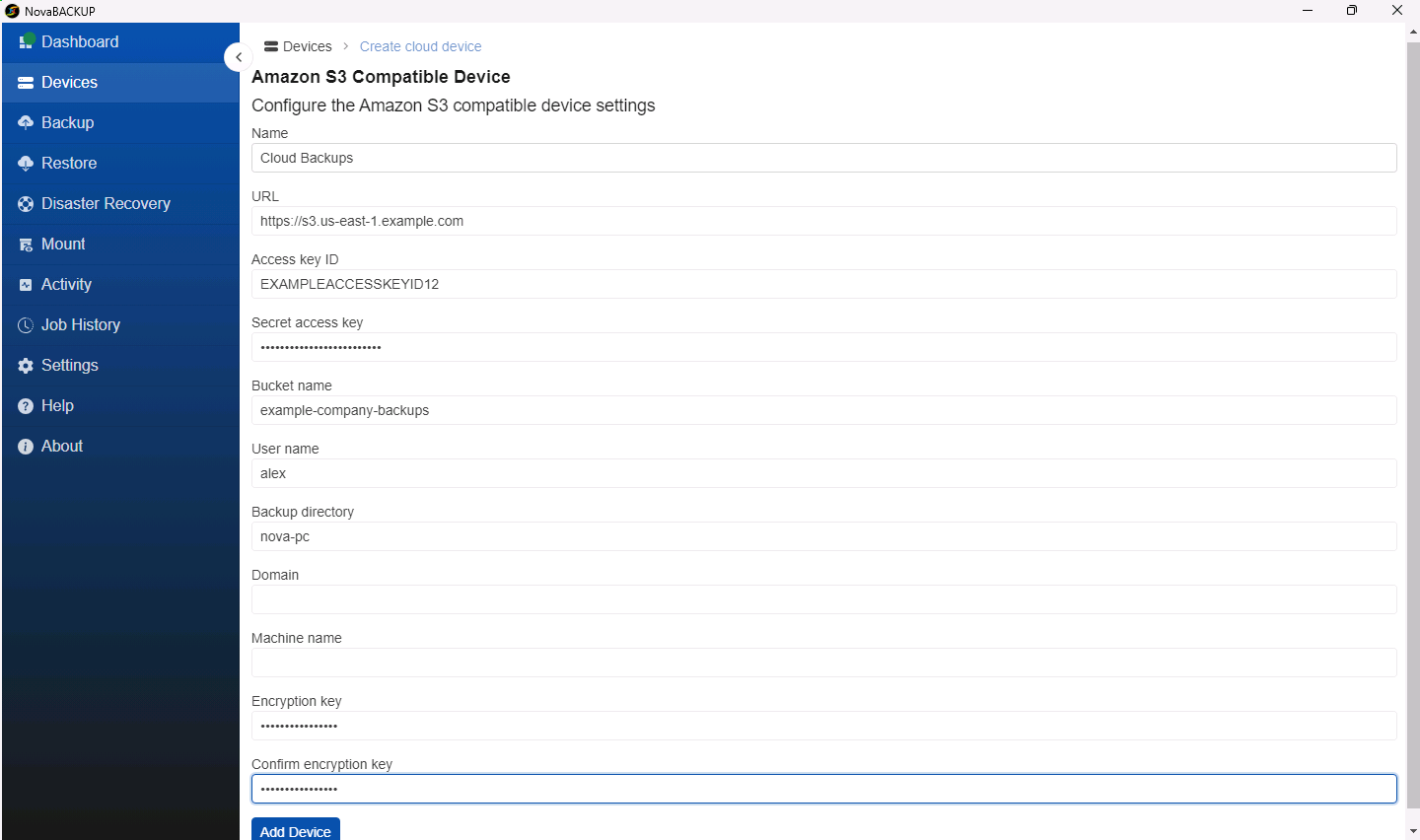
| Field | What to enter |
|---|---|
| Name | A name you will recognize in job and restore lists, for example Cloud Backups. |
| URL | The endpoint of your storage provider, for example https://s3.us-east-1.example.com. Use https whenever your provider supports it. |
| Access key ID | The access key ID from your provider. |
| Secret access key | The secret that belongs to the access key. |
| Bucket name | The name of the existing bucket, 3 to 63 characters. |
| User name | A name for the owner of these backups, for example alex. Letters, digits, and ! ' ( ) * - . _ only. The backups are stored in the bucket under Appl <User name>/<Backup directory>/<Domain>/Node <Machine name>. |
| Backup directory | The folder in the bucket for this computer's backups, for example nova-pc. Use a different backup directory for each computer that writes to the same bucket. The same character rules apply as for User name. |
| Domain and Machine name | Optional. If left empty, they are set to this computer's domain or workgroup and its computer name. To reach another computer's backups, for example after replacing a computer, enter that computer's values. |
| Encryption key and Confirm encryption key | 10 to 30 characters. Every backup to this device is encrypted with this key before it leaves the computer. |
Important: Store the encryption key somewhere safe outside this computer, such as a password manager. NovaBACKUP cannot recover your backups without it, and neither can NovaBACKUP Support.
Step 3: Add the device
- Click Add Device.
- The new device appears in the list on the Devices page with the type Cloud.
Best practices
- Create a dedicated access key for NovaBACKUP, limited to the backup bucket.
- If your provider offers object lock or versioning, discuss retention with them before you turn either feature on. Retention in NovaBACKUP removes old backup data, and the bucket's own rules decide when that space is freed.
- Run a test backup and a test restore of a few files right after you add the device.
Related Articles
- Signing Up for NovaBACKUP Cloud Storage
- Adding a Local or Network Backup Device
- Creating and Scheduling Your First Backup Job
- Setting Up a Hybrid Backup (Local and Cloud)
Still Need Help?
Contact NovaBACKUP Support:
- Email: support@novabackup.com
- Phone: +1 805-579-6700 (press 2 for support)
- Submit a ticket: https://16246.share.hsforms.com/21oWGOmxeQpKD1M8jmfKBAQ
- More options: https://www.novabackup.com/support