
Applies to: NovaBACKUP 22 PC Agent and Server Agent.
A hybrid backup keeps two copies from one job: a local copy for fast restores, and a cloud copy that survives a fire, theft, or ransomware attack on the office. This article shows how to turn a local backup job into a hybrid job.
Prerequisites
- A local or network device for the local copy. See Adding a Local or Network Backup Device.
- A cloud device for the offsite copy. See Signing Up for NovaBACKUP Cloud Storage or Adding an S3-Compatible Cloud Storage Device.
Note: The Archive tab, where you turn on hybrid backup, appears only when the job's destination is a local or network device and at least one cloud device exists.
Step 1: Create the job with a local destination
- Click Backup, open the job list, and select New backup job. You can also open an existing job that writes to a local device.
- Name the job, for example
Documents Hybrid, and select what to back up. - Click Choose destination and select the local device, for example Local Backups.
Step 2: Turn on hybrid backup
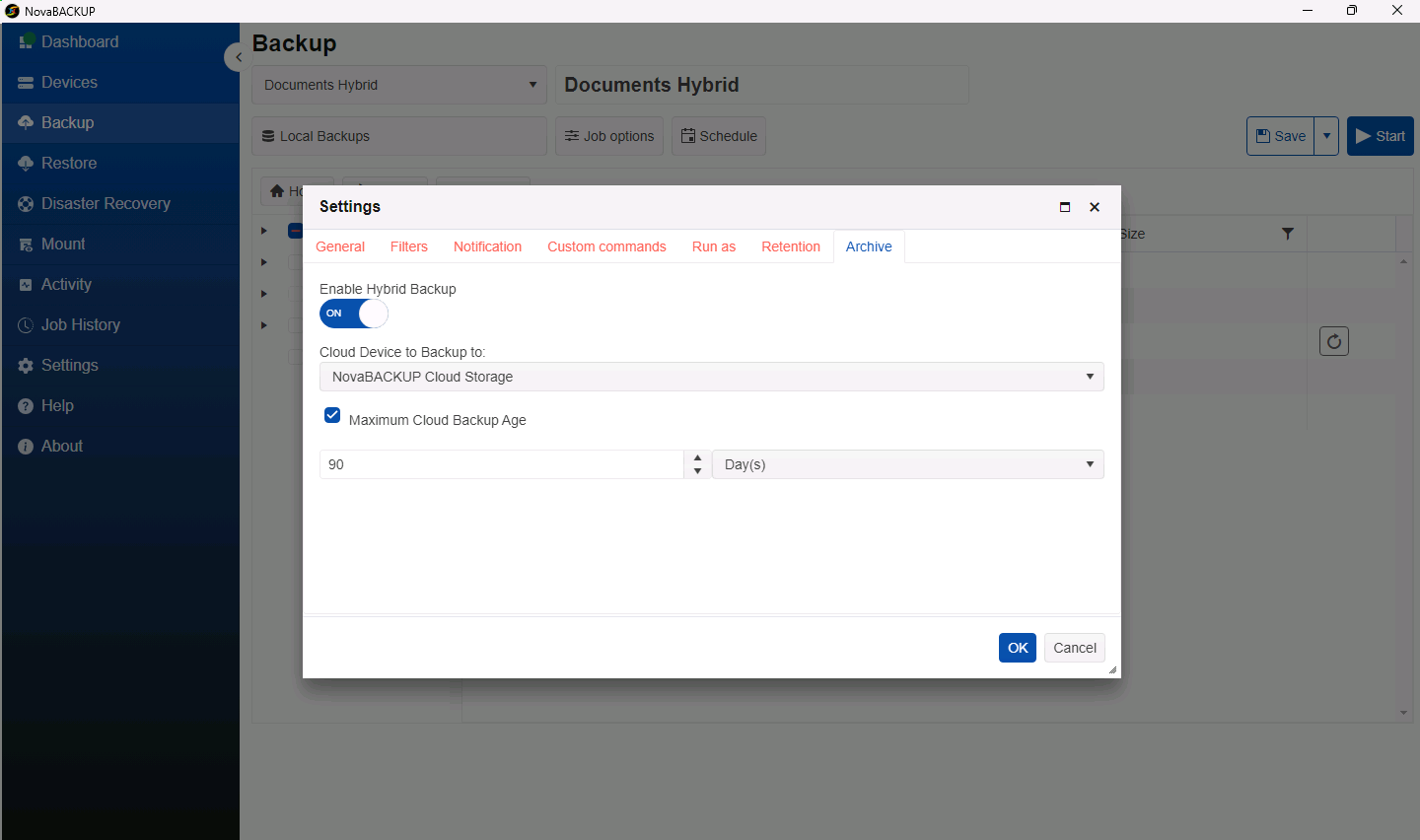
- Click Job options to open the job's Settings, then select the Archive tab.
- Turn on Enable Hybrid Backup.
- Under Cloud Device to Backup to, select the cloud device, for example NovaBACKUP Cloud Storage.
- Optionally select Maximum Cloud Backup Age and choose how long the cloud copy is kept, from 1 to 99 Day(s), Month(s), or Year(s). The default is 30 days.
- Click OK.
Step 3: Schedule, save, and run
- Click Schedule to set a schedule. See Creating and Scheduling Your First Backup Job.
- Click Save, then click Start to run the job once now.
- Follow the run on the Activity page. The run completes after both the local and the cloud copies are written.
How the two copies relate
- Each run writes the local copy first, then sends the same backup set to the cloud device.
- The local copy follows the job's Retention tab. The cloud copy follows Maximum Cloud Backup Age. A common pattern is 30 days locally and 90 days or more in the cloud.
- When you restore, choose which copy to restore from. Restore from the local copy when it is available, because it is faster. See Restoring Files and Folders.
If the cloud copy fails, the run is reported as Failed, but the local backup is complete and can be restored. That backup set stays local only. The next run copies its own new backup set to the cloud.
Related Articles
- Understanding Backup Retention
- Signing Up for NovaBACKUP Cloud Storage
- Creating and Scheduling Your First Backup Job
- Restoring Files and Folders
Still Need Help?
Contact NovaBACKUP Support:
- Email: support@novabackup.com
- Phone: +1 805-579-6700 (press 2 for support)
- Submit a ticket: https://16246.share.hsforms.com/21oWGOmxeQpKD1M8jmfKBAQ
- More options: https://www.novabackup.com/support