
Applies to: NovaBACKUP 22 PC Agent and Server Agent.
A backup device is the location where NovaBACKUP writes your backups. This article shows how to add a local drive, such as a second internal disk or a USB drive, and a network location, such as a NAS or a Windows file share.
Prerequisites
- NovaBACKUP 22 installed. See Installing and Activating NovaBACKUP 22.
- For a local device: the drive is connected and has a drive letter.
- For a network device: the share path, and the user name and password of an account that can write to it.
Important: Back up to a different disk from the one you are protecting. A folder on C: does not protect you when the C: drive fails.
Step 1: Open the device form
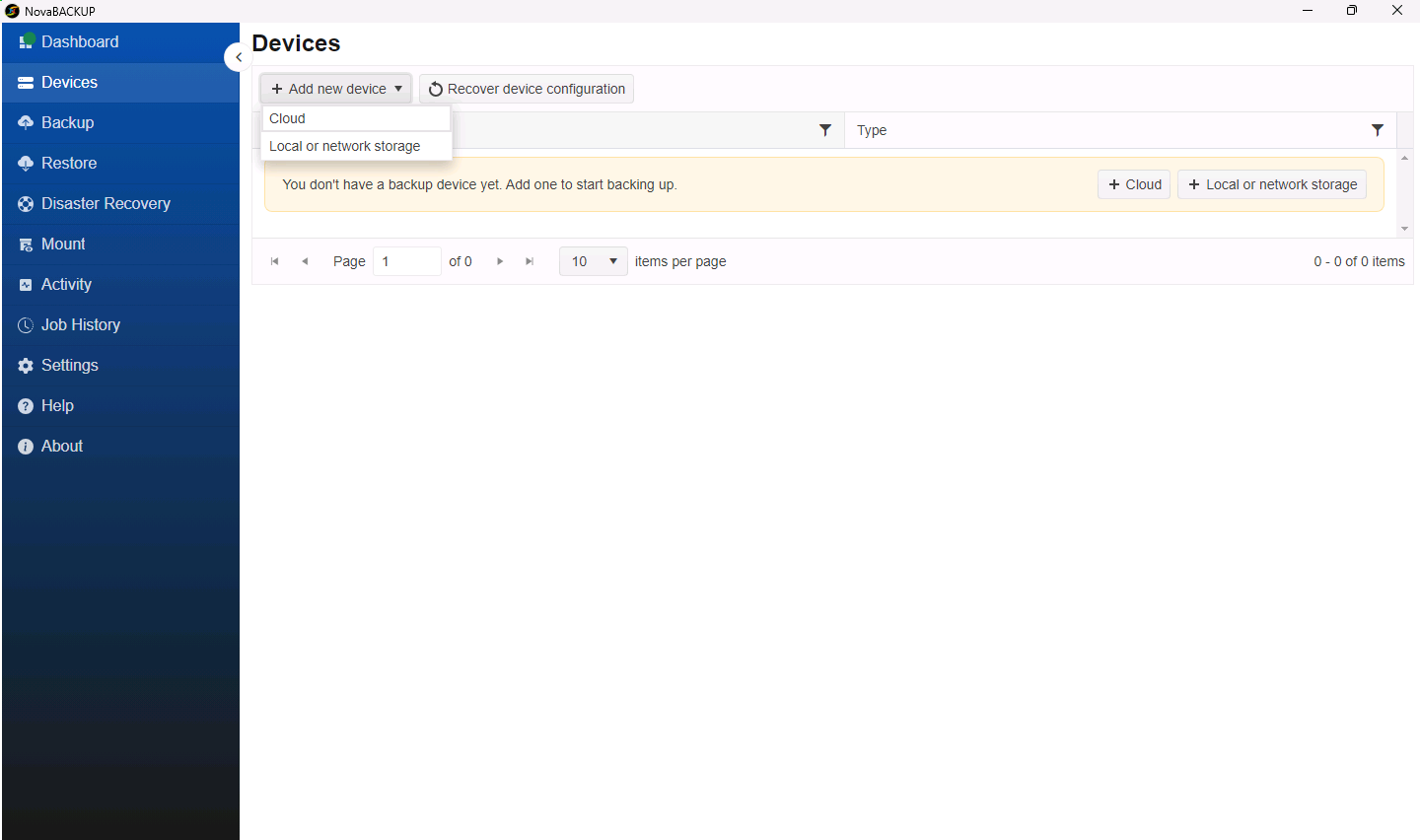
- Click Devices in the menu on the left.
- Click Add new device, then select Local or network storage.
Step 2: Fill in the device settings
| Field | What to enter |
|---|---|
| Name | A name you will recognize in job and restore lists, for example Local Backups or Office NAS. Each device needs its own name. |
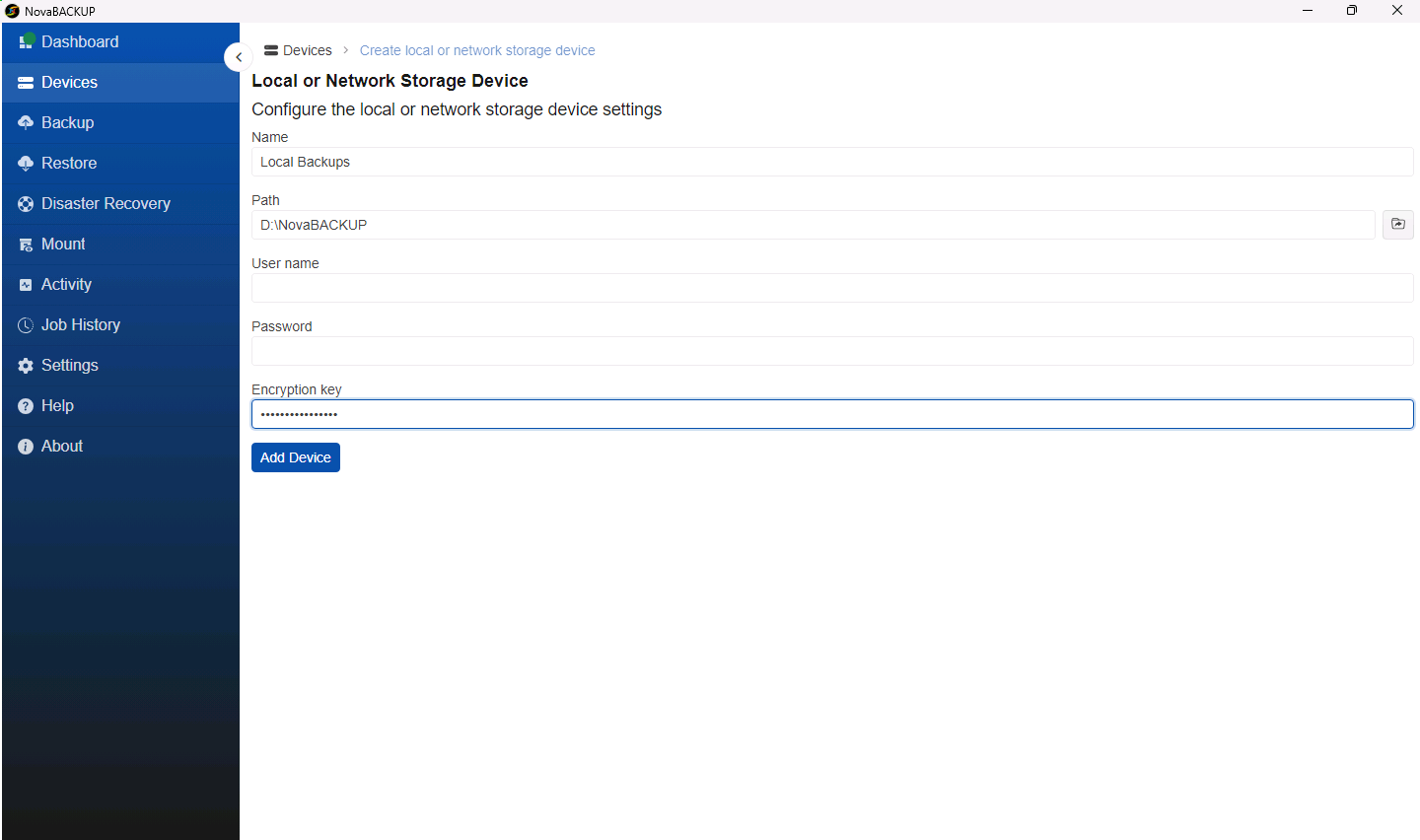
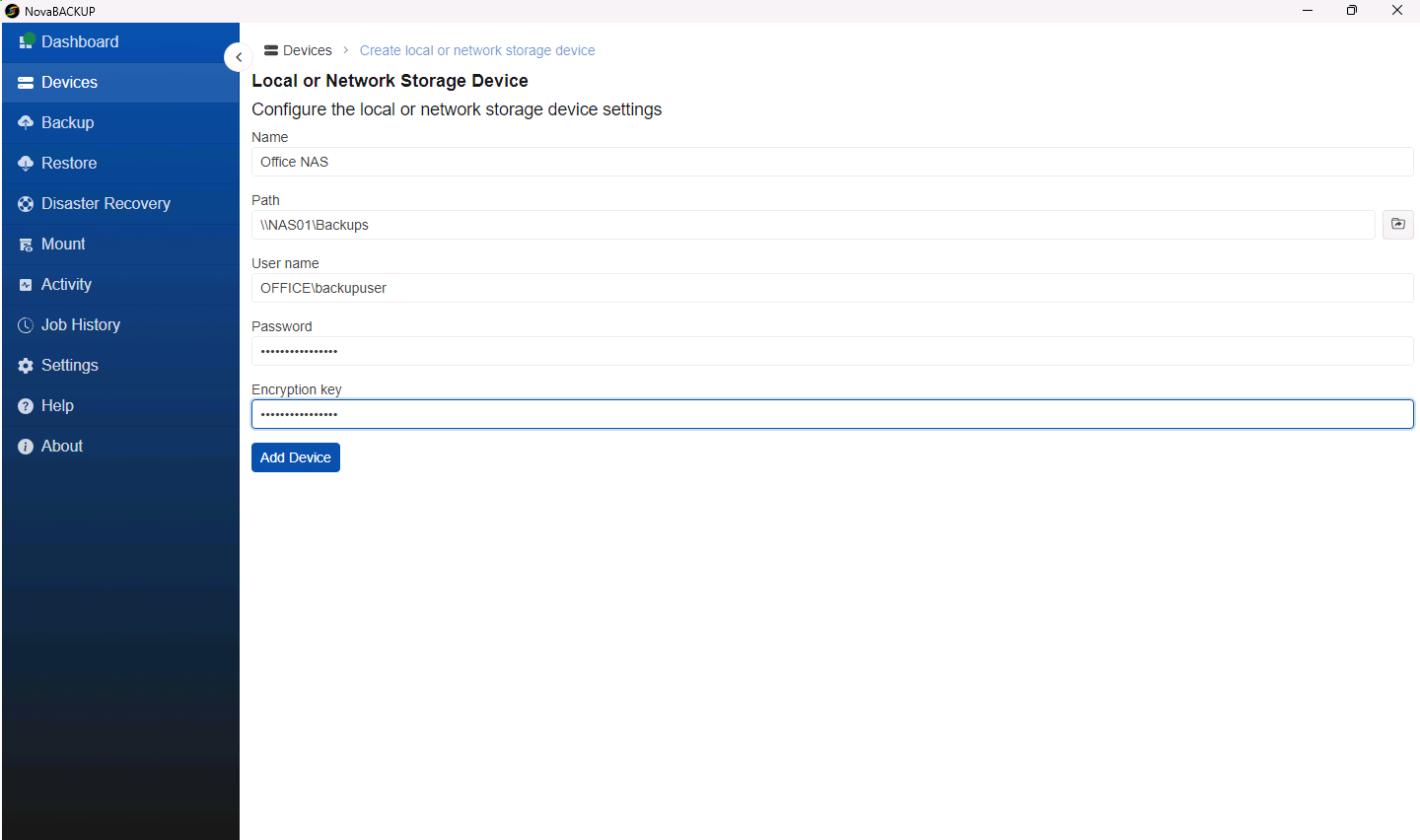
| Path | A folder on a local drive, for example D:\NovaBACKUP, or a network share, for example \\NAS01\Backups. Click the folder icon to browse instead of typing. A local folder that does not exist yet is created for you. |
| User name and Password | Leave both empty for a local drive. For a network share, enter the credentials of an account that can write to it. Add the domain or NAS name in front of the user name when your network requires it, for example OFFICE\backupuser. |
| Encryption key | Optional. 10 to 30 characters. When you enter a key, every backup to this device is encrypted with it. |
Example: local drive
Example: network share
Important: Store the encryption key somewhere safe outside this computer, such as a password manager. NovaBACKUP cannot recover your backups without it, and neither can NovaBACKUP Support.
Step 3: Add the device
- Click Add Device.
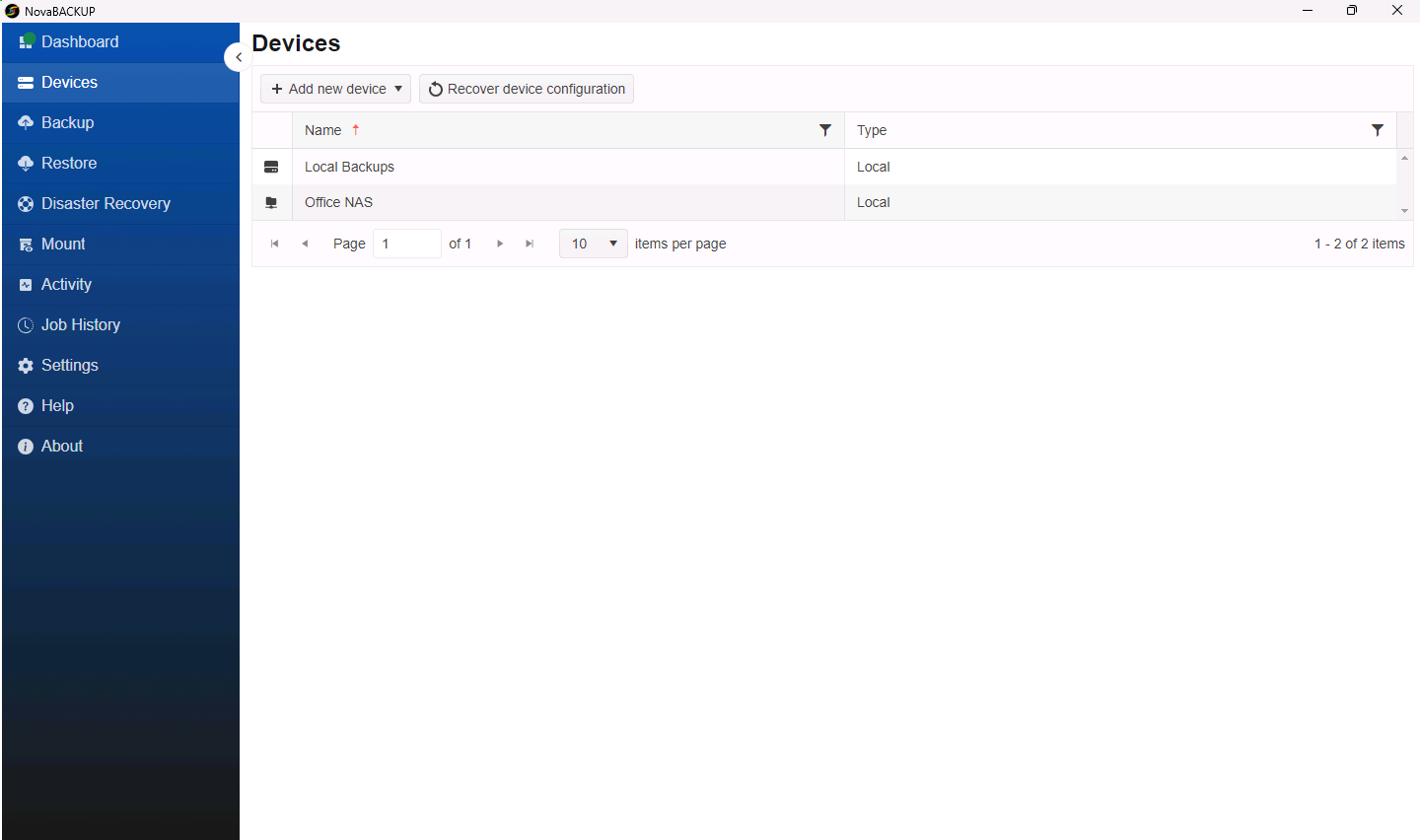
- NovaBACKUP connects to the location before it saves the device, so any device it adds is one you can back up to and restore from. The new device appears in the list on the Devices page.
If the network share cannot be reached
When the connection check fails, the device is not added, and the message tells you what to correct:
| Message | What to do |
|---|---|
| Could not authenticate to the network host. | Check the user name and password, and whether the user name needs a domain or NAS name in front of it. |
| The network share could not be found. Check the share name. | The share name is the part after the server name. It is not always the same as the folder name on the server. |
| The server could not be reached. Check the server name, or use its IP address. | Check that this computer can reach the server, or enter its IP address, for example \\192.168.1.20\Backups. |
| The folder could not be found on the network share. | Create the folder on the share first, or correct the path. Some servers treat folder names as case-sensitive. |
| Access to the network share was denied. | The account signed in successfully but cannot read this location. Give it read and write permission on the share and the folder. |
Best practices
- Keep at least one copy of your backups away from the computer, on a NAS or in the cloud. A hybrid backup job does this for you. See Setting Up a Hybrid Backup (Local and Cloud).
- Use a dedicated account for the network share, with access to the backup folder only.
- Use an encryption key for any device that leaves the building, such as a USB drive you take home.
Related Articles
- Signing Up for NovaBACKUP Cloud Storage
- Adding an S3-Compatible Cloud Storage Device
- Creating and Scheduling Your First Backup Job
- Getting Started with NovaBACKUP 22
Still Need Help?
Contact NovaBACKUP Support:
- Email: support@novabackup.com
- Phone: +1 805-579-6700 (press 2 for support)
- Submit a ticket: https://16246.share.hsforms.com/21oWGOmxeQpKD1M8jmfKBAQ
- More options: https://www.novabackup.com/support