
Applies to: NovaBACKUP 22 PC Agent and Server Agent. Microsoft SQL Server and Hyper-V backups require a license that includes them.
Besides files and folders, a backup job can protect applications through plug-ins: System State, Microsoft SQL Server, and Hyper-V. They appear as extra entries in the job's selection tree. This article explains when each one appears, what it backs up, and how to select it.
When the plug-ins appear
| Entry in the selection tree | Appears when |
|---|---|
| System State | Always |
| Microsoft SQL Server | Your license includes SQL Server backup, and SQL Server is installed on the computer |
| Hyper-V | Your license includes Hyper-V backup, and the computer runs Windows Server with the Hyper-V role. It does not appear on Windows 10 or 11, even with Hyper-V turned on, because the required Hyper-V backup component ships only with Windows Server. |
| Disaster Recovery | Your license includes Disaster Recovery. See Backing Up a Computer for Full System Recovery. |
If an entry you expect is missing, check your license on the About page, then click Refresh above the selection tree.
System State
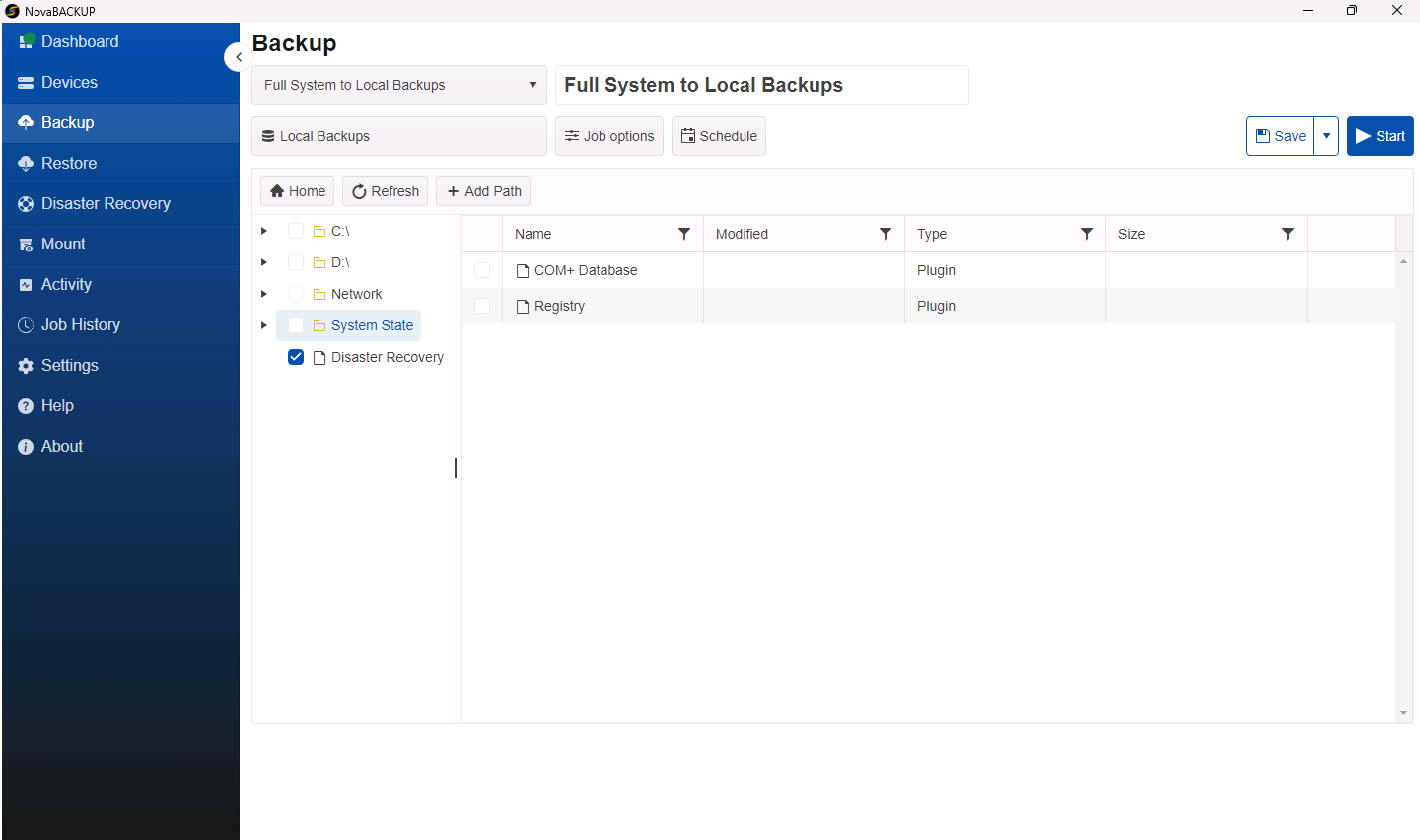
System State backs up Windows configuration data that is not stored as ordinary files, such as the registry and the COM+ class registration database.
- On the Backup page, create or open a job.
- Click System State in the tree to see its parts, then select the check box of System State or of the individual parts you need.
- Choose the destination and a schedule, then save the job.
Note: To be able to rebuild the whole computer, use a full system backup instead. It includes everything that System State backs up. See Backing Up a Computer for Full System Recovery.
Microsoft SQL Server
The SQL Server plug-in backs up databases while they are in use, without stopping SQL Server.
- On the Backup page, create a job, for example
SQL Databases. - Expand Microsoft SQL Server, then the SQL Server instance.
- Select the databases to back up, or select the instance to include all of its databases, even ones created later.
- Choose the destination and a schedule, then save the job.
Microsoft SQL Server lists each SQL Server instance on the computer, and each instance lists its databases. tempdb is never backed up. A new instance appears in the list after you click Refresh. NovaBACKUP accesses SQL Server through the SQL Server VSS writer with Windows authentication, using the local system account, so you do not need to enter a SQL Server login.
Tip: Run SQL Server backups in their own job, separate from file backups, so a database problem does not hold up your file backups.
Hyper-V
On a Windows Server Hyper-V host, the Hyper-V plug-in backs up whole virtual machines while they are running.
- On the Backup page, create a job, for example
Hyper-V VMs. - Expand Hyper-V, then select the virtual machines to back up.
- Choose the destination and a schedule, then save the job.
To restore a virtual machine, select it on the Restore page. When you restore it to its original location, the virtual machine is put back into Hyper-V on the same host. When you restore it to an alternate location, only the virtual machine's files are written to the folder you choose, and no virtual machine is registered in Hyper-V. NovaBACKUP 22 does not restore a virtual machine to a different Hyper-V host.
Tip: Back up the virtual machines from the host. Back up the files inside a virtual machine with NovaBACKUP installed in the guest only when you need to restore single files from it.
Related Articles
- Creating and Scheduling Your First Backup Job
- Backing Up a Computer for Full System Recovery
- Restoring Files and Folders
Still Need Help?
Contact NovaBACKUP Support:
- Email: support@novabackup.com
- Phone: +1 805-579-6700 (press 2 for support)
- Submit a ticket: https://16246.share.hsforms.com/21oWGOmxeQpKD1M8jmfKBAQ
- More options: https://www.novabackup.com/support