
Applies to: NovaBACKUP 22 PC Agent and Server Agent, on UEFI computers with GPT disks.
A full system backup captures everything needed to rebuild a computer: the drive Windows runs from (usually C:) including Windows, programs, settings, and the data on that drive, plus the computer's disk layout. With it, you can restore the computer onto a new disk from recovery media or start it as a Hyper-V virtual machine. In NovaBACKUP 22, you create a full system backup with an ordinary backup job that has Disaster Recovery selected.
Prerequisites
- A UEFI computer whose system disk uses a GPT partition table. Computers that start in legacy BIOS mode with an MBR disk are not supported for Disaster Recovery.
- A backup device on a different disk, a NAS, or the cloud, with free space roughly equal to the used space on the system disk. See Adding a Local or Network Backup Device.
Tip: To check the partition style, right-click Start, open Disk Management, right-click the disk that holds C:, and select Properties. On the Volumes tab, Partition style should read GUID Partition Table (GPT).
Step 1: Create the job
- Click Backup, open the job list, and select New backup job.
- Name the job, for example
Full System to Local Backups. - In the selection tree, select Disaster Recovery. It includes the drive Windows runs from, so you do not need to select
C:as well. If the computer keeps data on other drives, such asD:orE:, select those drives too. Disaster Recovery does not include them, and data on a drive that is not selected is not protected.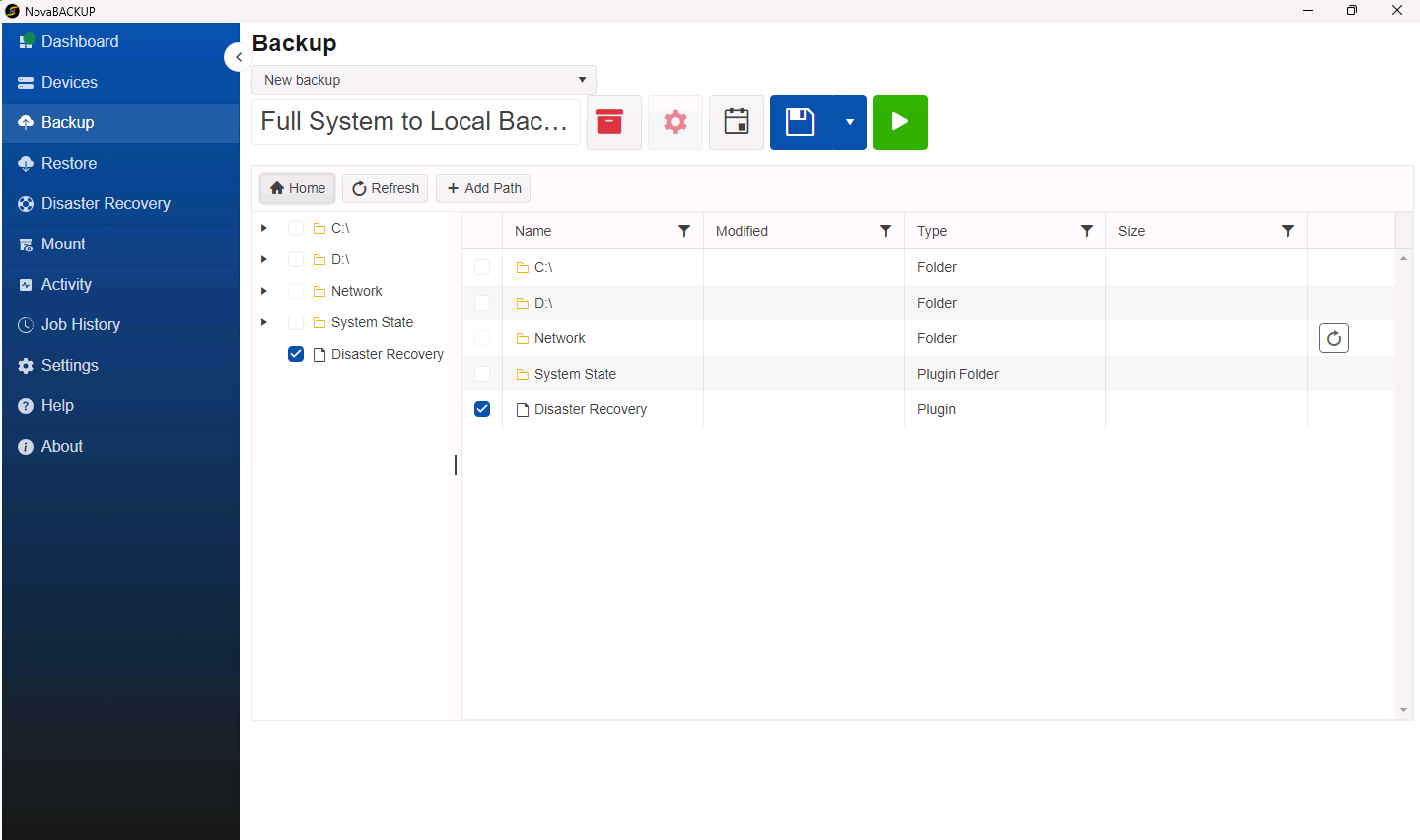
Step 2: Choose the destination
- Click Choose destination and select the device, for example Local Backups. Do not choose a device on the disk you are protecting.
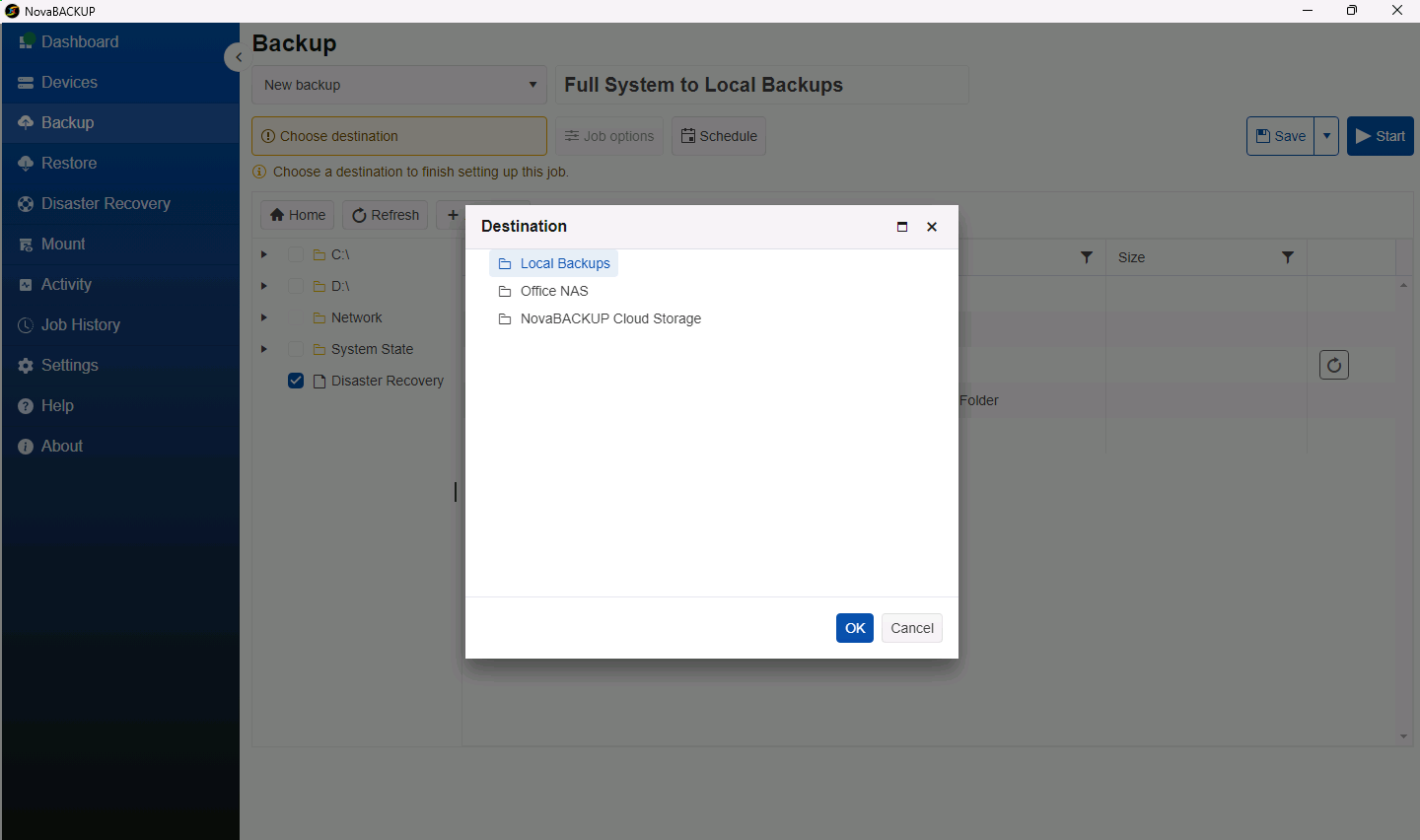
- Click OK.
Step 3: Schedule the job
- Click Schedule and select Weekly.
- Set the Start time to a time when the computer is on but not busy, for example Friday evening.
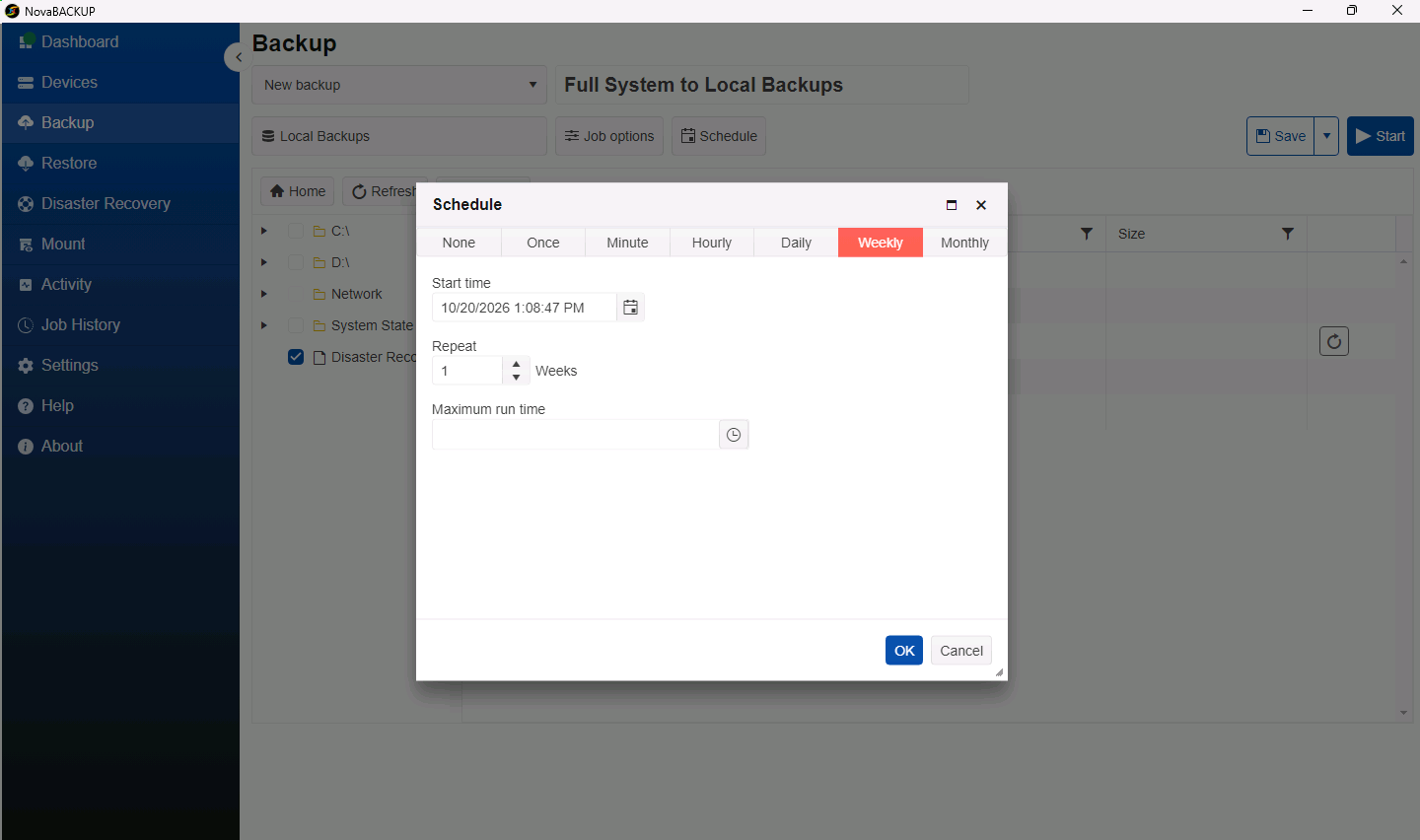
- Click OK.
A weekly full system backup, together with a daily backup of your data folders, suits most computers. After the first run, each run stores only what changed.
Step 4: Save and run the job once
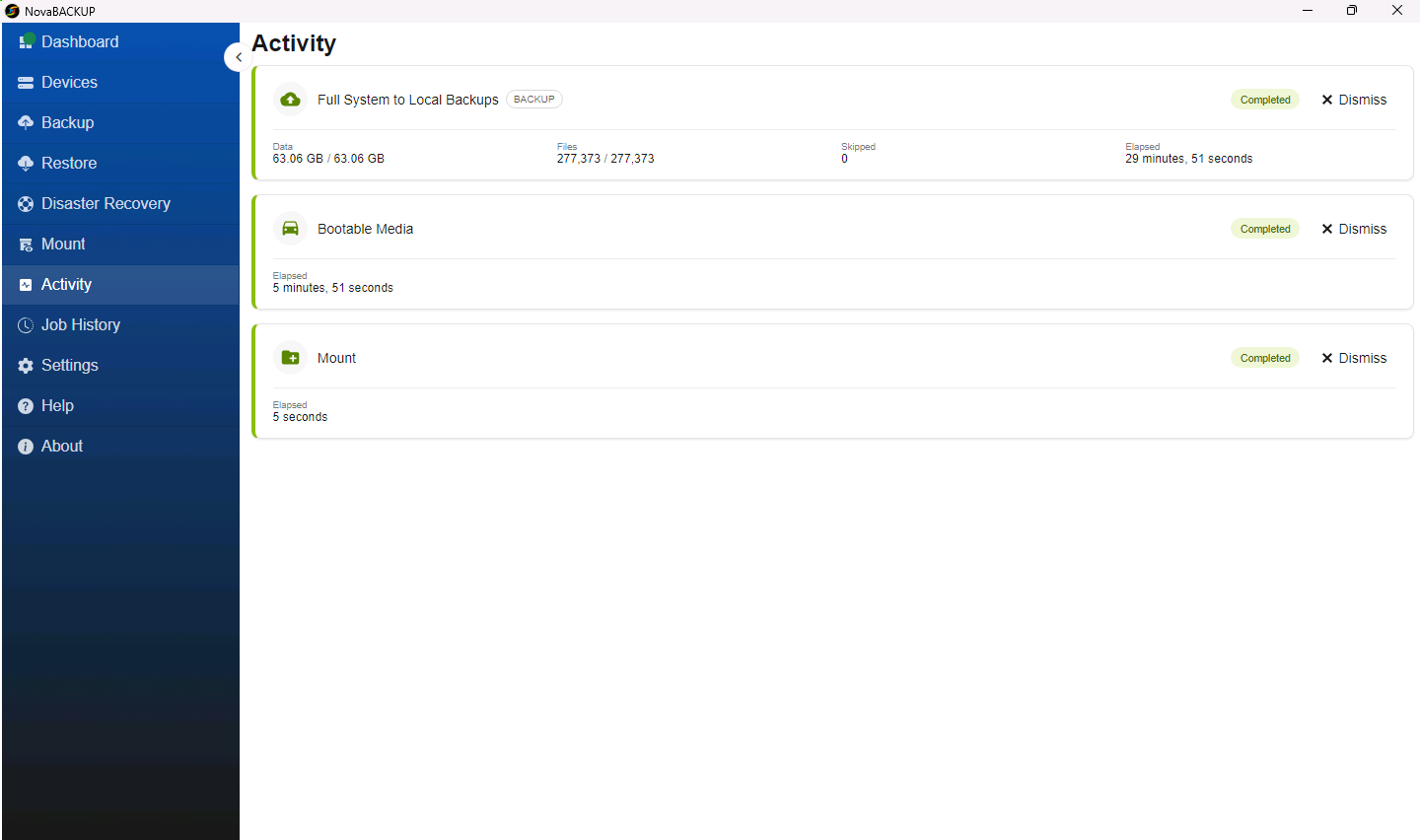
- Click Save, then Start.
- Follow the progress on the Activity page. The first full system backup copies the whole system disk and can take an hour or more.
Step 5: Create recovery media
A full system backup is restored from recovery media. Create the media now, while the computer is still working. See Creating Bootable Recovery Media.
Restoring from a full system backup
- To rebuild the computer on its own disk or a replacement disk, see Restoring a Computer from Recovery Media.
- To run the computer as a virtual machine on a Hyper-V host, see Restoring a Computer to a Hyper-V Virtual Machine.
- To get individual files back from a full system backup, open it on the Restore page or mount it. See Mounting a Backup to Browse and Copy Files.
Best practices
- Store at least one full system backup off the computer, on a NAS or in the cloud.
- Antivirus software that scans every file the backup reads slows the backup down considerably. See Antivirus and EDR Exclusions for NovaBACKUP 22.
- Test a restore to a Hyper-V virtual machine from time to time. It proves that the backup can be restored without touching the original computer.
Related Articles
- Creating Bootable Recovery Media
- Restoring a Computer from Recovery Media
- Restoring a Computer to a Hyper-V Virtual Machine
- Replacing Legacy Image Backup Jobs with Full System Recovery
Still Need Help?
Contact NovaBACKUP Support:
- Email: support@novabackup.com
- Phone: +1 805-579-6700 (press 2 for support)
- Submit a ticket: https://16246.share.hsforms.com/21oWGOmxeQpKD1M8jmfKBAQ
- More options: https://www.novabackup.com/support