
Applies to: NovaBACKUP 22 PC Agent and Server Agent.
Mounting shows a backup set as an ordinary folder on your computer. You can open it in File Explorer, browse it, and copy out the files you need, without running a restore. It is the quickest way to recover a single file or to check what a backup contains.
Prerequisites
- At least one completed backup on a device that is reachable
- An empty folder for the mount, or a folder name that does not exist yet, for example
C:\BackupMount
Important: The first time you mount a backup on a computer, NovaBACKUP installs the driver required for mounting. Windows loads that driver only after a restart, so the first mount does not show your files. Restart the computer once, then mount again. Every mount after that works without a restart.
Step 1: Mount the backup
- Click Mount in the menu on the left.
- Click the backup selector and choose the job and backup set, the same way you do on the Restore page.
- In Mount Path, enter the folder where the backup should appear, for example
C:\BackupMount, or click the folder icon to choose one. If the folder does not exist yet, NovaBACKUP creates it.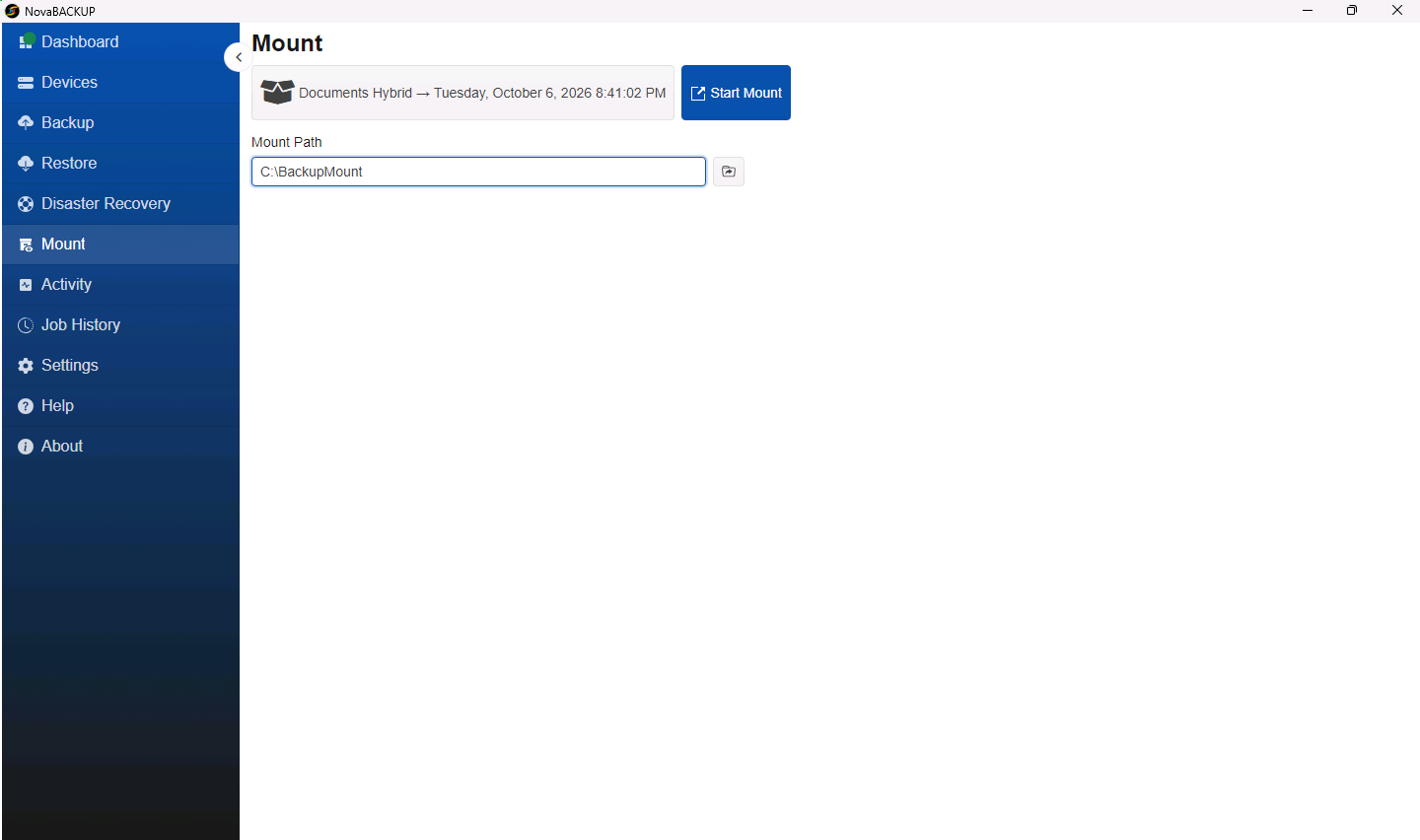
- Click Start Mount. The Activity page shows the progress while the mount starts.
Step 2: Open the mounted backup
- Return to the Mount page. A green banner says A backup is currently mounted.
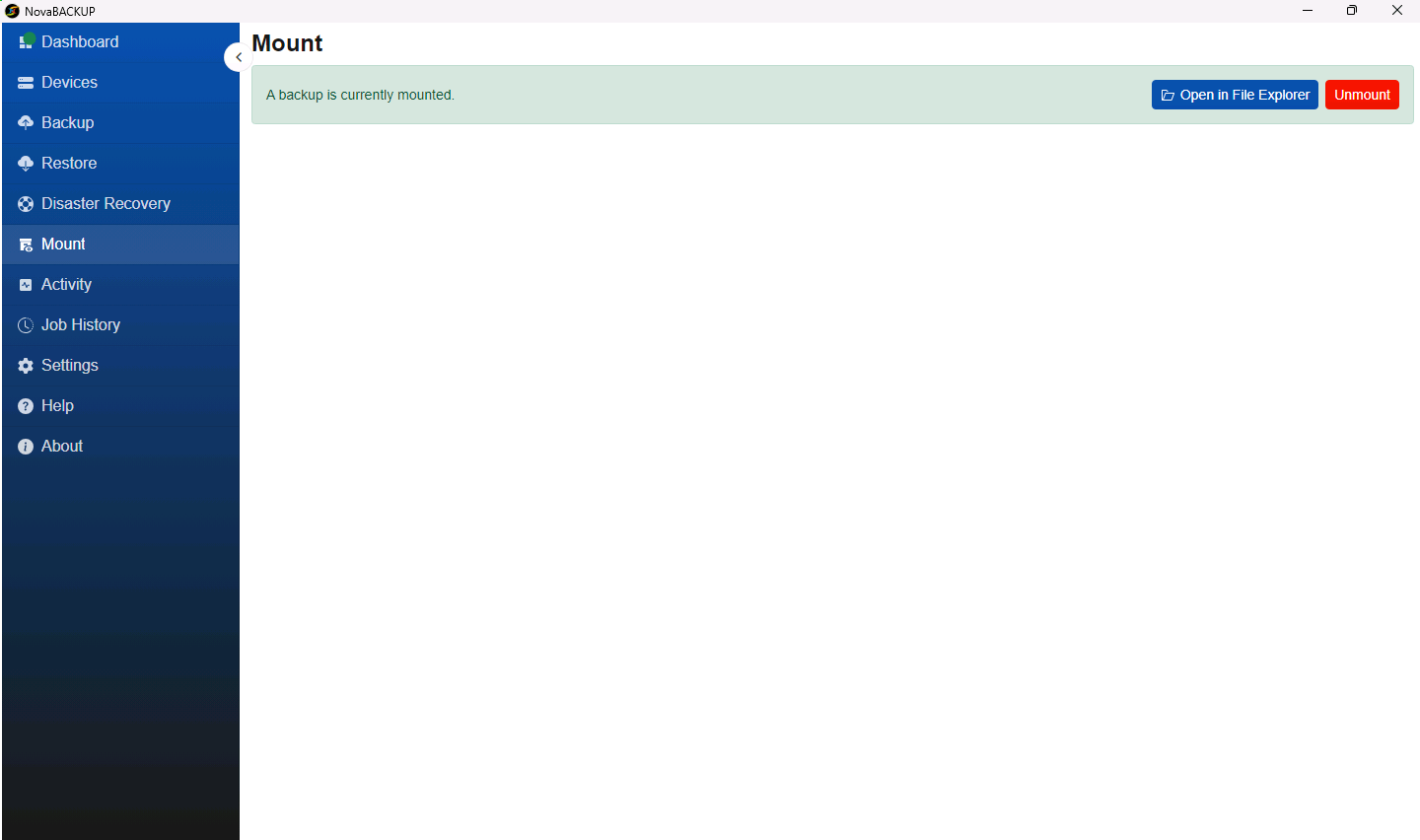
- Click Open in File Explorer, or open the mount path folder in File Explorer yourself.
- The backup is organized by drive, then by the original folder structure. For example, a user's Documents folder from drive
C:is underC_\Users\<user name>\Documents.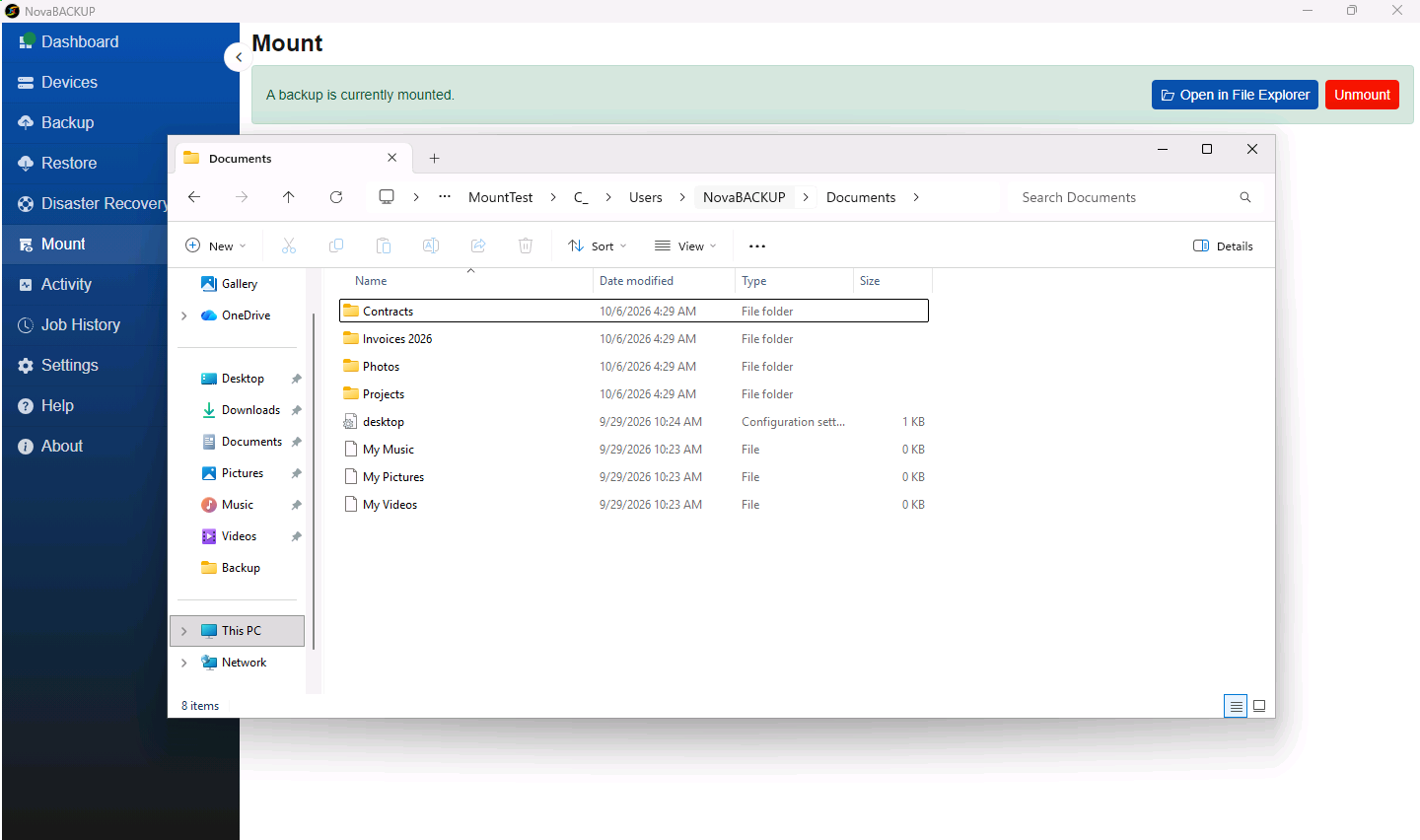
- Copy the files you need to a normal folder on your computer.
Step 3: Unmount when you are done
- Close any File Explorer windows and programs that use files from the mount path.
- On the Mount page, click Unmount.
Note: Always unmount when you are finished. A backup engine keeps running as long as a backup is mounted. Unmounting stops the engine and frees its resources.
If the backup is encrypted with a different key
If the backup was encrypted with a key that this device does not have, for example a key from before a key change, the mount pauses and asks for the key. Enter it to continue, or click Cancel. The key is used for this mount only and is not saved.
If the mounted folder is empty
- If this is the first mount on this computer, restart the computer and mount the backup again. See the Important note above.
- Check that the backup set you chose contains the files you expect: open it on the Restore page and browse it.
Mount or restore?
| Use | When |
|---|---|
| Mount | You need a few files or want to look at the contents before you decide. |
| Restore | You need whole folders back in their original location, with overwrite options. See Restoring Files and Folders. |
Related Articles
- Restoring Files and Folders
- Monitoring Running Jobs on the Activity Page
- Creating and Scheduling Your First Backup Job
Still Need Help?
Contact NovaBACKUP Support:
- Email: support@novabackup.com
- Phone: +1 805-579-6700 (press 2 for support)
- Submit a ticket: https://16246.share.hsforms.com/21oWGOmxeQpKD1M8jmfKBAQ
- More options: https://www.novabackup.com/support