
Applies to: NovaBACKUP 22 PC Agent and Server Agent, restoring a full system backup on a computer with Hyper-V.
NovaBACKUP can turn a full system backup into a new Hyper-V virtual machine. Use this to get a failed computer's workload running again on other hardware within the hour, or to test that a full system backup can be restored without touching the original computer.
Prerequisites
- A completed full system backup, made by a job with Disaster Recovery selected. See Backing Up a Computer for Full System Recovery.
- NovaBACKUP 22 installed on the Hyper-V host, with access to the device that holds the backup. If the Hyper-V host is not the computer that was backed up, add the device and import its backups first. See Restoring to a New Computer: Importing Your Backups.
- Hyper-V turned on in Windows 10 or 11 Pro or Enterprise, or in Windows Server.
- Enough free space for the virtual hard disks, roughly equal to the used space on the drives in the backup.
Step 1: Choose the backup
- Click Disaster Recovery in the menu on the left, then click Virtual Machine.
- Under Backup, click the backup selector.
- Under Backup Job, select the full system backup job, for example Full System to Local Backups, then select the backup set to restore.
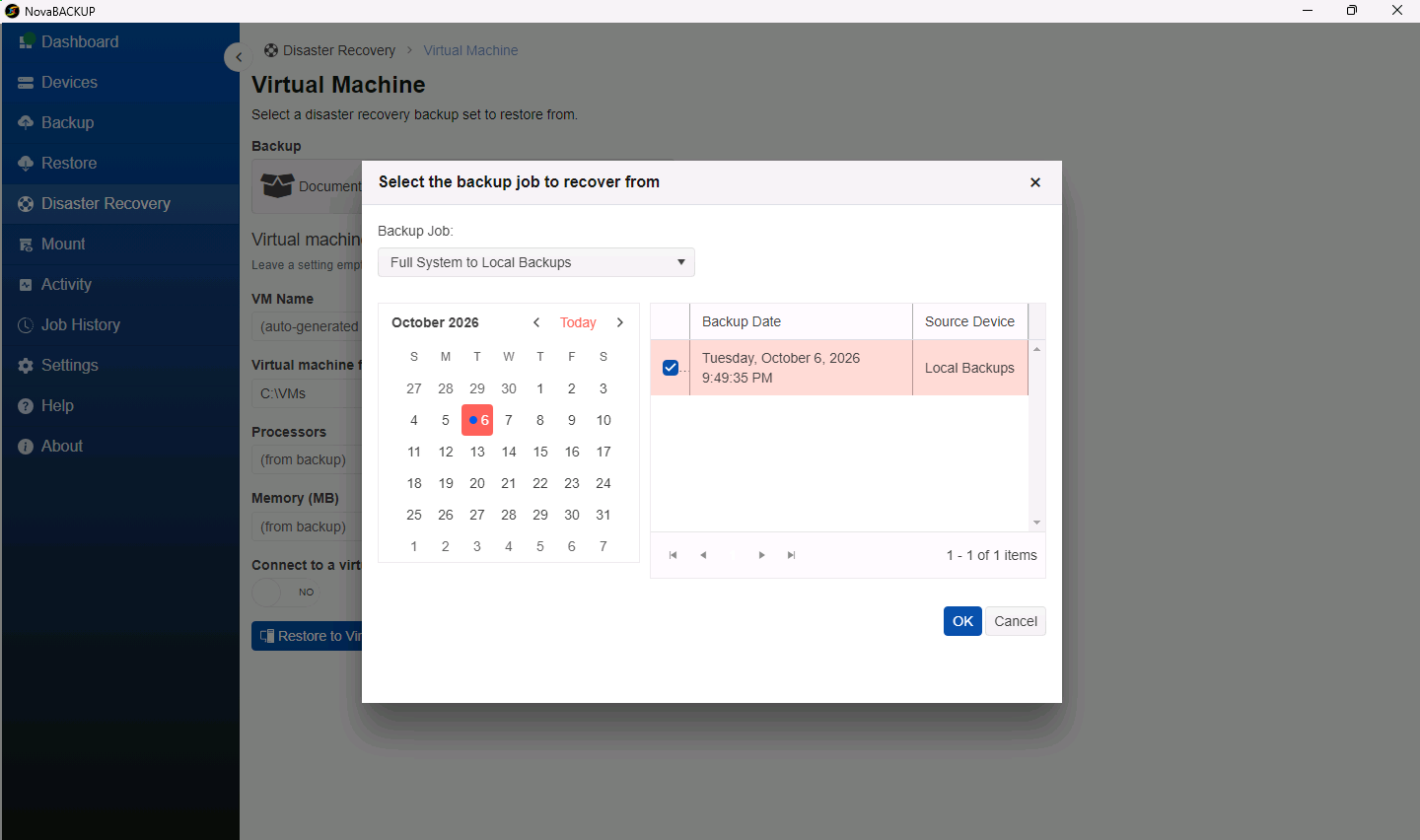
- Click OK.
Step 2: Choose the virtual machine settings
Every setting is optional. Leave a setting empty to use the value from the computer that was backed up.
| Setting | What to enter |
|---|---|
| VM Name | The name of the new virtual machine, for example NOVA-PC-Restored. The name is also used for its folder and disk files. |
| Virtual machine folder | Where the virtual machine and its disks are created, for example D:\VMs. The default is C:\VMs. Choose a drive with enough free space. |
| Processors | The number of virtual processors, for example 2. |
| Memory (MB) | The startup memory, for example 4096. It must be less than the free memory on the host. |
| Connect to a virtual switch | Turn it on to connect the network adapter, then choose the Virtual switch. Leave it off to keep the restored virtual machine off the network, for example for a test restore while the original computer is still running. |
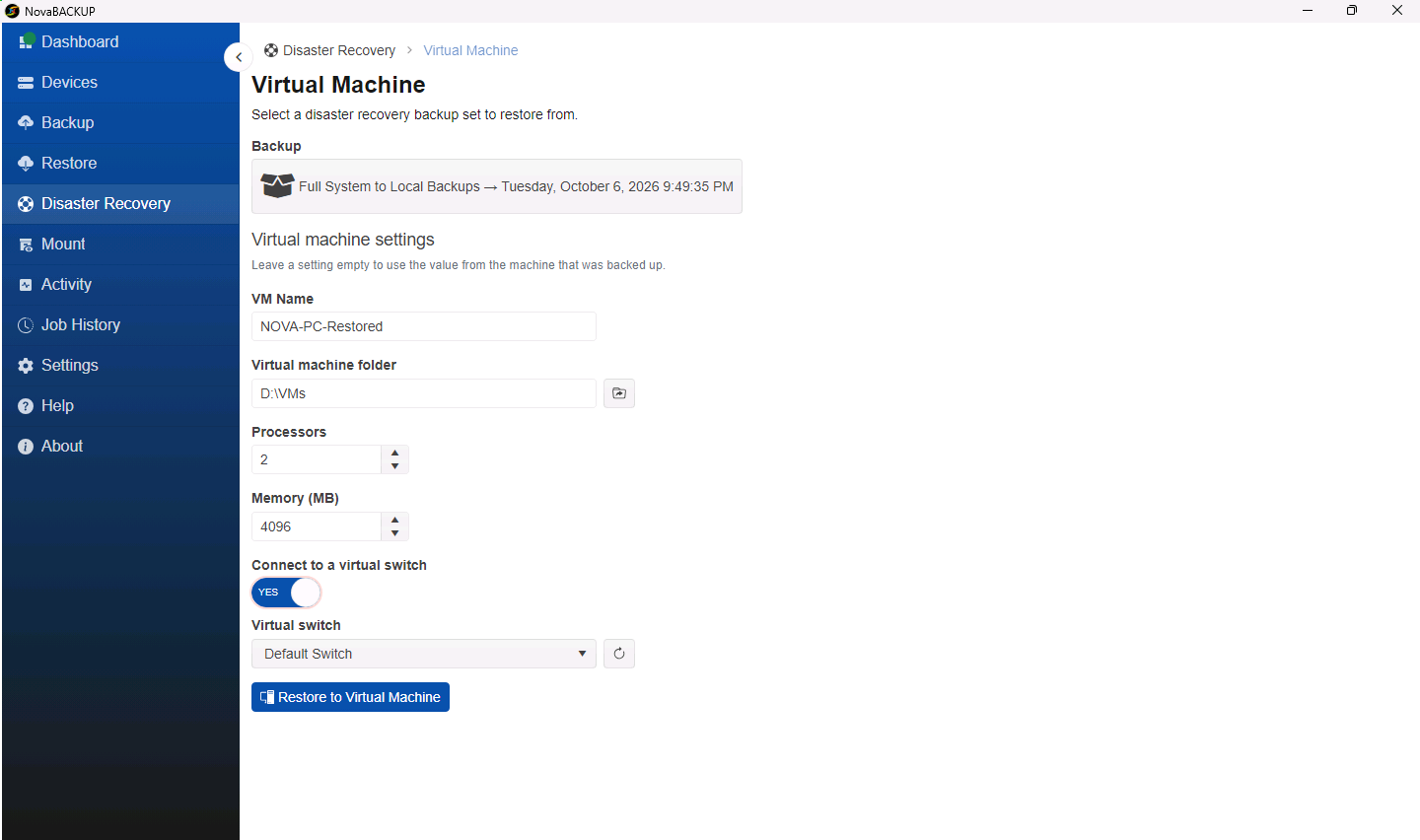
Important: A restored copy of a computer that is still on the network has the same name and identity as the original. For a test restore, leave the virtual machine disconnected, or connect it to an isolated switch.
Step 3: Restore
- Click Restore to Virtual Machine.
- Follow the progress on the Activity page. NovaBACKUP reads the original computer's disk layout from the backup, creates the virtual machine and its disks, restores the files, and makes the restored Windows installation bootable.
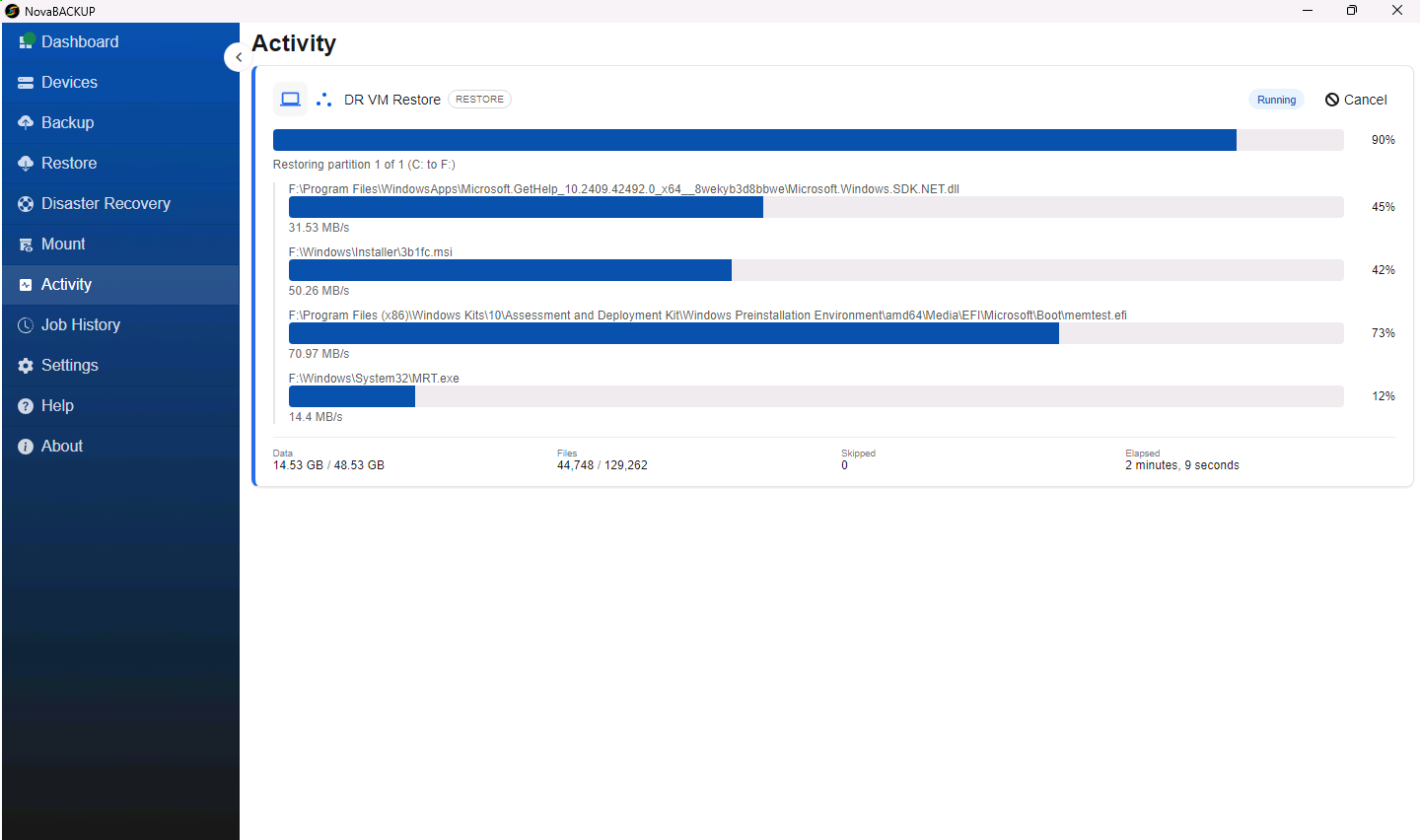
- When the job shows Completed, open Hyper-V Manager. The new virtual machine is listed there.
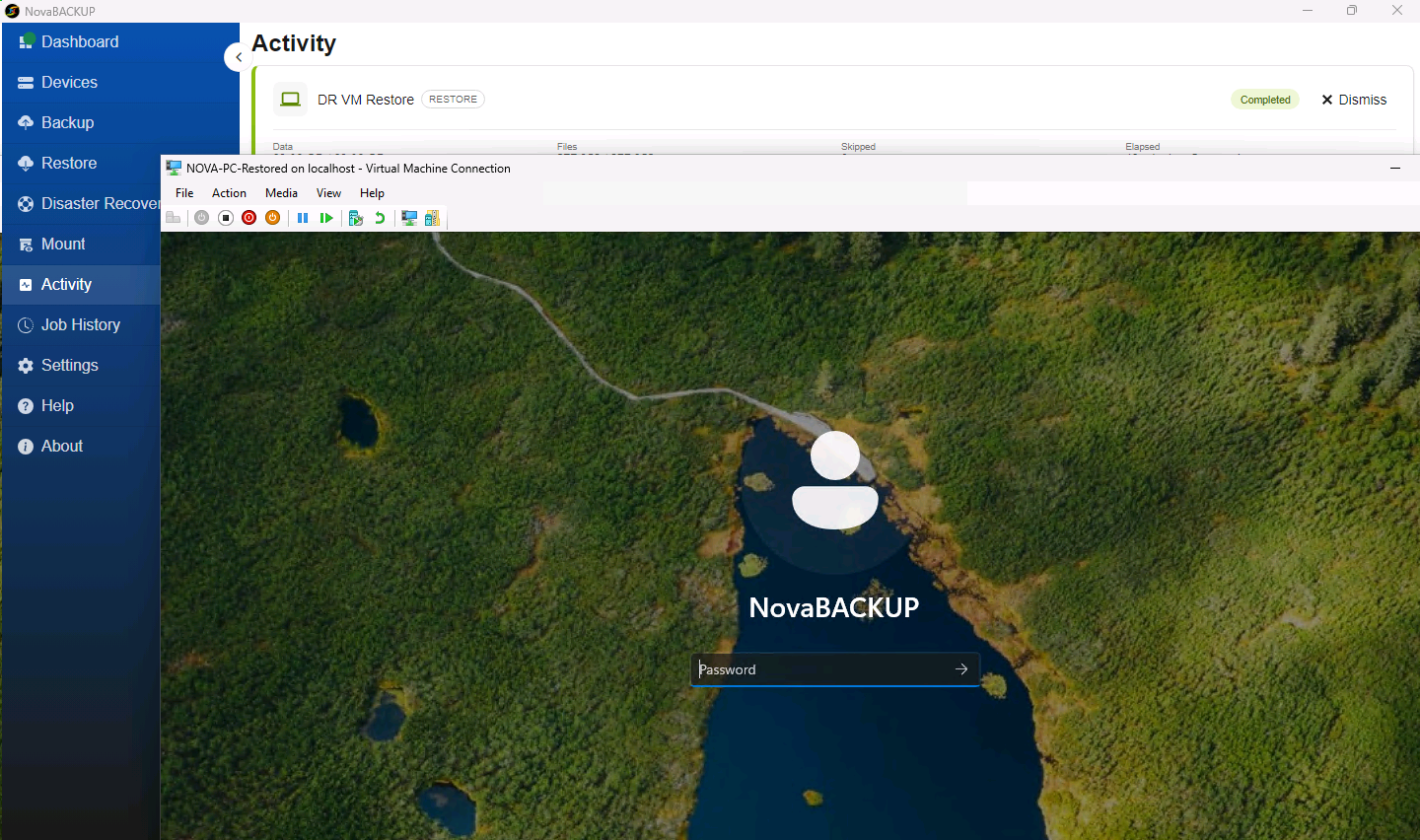
- Start the virtual machine and connect to it. Windows starts, completes its device setup for the new virtual hardware, and shows the sign-in screen.
After the restore
- Sign in with an account from the original computer. Domain-joined computers may need to be rejoined to the domain if the original computer was replaced.
- Windows may ask to be activated again, because the hardware changed.
- The virtual machine is a Generation 2 virtual machine with UEFI. Its disks are dynamic VHDX files that grow as they fill.
- The virtual machine gets a disk for each internal disk of the original computer. Every drive that was selected in the backup is restored onto its corresponding disk. Drives that were not selected, such as a data drive left out of the job, are created empty.
Related Articles
- Backing Up a Computer for Full System Recovery
- Restoring a Computer from Recovery Media
- Restoring to a New Computer: Importing Your Backups
Still Need Help?
Contact NovaBACKUP Support:
- Email: support@novabackup.com
- Phone: +1 805-579-6700 (press 2 for support)
- Submit a ticket: https://16246.share.hsforms.com/21oWGOmxeQpKD1M8jmfKBAQ
- More options: https://www.novabackup.com/support