
Applies to: NovaBACKUP 22 PC Agent and Server Agent, restoring a full system backup onto a UEFI computer.
When Windows no longer starts, or the system disk has been replaced, you start the computer from NovaBACKUP recovery media and restore the full system backup onto its disk. This article walks through the whole restore, from starting the recovery environment to starting the restored Windows installation.
Prerequisites- A full system backup, made by a job with Disaster Recovery selected. See Backing Up a Computer for Full System Recovery.
- NovaBACKUP recovery media: a USB drive, an ISO file, or a recovery partition. See Creating Bootable Recovery Media.
- The device that holds the backup: connected (USB or second internal disk), reachable on the network (NAS), or reachable over the internet (cloud).
- A target disk large enough to hold the data on the original system disk. It must not be the disk that holds the backup.
- At least 2 GB of RAM in the computer you are restoring. More is better for large restores.
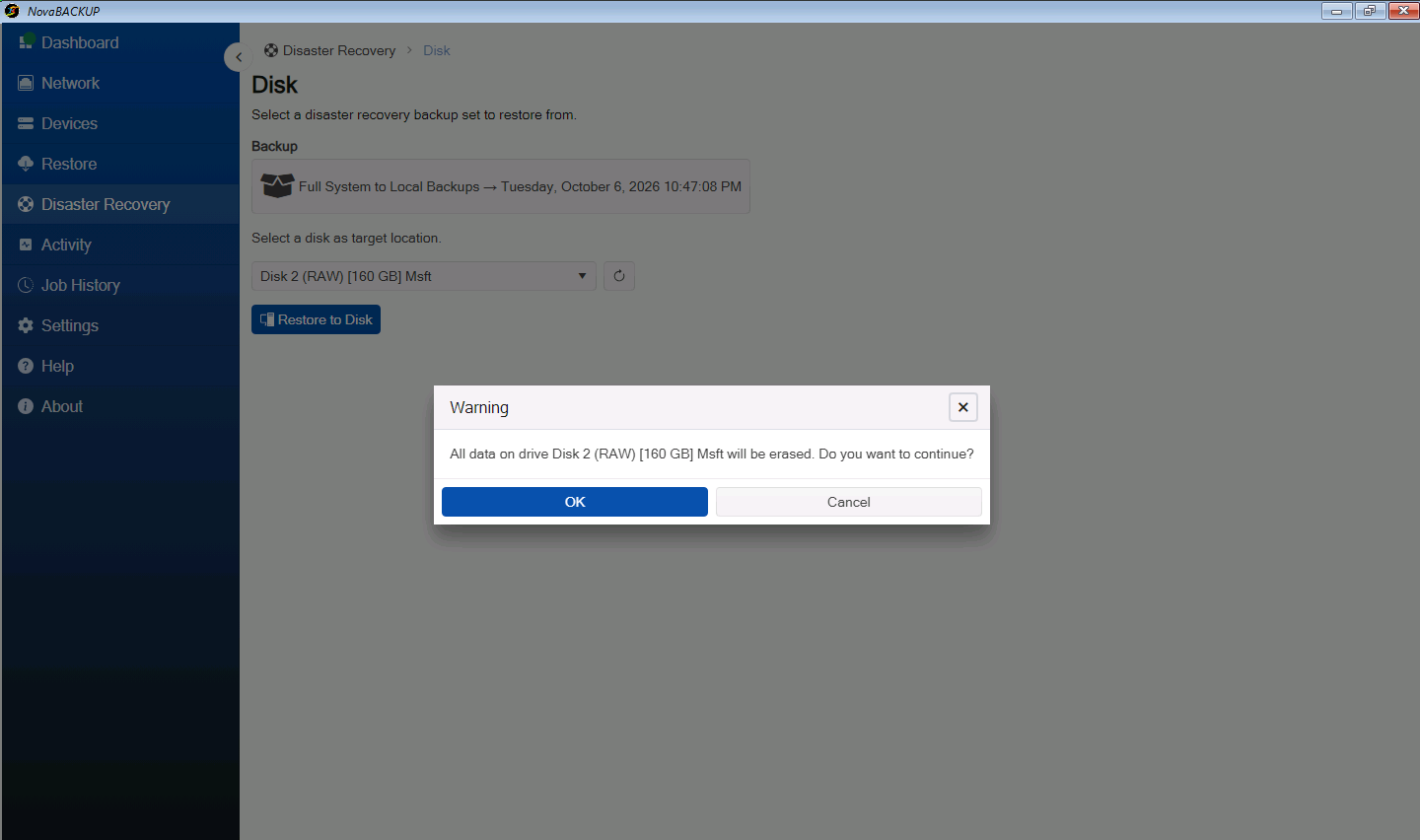
Important: Everything on the target disk is erased. The disk that holds the backup is also listed as a possible target, so check your choice carefully. Choosing it destroys the backup you are restoring from.
From a USB drive or ISO file
- Connect the USB drive or, for a virtual machine, attach the ISO file.
- Start the computer and open its boot menu. The key depends on the manufacturer; common keys are
F12,F11,F8, andEsc. - Select the USB drive or DVD. The NovaBACKUP recovery environment loads, and NovaBACKUP opens automatically.
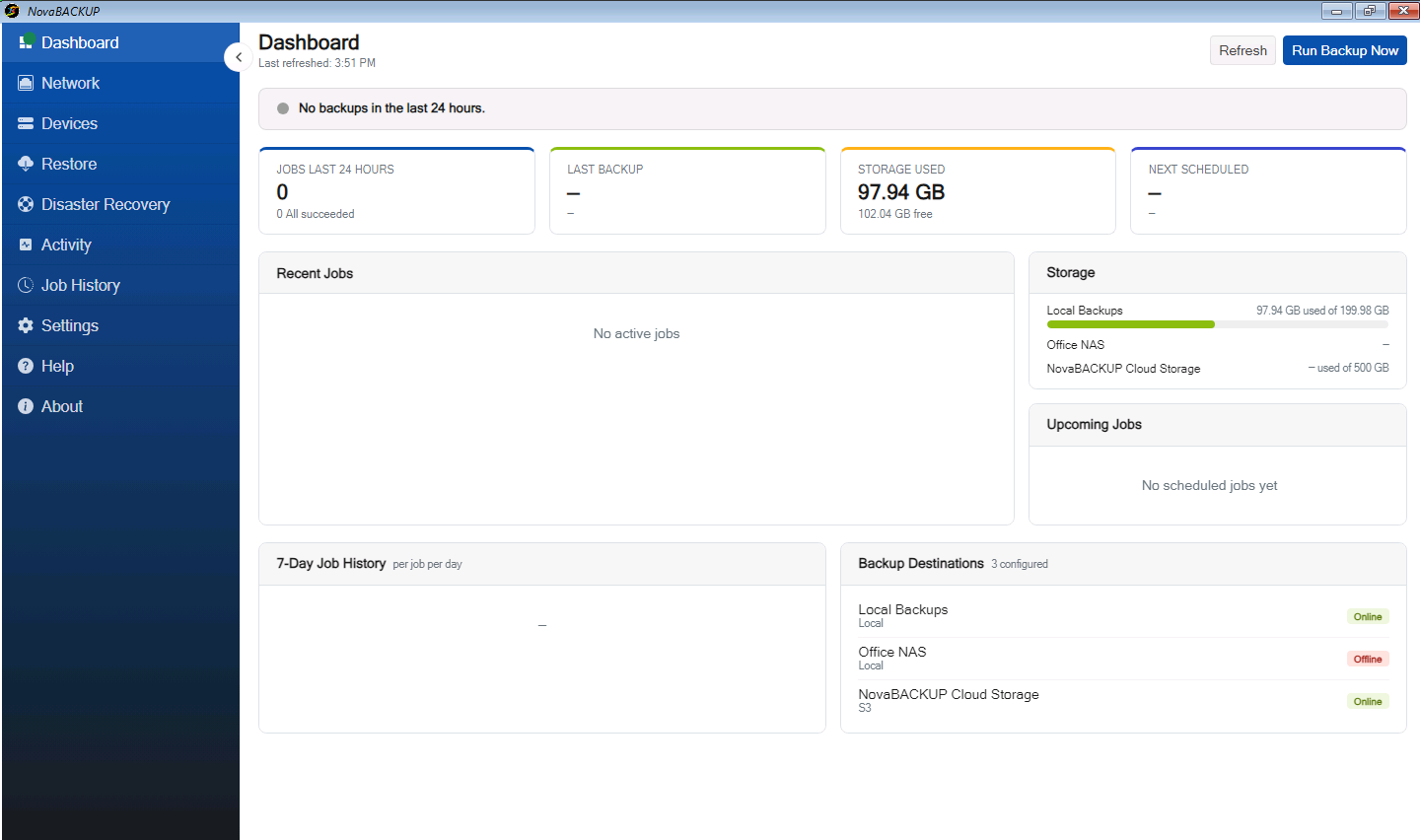
From the recovery partition
- Start the Windows Recovery Environment. Windows opens it automatically after two failed startup attempts. You can also hold
Shiftwhile you click Restart on the Windows sign-in screen. - On Choose an option, click Troubleshoot.
- Click NovaBACKUP. If Windows could not be found on the disk, the option is named Recovery Tool.
If you created the media with Include device configuration, your devices are already listed on the Devices page. Otherwise, add the device first:
- USB drive or second disk: on the Devices page, click Recover device configuration, then search local and removable storage.
- NAS or file share: add it with Add new device, using the same device name it had on the original computer. If the network adapter is not listed, use the Network and Load drivers cards on the Disaster Recovery page.
- Cloud: click Recover device configuration, then redeem a recovery token from your NovaBACKUP Management Console (CMon). See Issuing a Device Recovery Token.
Next, import the backup list so that the backup sets can be restored:
- On the Devices page, open the device, click the arrow next to Import, and then click Import....
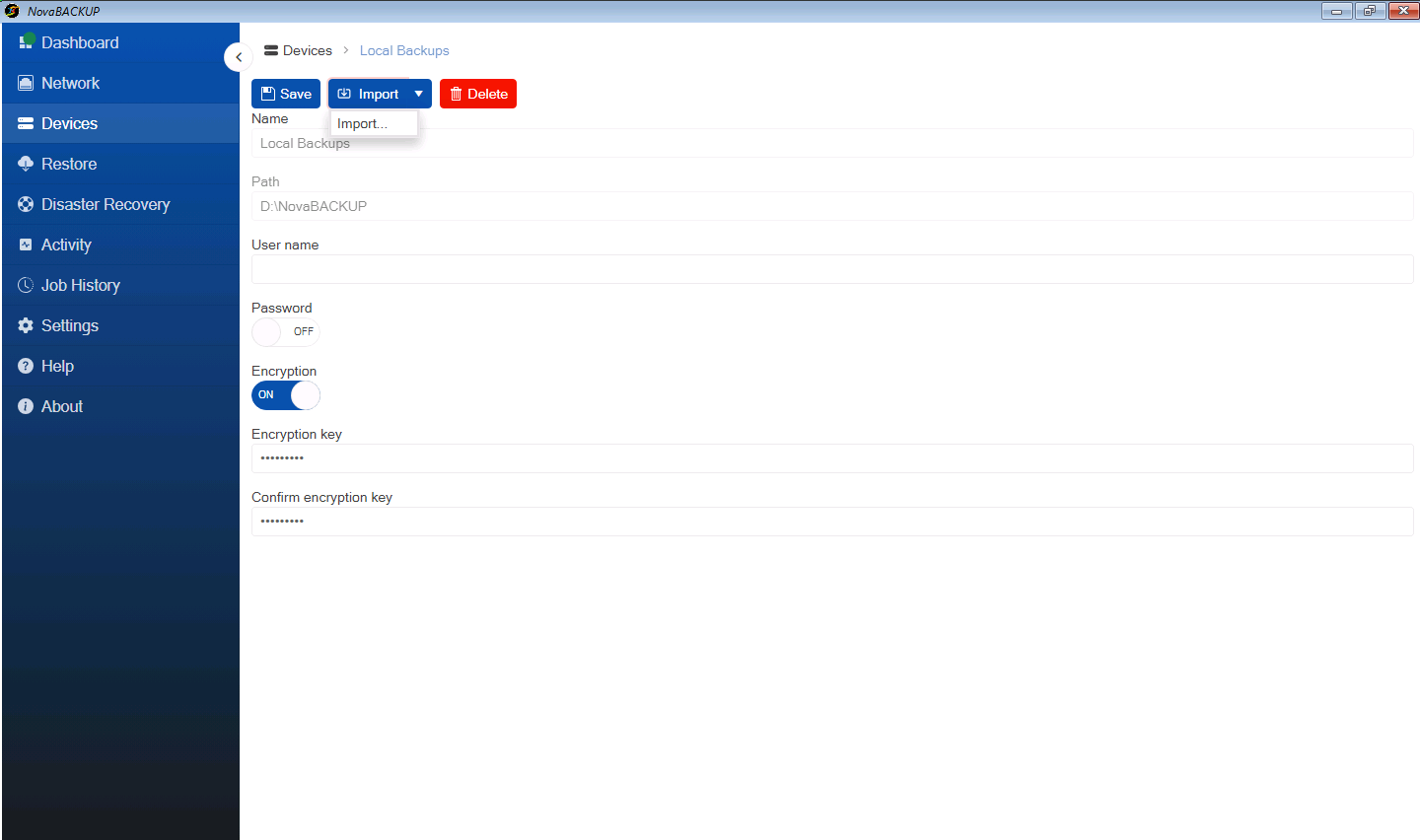
- Under Choose where to import to, select where to write the backup catalog. The recovery environment runs from memory and has almost no storage space of its own. A partition on another disk, such as the disk that holds the backup, works well. You can also choose the unallocated space at the end of the target disk.
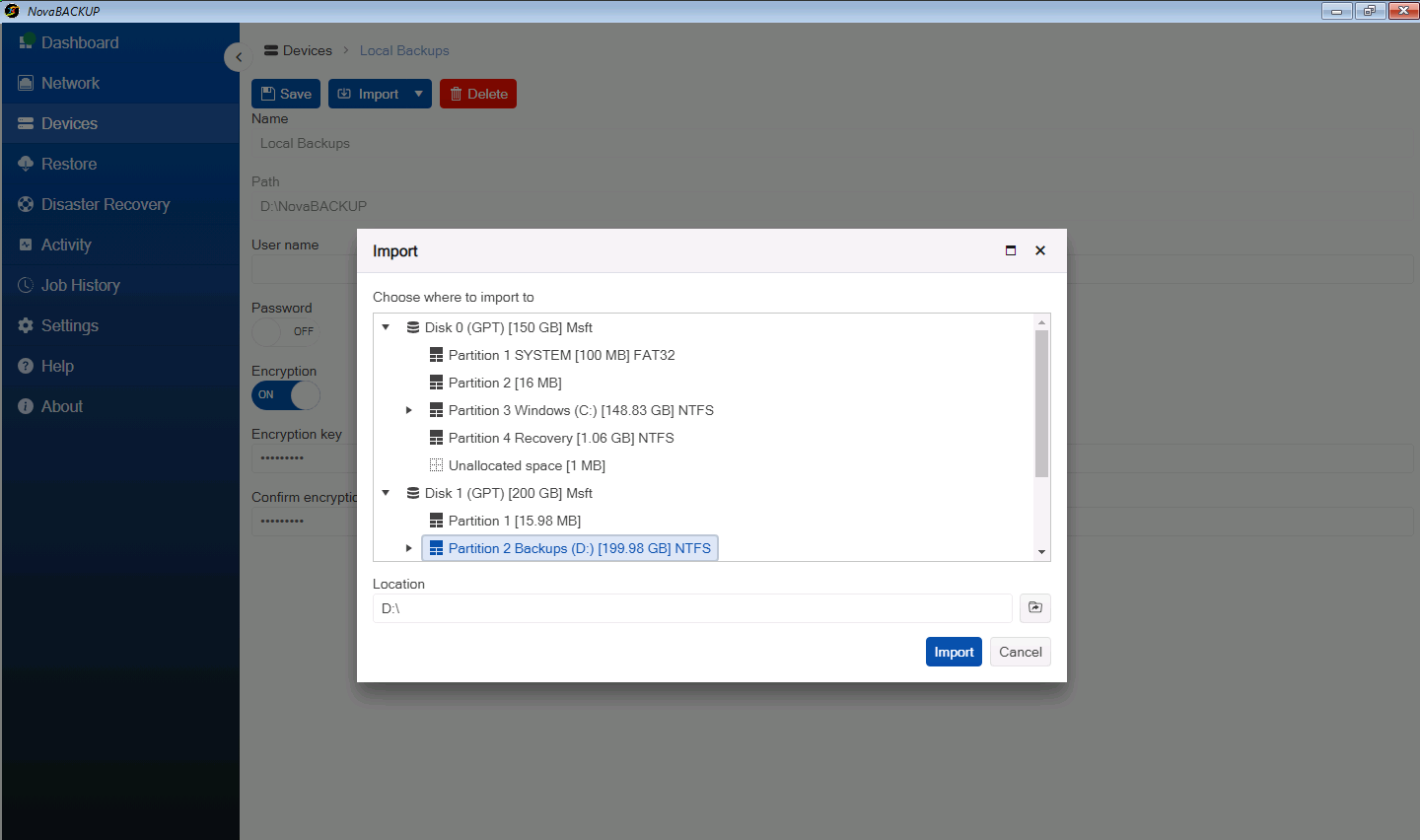
- Click Import and wait for Import completed successfully, then click OK.
- Click Disaster Recovery, then Disk.
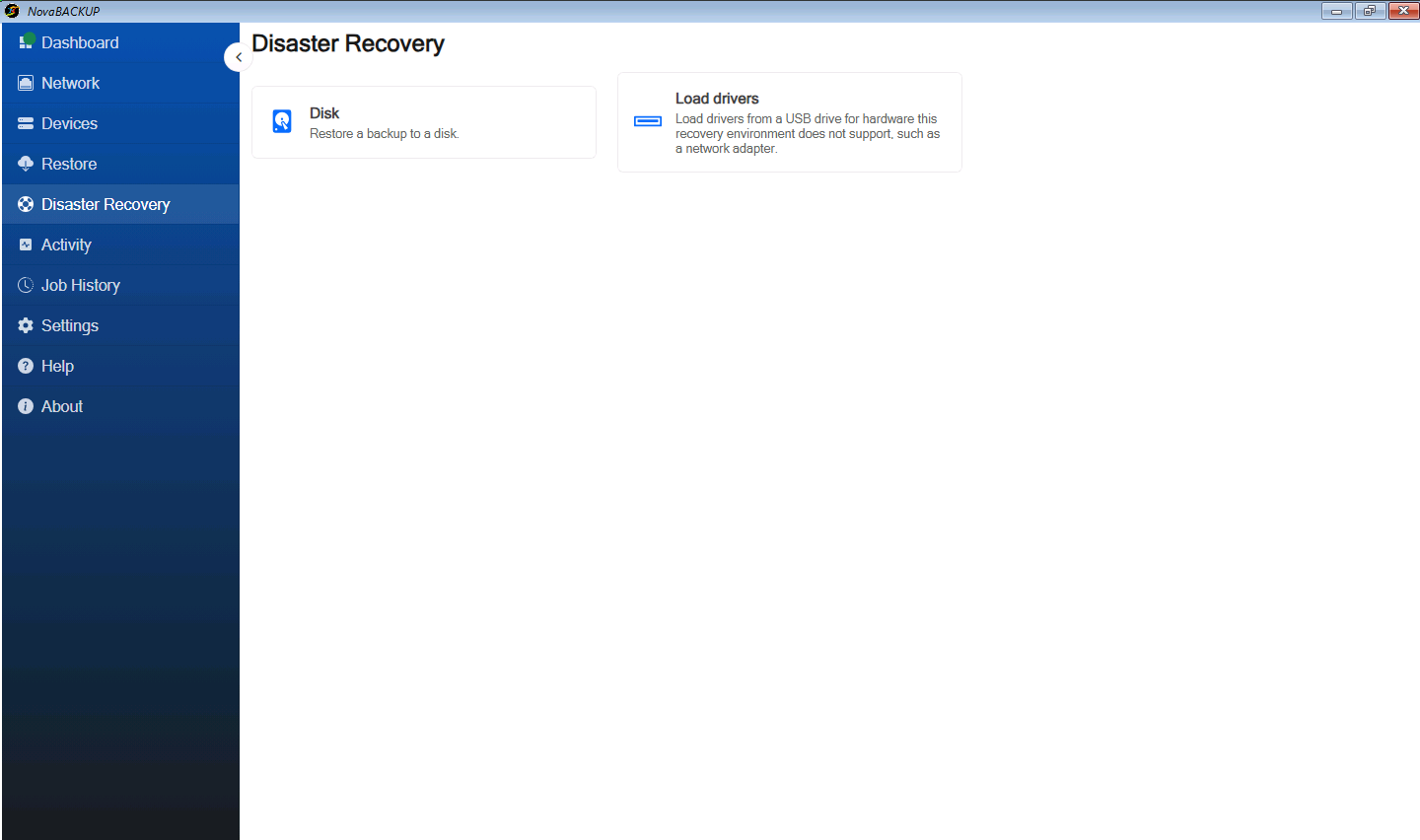
- Under Backup, click the backup selector. Select the full system backup job, for example Full System to Local Backups, and the backup set to restore, usually the newest. Click OK.
- Under Select a disk as target location, choose the disk to restore onto. Disks are listed with their number, partition style, and size; a new, empty disk appears as RAW.
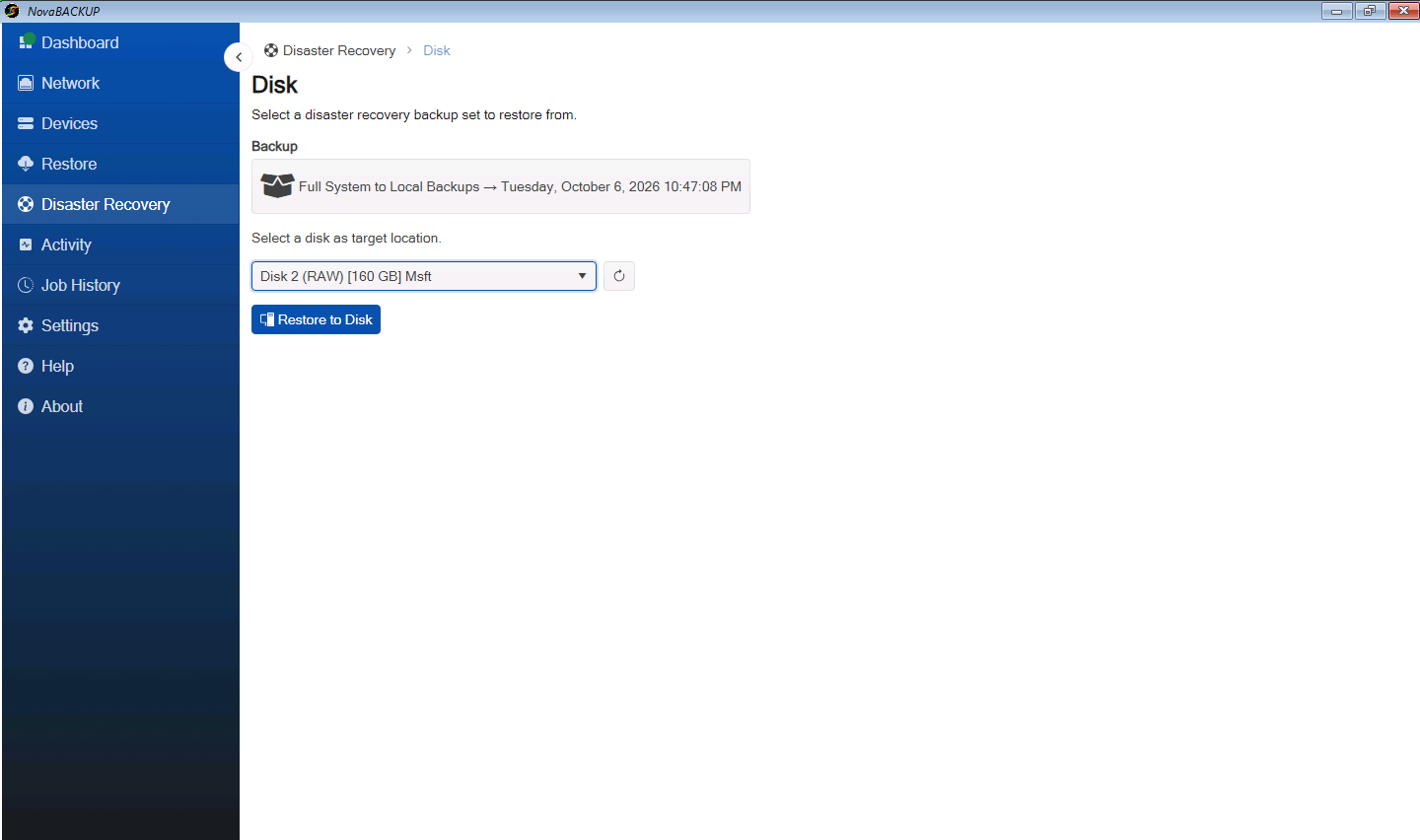
- Click Restore to Disk. A warning names the disk that will be erased. Check it, then click OK.
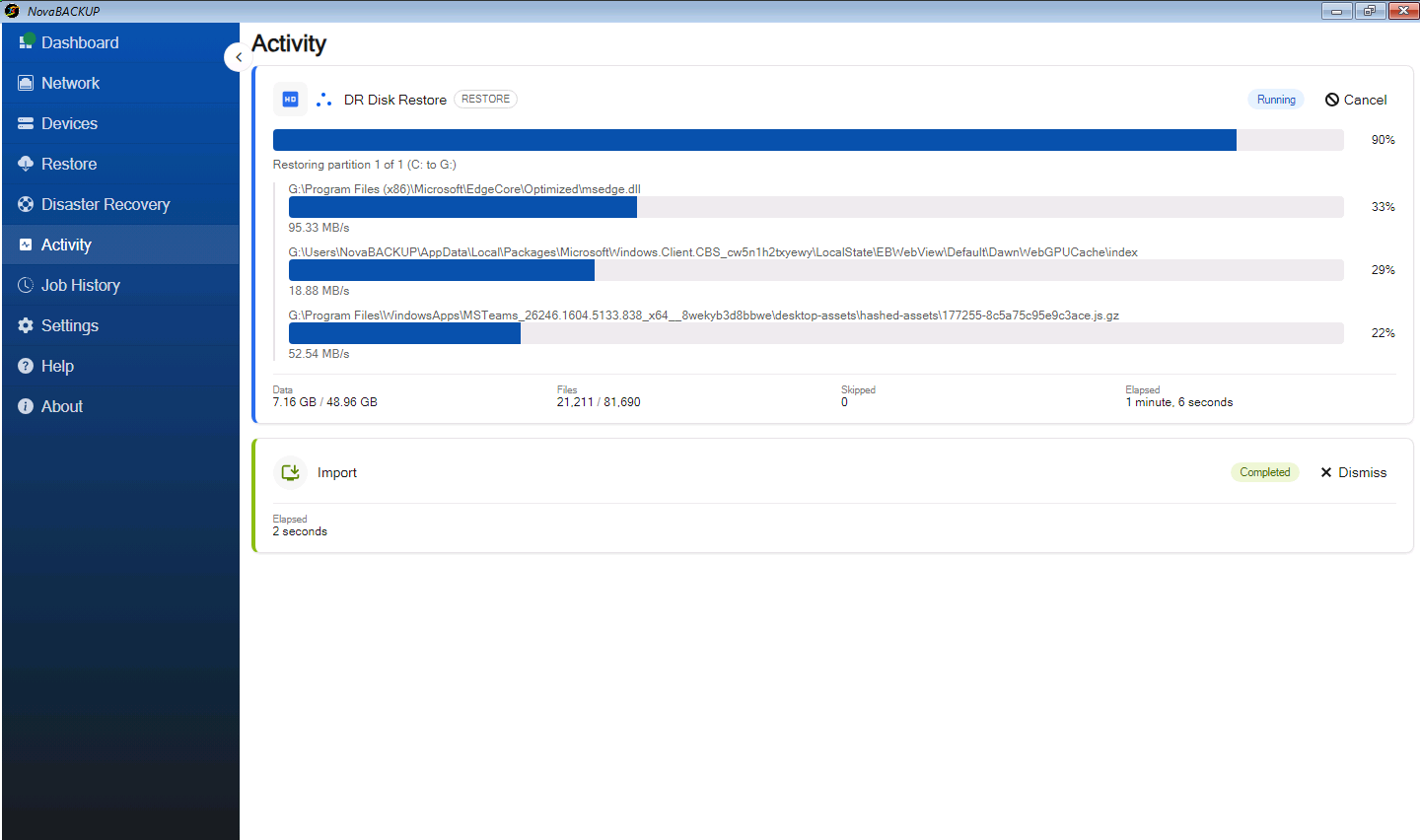
- Follow the progress on the Activity page. NovaBACKUP recreates the original partitions, restores each volume, and makes the restored Windows installation bootable.
If the target disk is larger than the original, the data partitions grow to use all of its space. A smaller disk works too, as long as it can hold the data.
Step 4: Start the restored computer- When the restore finishes, NovaBACKUP shows Recovery complete.
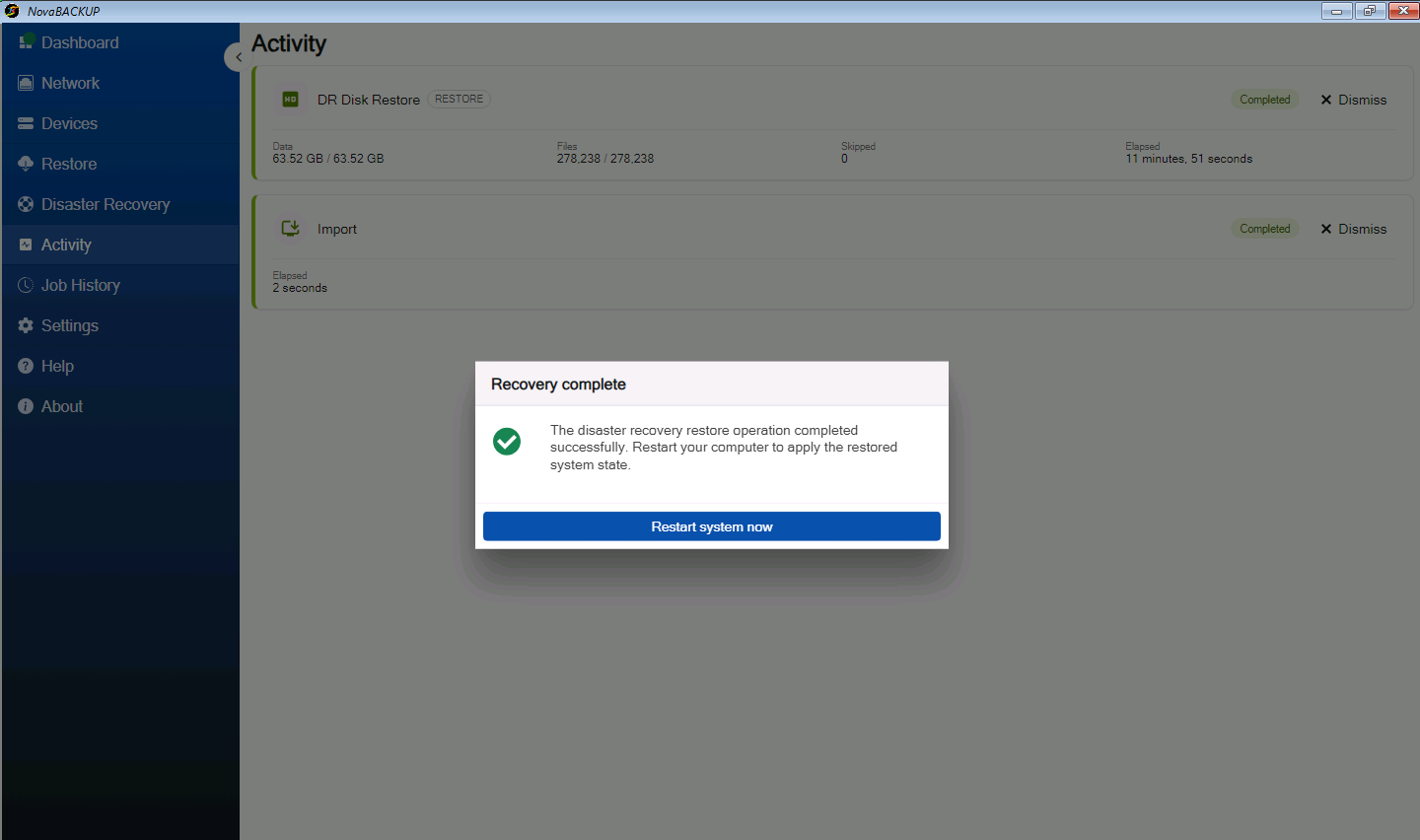
- Remove the USB drive or detach the ISO file, then click Restart system now.
- If the computer has more than one disk, select the restored disk in the computer's boot menu or firmware settings. Windows starts from the restored disk.

| Situation | What to do |
|---|---|
| The backup device is not listed after Recover device configuration | Add it manually with Add new device, using the same device name as on the original computer. |
| The import reports that there is not enough room | Choose a folder on a larger disk, or the unallocated space at the end of the target disk. |
| NovaBACKUP rejects the target disk as too small | The message states the required size. Use a larger disk, or import the catalog onto a different disk so the whole target disk is available. |
| The recovery environment reports that it ran out of memory | Add memory to the computer, then start from the media again. |
- Creating Bootable Recovery Media
- Backing Up a Computer for Full System Recovery
- Restoring a Computer to a Hyper-V Virtual Machine
- Issuing a Device Recovery Token
Still Need Help?
Contact NovaBACKUP Support:
- Email: support@novabackup.com
- Phone: +1 805-579-6700 (press 2 for support)
- Submit a ticket: https://16246.share.hsforms.com/21oWGOmxeQpKD1M8jmfKBAQ
- More options: https://www.novabackup.com/support