
Applies to: NovaBACKUP 22 PC Agent and Server Agent, on a new or rebuilt computer.
When you replace a computer or reinstall Windows, NovaBACKUP on the new installation does not yet know about your existing backups. This article shows how to point NovaBACKUP back at the device that holds them and import the backup list, so you can restore files from the old computer.
To restore the entire old computer, including the operating system, use full system recovery instead. See Restoring a Computer from Recovery Media.
Prerequisites
- NovaBACKUP 22 installed on the new computer. See Installing and Activating NovaBACKUP 22.
- Access to the device that holds the backups: a connected USB drive, a reachable NAS with its user name and password, or, for cloud storage, a recovery token from your CMon.
- The encryption key the backups were made with, if they were encrypted.
Step 1: Add the device back
Click Devices, then use the route that matches where the backups are:
| Backups are on | Do this |
|---|---|
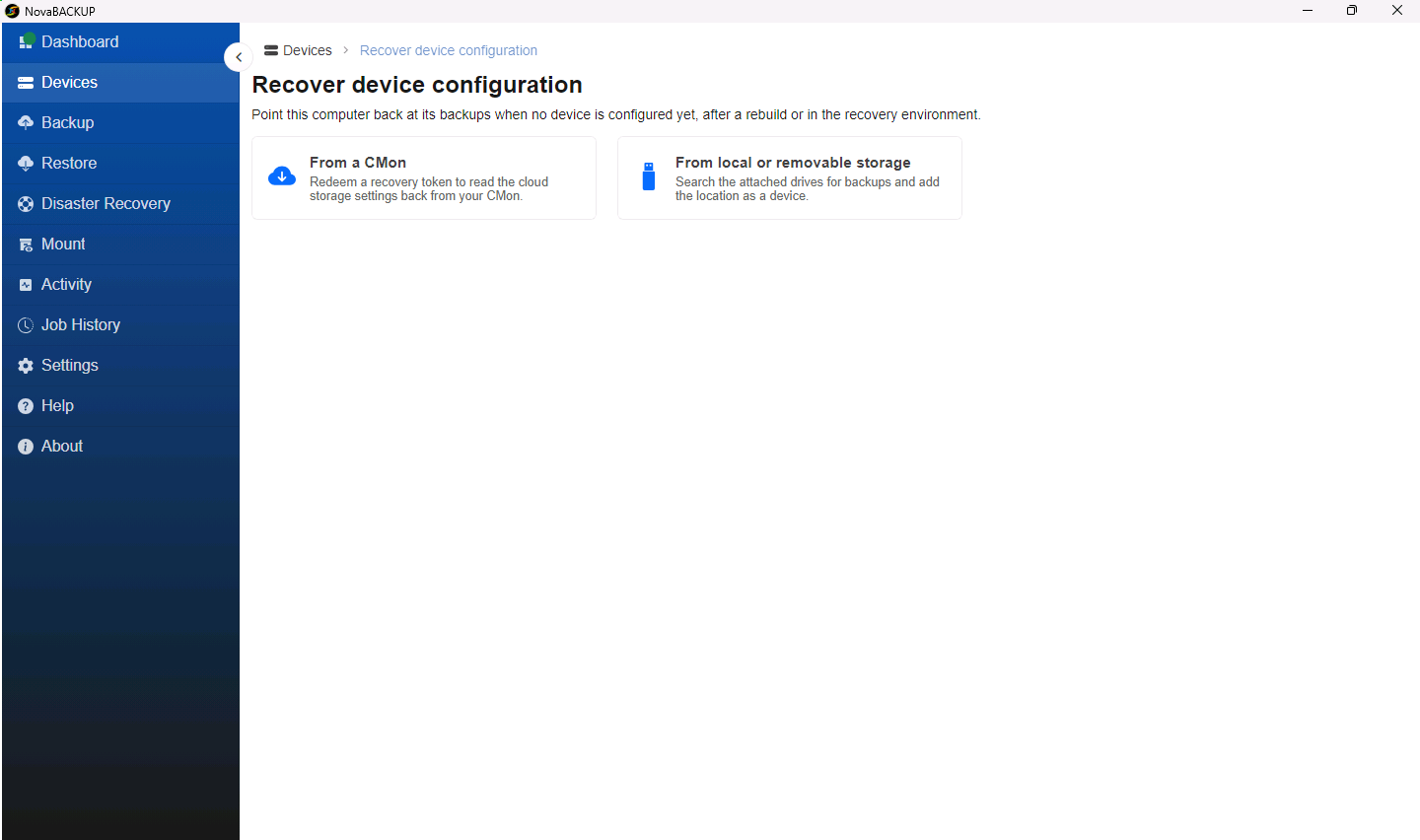
| A USB drive or another disk in the computer | Click Recover device configuration, then From local or removable storage. NovaBACKUP searches the attached drives and lists every location that holds backups. |
| A NAS or file share | Click Add new device, then Local or network storage. Use the same device name as on the old computer, and the same path. See Adding a Local or Network Backup Device. |
| NovaBACKUP Cloud or other cloud storage managed in a CMon | Click Recover device configuration, then From a CMon, and redeem a recovery token. See Issuing a Device Recovery Token. |
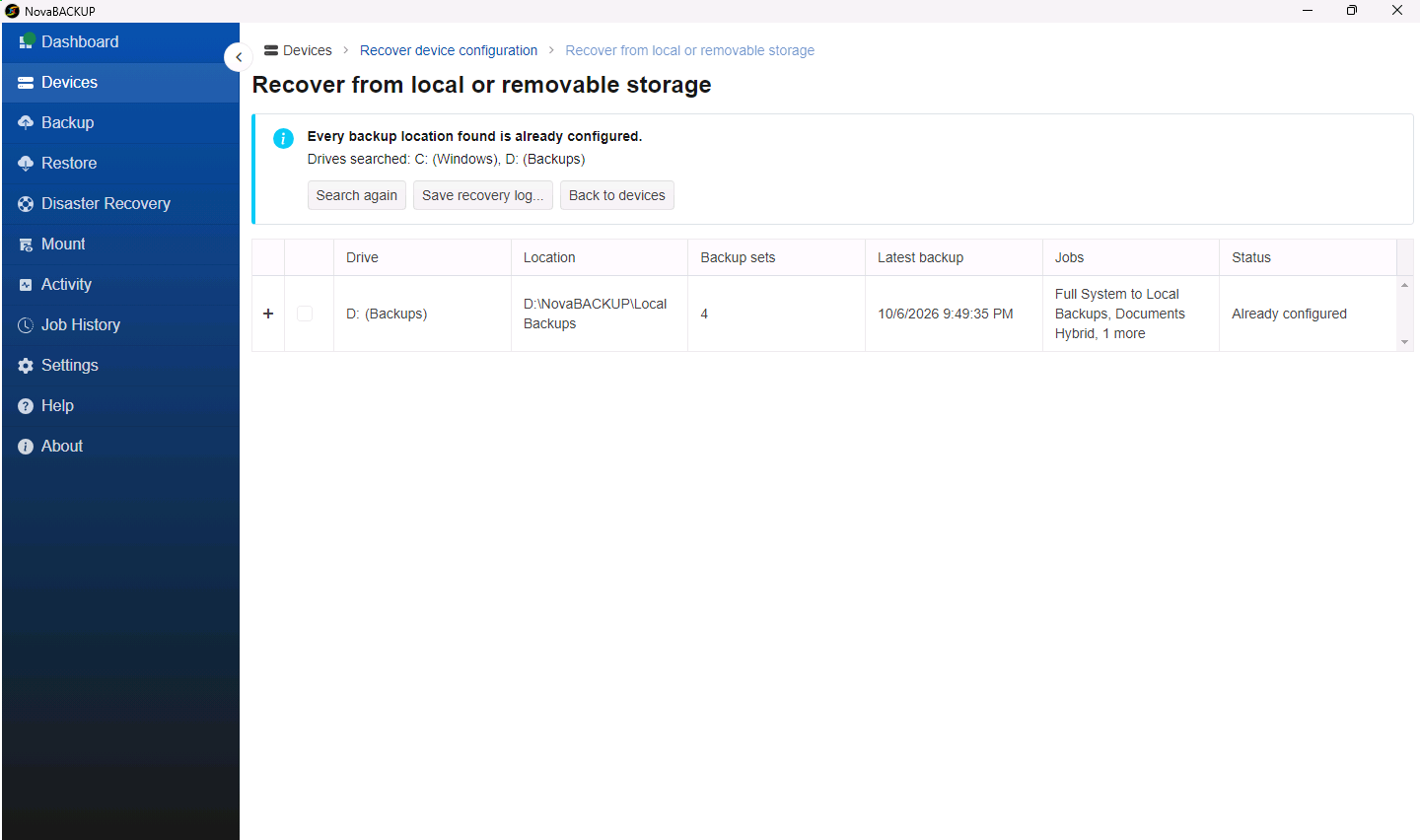
The local search lists each location with its drive, the number of backup sets, the latest backup, the jobs that wrote to it, and its Status. Ready to add means the location will be added as a new device. Select it and click Add device and import backups.
Important: Backups on a share are stored in a folder named after the device that made them. A device added under a different name looks in its own, empty folder.
Step 2: Import the backup list
The list of what each backup contains is kept on the computer that made the backup. A new computer has to import it before the backups can be restored.
- When you add a device with Recover device configuration from local storage, click Add device and import backups. The import runs automatically.
- For a device you added by hand, open it on the Devices page and click Import.
- For cloud storage, choose how much history to import. By default, NovaBACKUP imports the last 30 days, which is much faster than Import the full backup history.
- If the backups are encrypted with a key the device does not have yet, the import prompts you for it. Enter the key and select Save this key to the device so that restores do not ask for it again.
Step 3: Restore
Open Restore. The imported backups are listed under the names of the old computer's jobs. Choose a backup set and restore the files, preferably to an alternate location first. See Restoring Files and Folders.
Step 4: Set up backups for the new computer
Create backup jobs for the new computer so that it is protected from the first day. See Creating and Scheduling Your First Backup Job.
Important: If the new computer backs up to the same device as the old one, give its backup jobs names that the old computer's jobs did not use. A job that reuses an old job name continues the old computer's backups, and its retention then deletes the old computer's backup sets as they age. With different names, the old computer's backup sets stay on the device until you delete them.
Related Articles
- Restoring Files and Folders
- Restoring a Computer from Recovery Media
- Issuing a Device Recovery Token
- Adding a Local or Network Backup Device
Still Need Help?
Contact NovaBACKUP Support:
- Email: support@novabackup.com
- Phone: +1 805-579-6700 (press 2 for support)
- Submit a ticket: https://16246.share.hsforms.com/21oWGOmxeQpKD1M8jmfKBAQ
- More options: https://www.novabackup.com/support