
Applies to: NovaBACKUP 22 PC Agent and Server Agent, for new installations.
This quick start takes you from a new installation to a computer that is backed up locally and in the cloud and can be recovered completely if its disk fails. Each section links to a detailed article with screenshots. Allow about an hour, most of it for the first backup to run.
What you will set up
- Install and activate NovaBACKUP
- Add a place to store backups
- Back up your files every day
- Keep an offsite copy in the cloud
- Back up the computer for full system recovery
- Create recovery media
- Check that your backups work
Types of backup in NovaBACKUP 22
| Backup | What it protects | How you get data back |
|---|---|---|
| File backup | Folders and files you select, such as Documents or a shared data folder | Restore selected files, or mount the backup and copy files out |
| Full system backup (Disaster Recovery selected in the job) | The drive Windows runs from (usually C:): Windows, programs, settings, and the data on that drive. Other drives only if you select them in the job as well. | Restore the whole computer to a new disk from recovery media, or to a Hyper-V virtual machine |
| Hybrid backup | Either of the above, written to a local device and copied to the cloud | Restore from the local copy when it is available, or from the cloud when it is not |
Step 1: Install and activate
Run the installer, accept the license agreement, and activate with your license key or as an evaluation. The installer adds the Microsoft components NovaBACKUP needs.
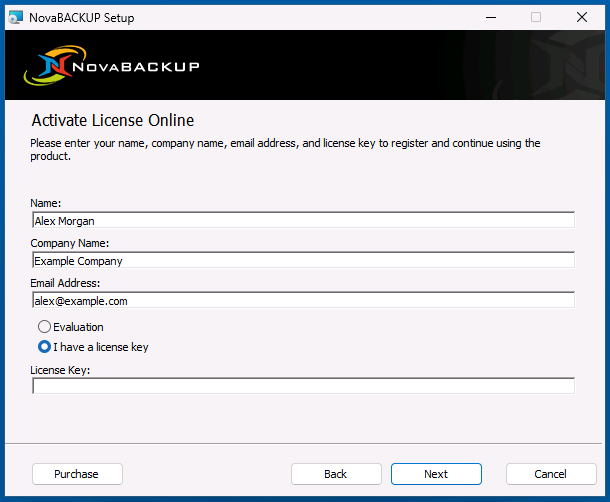
Details: Installing and Activating NovaBACKUP 22.
Step 2: Add a place to store backups
Open Devices, click Add new device, and choose the kind of storage:
- Local or network storage: a second disk, a USB drive, or a NAS. See Adding a Local or Network Backup Device.
- NovaBACKUP Cloud: click Sign up on the Dashboard and follow the steps in your browser. NovaBACKUP adds the cloud device for you. See Signing Up for NovaBACKUP Cloud Storage.
- Your own S3-compatible storage: see Adding an S3-Compatible Cloud Storage Device.
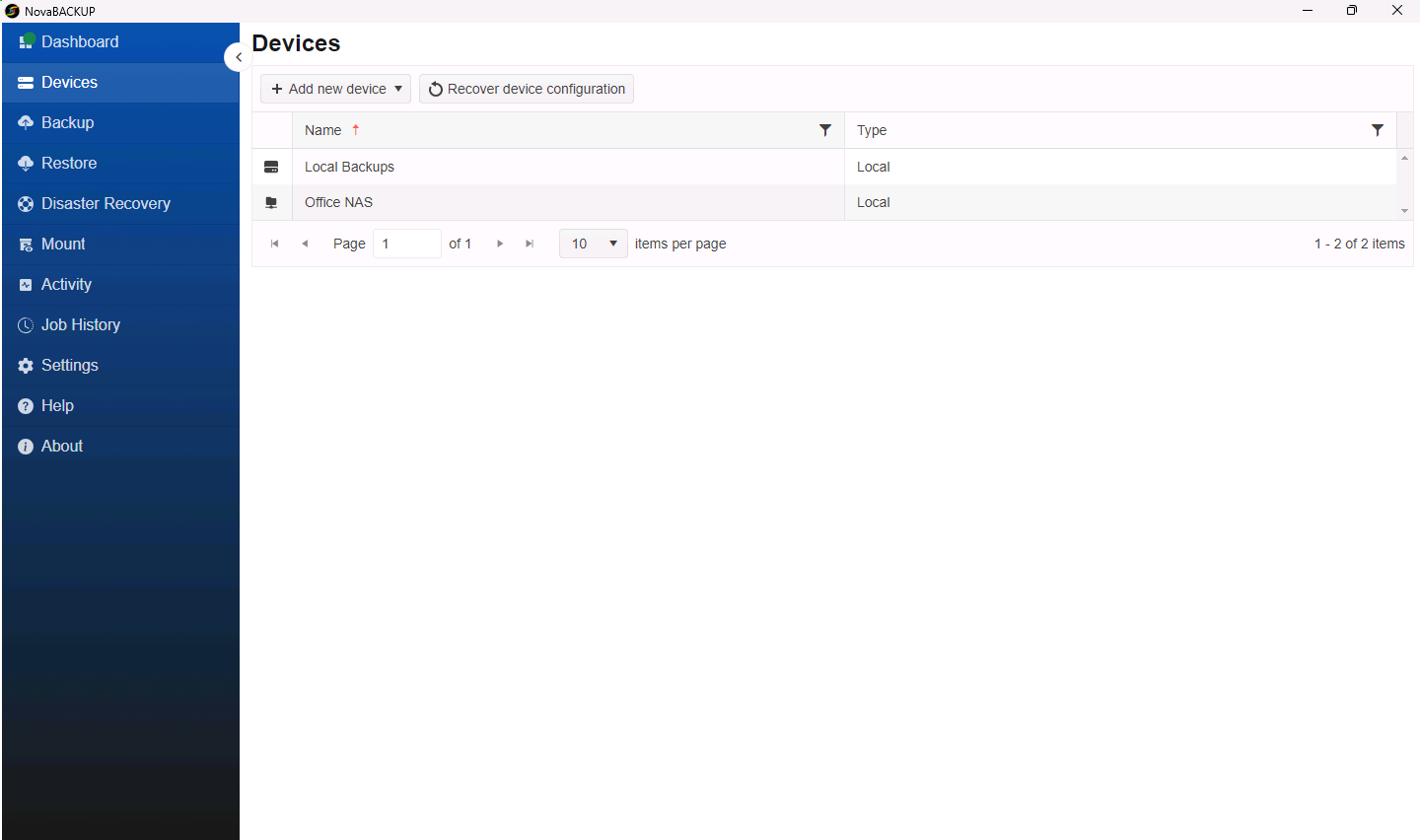
Important: Write down every encryption key you set, and keep it in a safe place away from the computer. Nobody can restore encrypted backups without the key.
Step 3: Back up your files every day
- Open Backup and click New backup job.
- Name the job, select the folders to protect, and click Choose destination to pick the backup device.
- Click Schedule and set a Daily schedule.
- Click Save, and then click Start to run the job now.
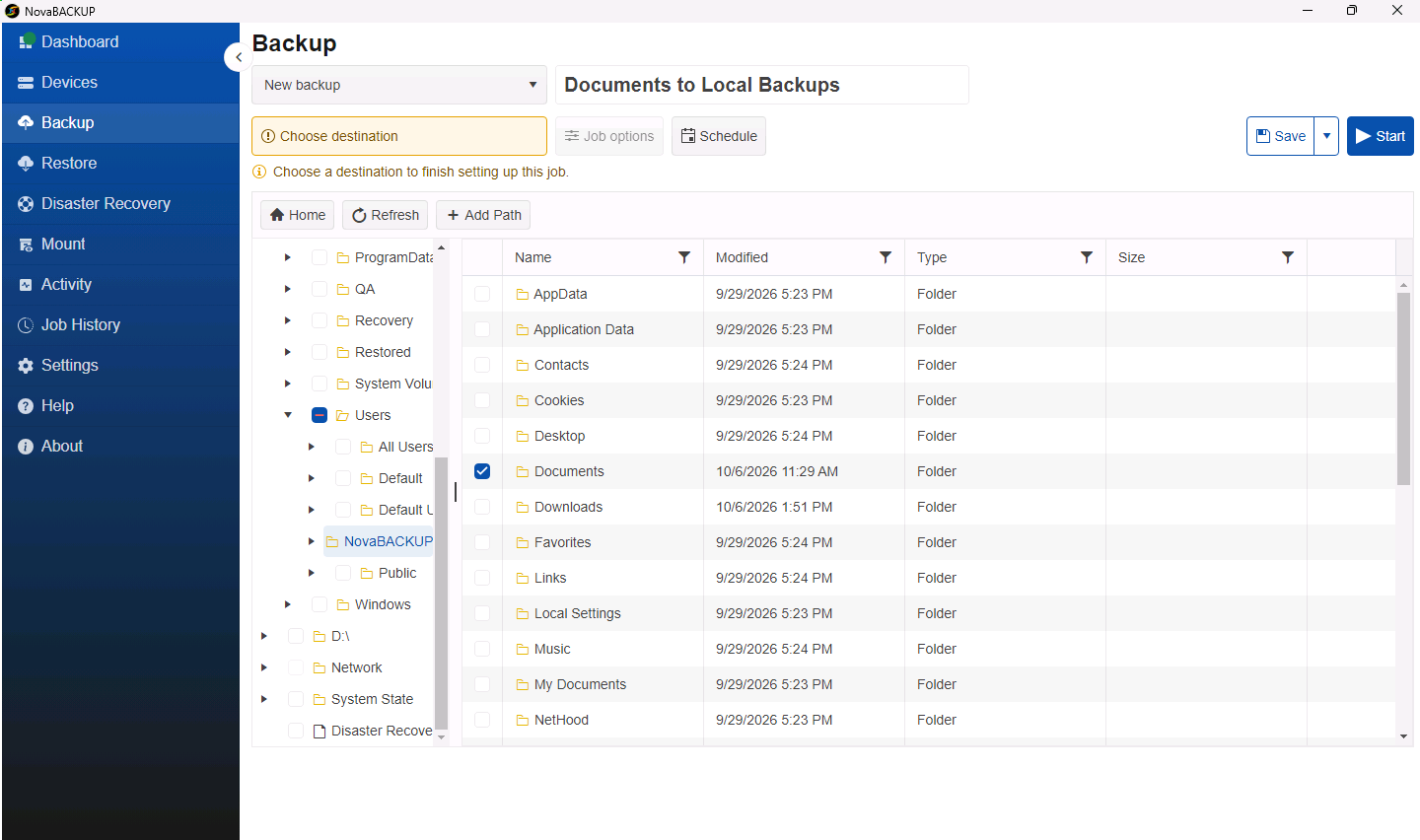
Details: Creating and Scheduling Your First Backup Job and Understanding Backup Retention.
Step 4: Keep an offsite copy in the cloud
Click Job options, open the Archive tab, turn on Enable Hybrid Backup, and choose your cloud device. Every run then writes a local copy and a cloud copy.
Details: Setting Up a Hybrid Backup (Local and Cloud).
Step 5: Back up the computer for full system recovery
Create a second job and select Disaster Recovery in the selection tree. This captures the drive Windows runs from and everything needed to rebuild the computer on a new disk. If the computer keeps data on other drives, such as D:, select those drives in the same job as well, because Disaster Recovery does not include them. A weekly schedule, alongside the daily file backup, suits most computers.
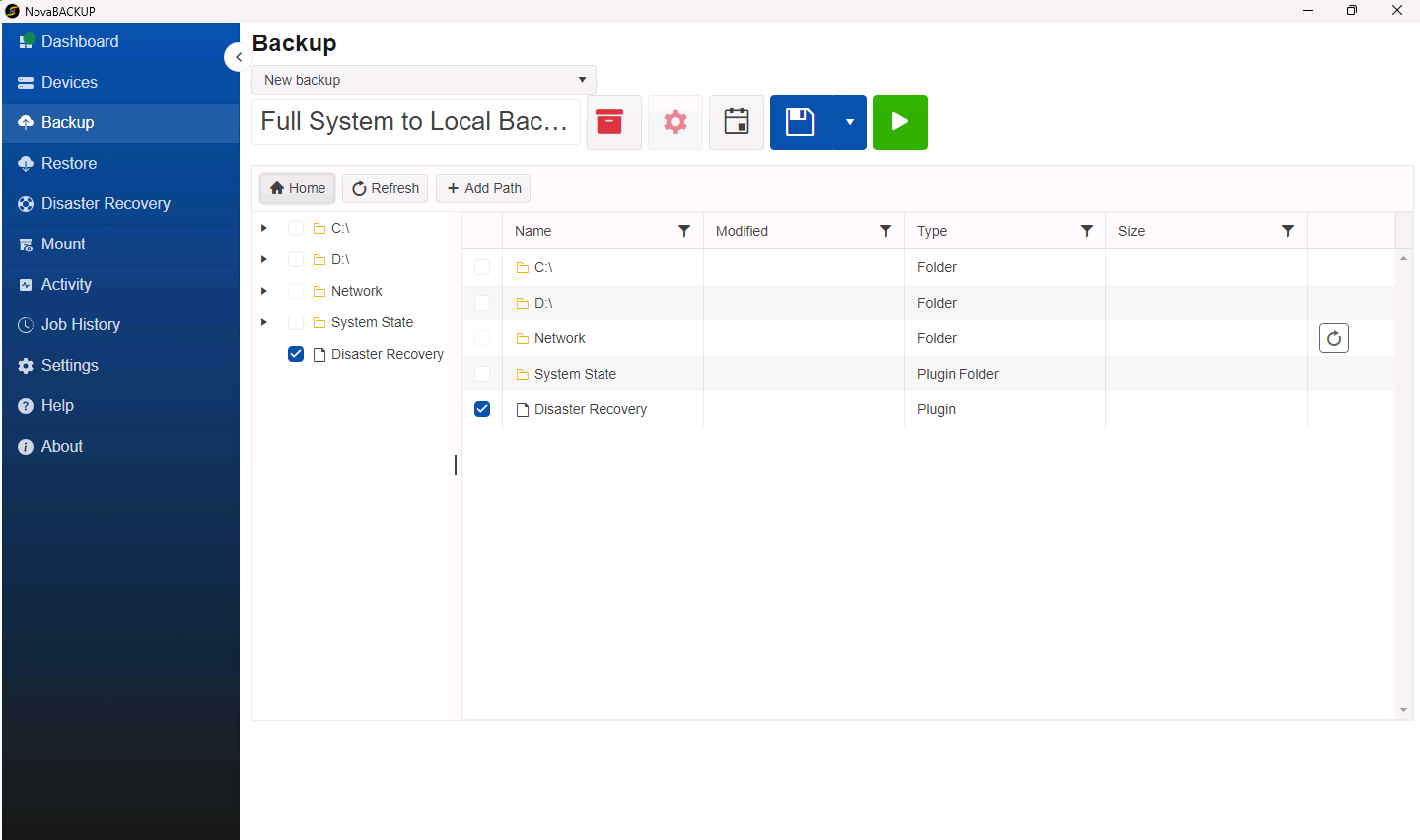
Details: Backing Up a Computer for Full System Recovery.
Step 6: Create recovery media
If Windows no longer starts, you start the computer from NovaBACKUP recovery media instead. Install the Windows ADK and the Windows PE add-on, then open Disaster Recovery > Bootable Media and create an ISO file, a USB drive, or a recovery partition. Create the media now, while the computer still works.
Details: Creating Bootable Recovery Media.
Step 7: Check that your backups work
- Check the Dashboard every day, or turn on email notifications. See A Tour of the NovaBACKUP 22 Dashboard and Setting Up Email Notifications for Backup Jobs.
- Restore a few files to a test folder. See Restoring Files and Folders.
- Mount a backup and open a file from it. See Mounting a Backup to Browse and Copy Files.
When you need to recover
| Situation | Article |
|---|---|
| A file was deleted or overwritten | Restoring Files and Folders or Mounting a Backup to Browse and Copy Files |
| You are setting up a new computer and need the old one's files | Restoring to a New Computer: Importing Your Backups |
| Windows no longer starts, or the disk failed | Restoring a Computer from Recovery Media |
| You need the computer running again right away, on other hardware | Restoring a Computer to a Hyper-V Virtual Machine |
More information
- The built-in help: click Help in the menu on the left.
- The NovaBACKUP Knowledgebase: support.novabackup.com
Still Need Help?
Contact NovaBACKUP Support:
- Email: support@novabackup.com
- Phone: +1 805-579-6700 (press 2 for support)
- Submit a ticket: https://16246.share.hsforms.com/21oWGOmxeQpKD1M8jmfKBAQ
- More options: https://www.novabackup.com/support