
Applies to: NovaBACKUP 22 PC Agent and Server Agent, on UEFI computers with GPT disks.
When Windows no longer starts, or the disk has to be replaced, you start the computer from NovaBACKUP recovery media and restore it from a full system backup. This article shows how to install the Microsoft tools needed to build the media, and how to create the media as an ISO file, a USB drive, or a recovery partition on the disk.
Important: Create your recovery media now, while the computer is still working. You cannot create it from a computer that no longer starts.
Which media to create
| Media | Best for |
|---|---|
| ISO File | Virtual machines, burning to a DVD, or writing to a USB drive later with another tool. Keep a copy on a different computer or a network share. |
| USB Drive | Physical computers. Plug it in and start the computer from it. |
| Recovery Partition | Fast access to the recovery environment from the Windows startup menu, without external media. It is on the same disk as Windows, so it does not help when that disk fails. |
We recommend a USB drive or an ISO file for every computer, plus a recovery partition where it is useful.
Prerequisites
- A Windows account with administrator rights
- About 6 GB of free disk space for the Microsoft tools, and 2 GB for an ISO file
- For a USB drive: a USB drive of at least 2 GB that you can erase
Step 1: Install the Windows ADK and the Windows PE add-on
NovaBACKUP builds the recovery environment with two free Microsoft downloads. If they are missing, media creation stops with an error, so install them first.
- Download the Windows ADK and the Windows PE add-on for the Windows ADK from Microsoft: Download and install the Windows ADK.
- Run the Windows ADK installer (
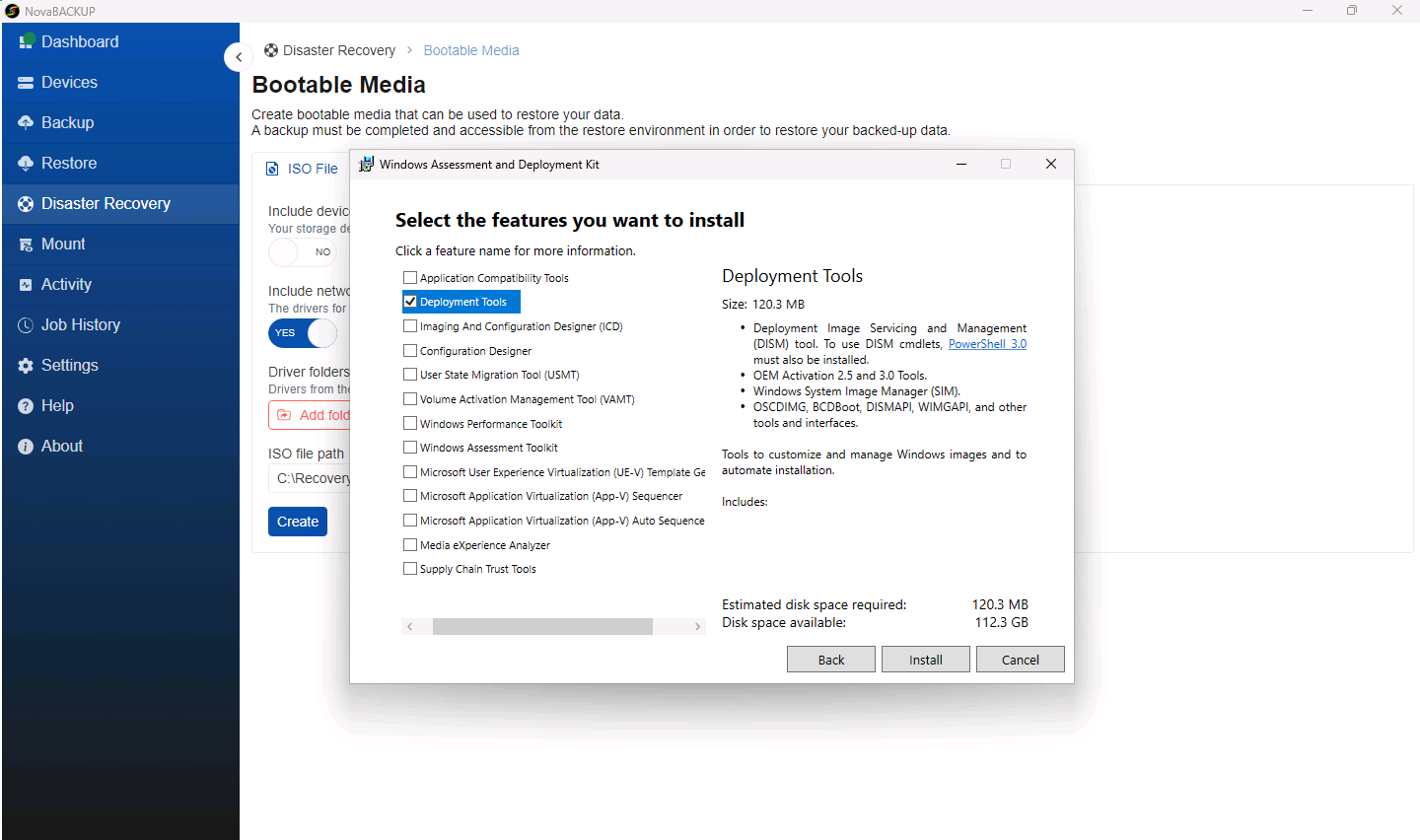
adksetup.exe). Keep the default installation path and click Next through the first pages. - On the Select the features you want to install page, only Deployment Tools is needed. Clear the other features to save space, then click Install.
- When the installation finishes, click Close.
- Run the Windows PE add-on installer (
adkwinpesetup.exe). Keep the default path, leave Windows Preinstallation Environment (Windows PE) selected, and click Install.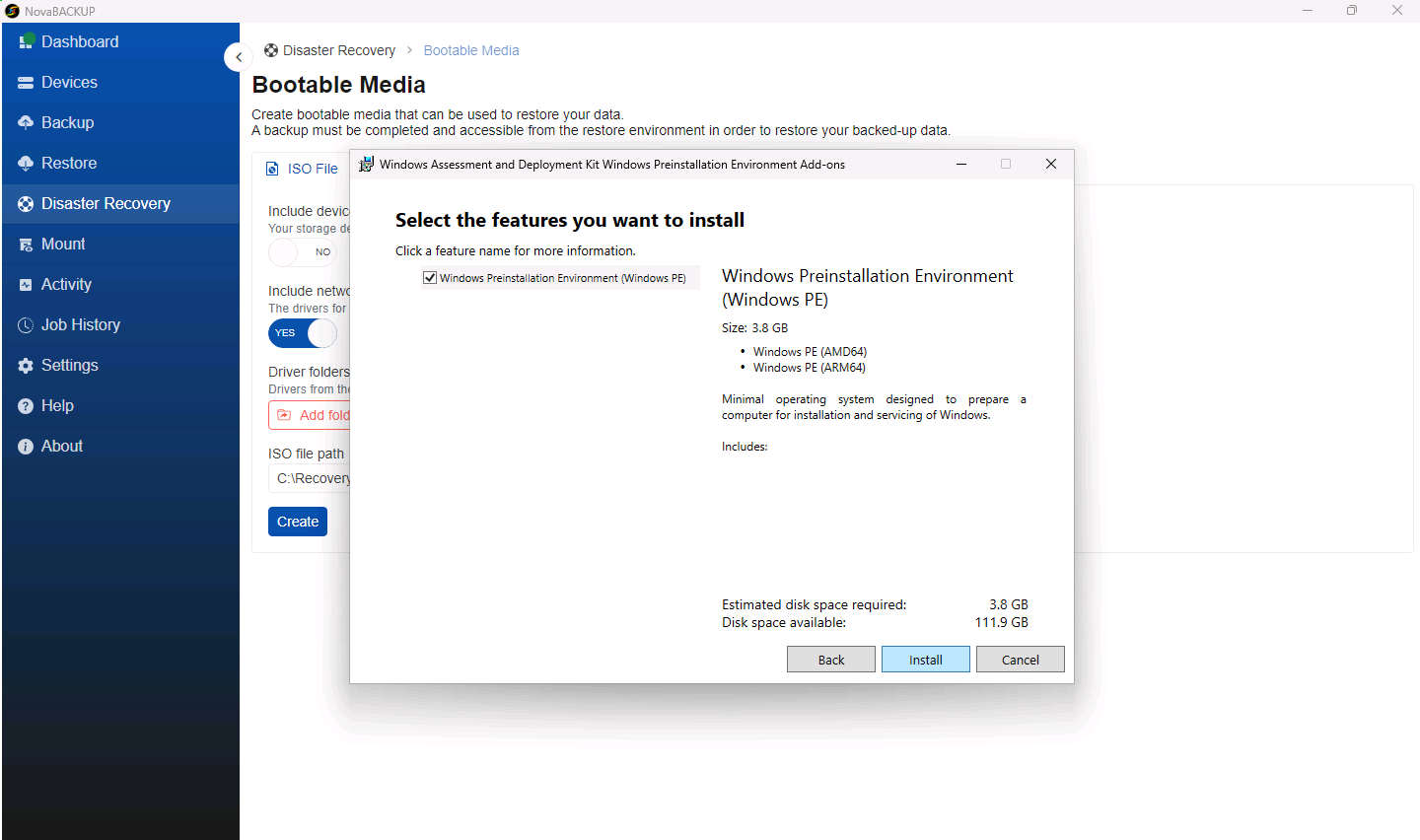
- When the installation finishes, click Close.
Step 2: Open Bootable Media
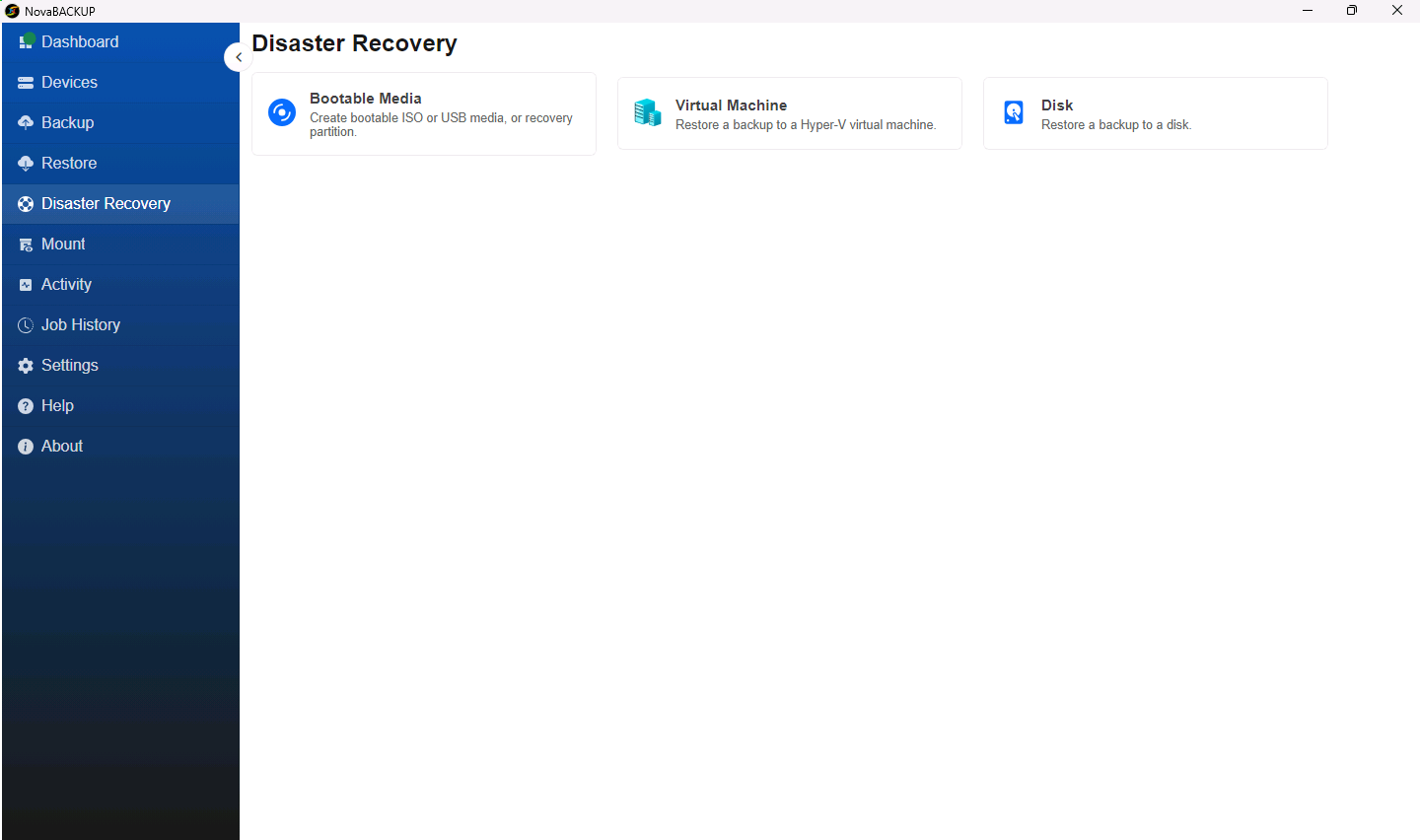
- Click Disaster Recovery in the menu on the left.
- Click Bootable Media.
Step 3: Choose the options
The ISO File, USB Drive, and Recovery Partition tabs share these options:
| Option | What it does |
|---|---|
| Include device configuration | Copies your backup devices, with their credentials and encryption keys, onto the media. The recovery environment then lists them right away, so you can restore without adding them again. Off by default. |
| Include network drivers | Adds this computer's network adapter drivers, so the recovery environment can reach a NAS or the cloud. On by default; leave it on. |
| Driver folders | If you plan to restore onto different hardware, add the folders that contain that hardware's storage and network drivers. |
Important: Media created with Include device configuration contains the passwords and encryption keys of your backup devices. Anyone who has the media can reach your backups. Store it as you would a key to the office.
Create an ISO file
- Select the ISO File tab.
- Set the options above.
- In ISO file path, enter the full path for the file, for example
C:\Recovery\NovaBACKUP-Recovery.iso.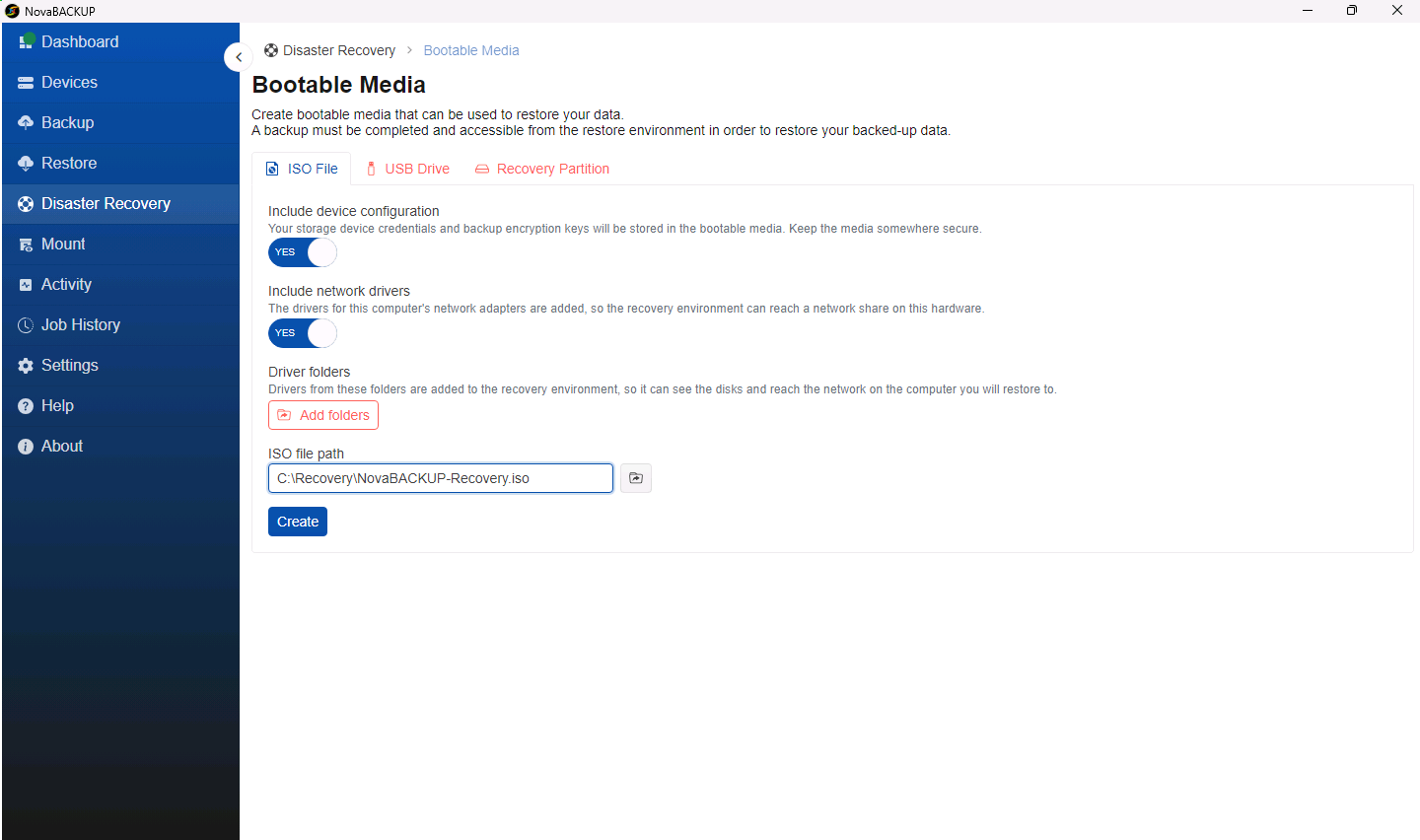
- Click Create. A progress dialog shows each step. Creating the media takes about five minutes.
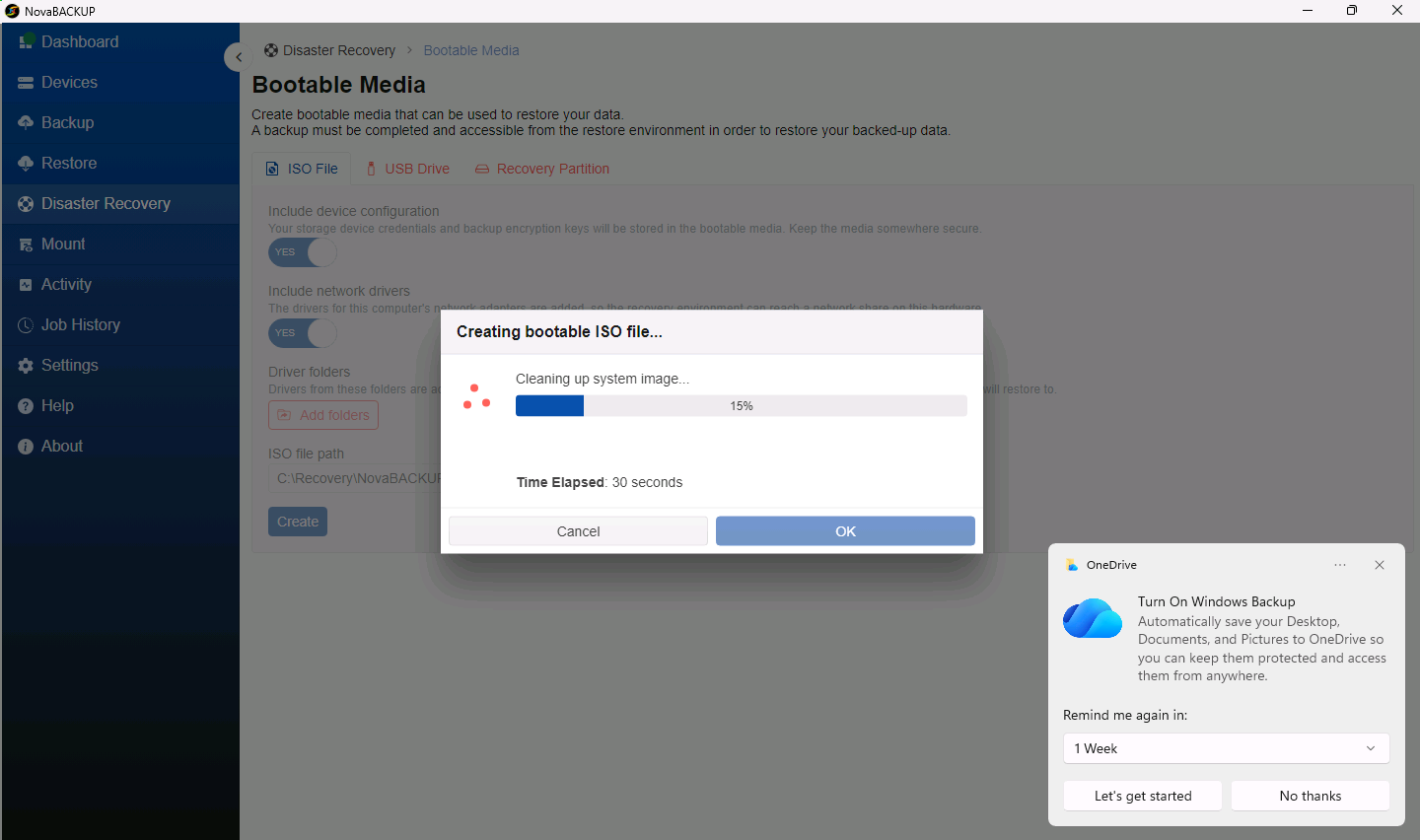
- When the dialog reports success, click OK. Copy the ISO file to a second location, such as a network share, so it is available when this computer is not.
Create a USB drive
- Plug in the USB drive.
- Select the USB Drive tab and set the options above.
- Select the USB drive under Drive. Click the refresh button if you plugged it in after opening the page.
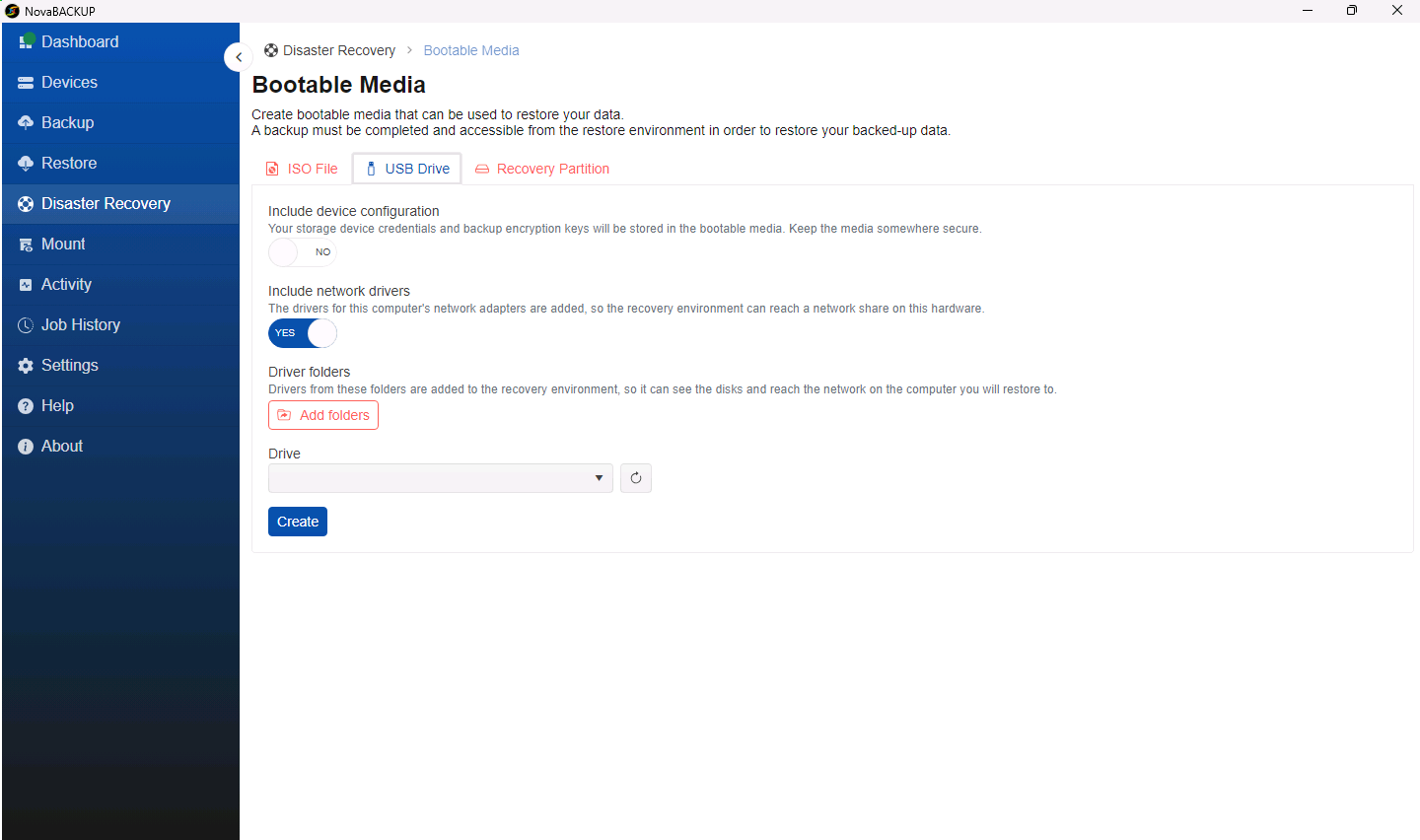
- Click Create.
Important: Everything on the selected USB drive is erased. Check that you selected the right drive.
Create a recovery partition
A recovery partition adds NovaBACKUP to the Windows Recovery Environment on this computer's disk. It requires a GPT disk with a Windows recovery partition, which most Windows 10 and Windows 11 computers already have.
- Select the Recovery Partition tab and set the options above.
- Leave Use a Windows installation image off. NovaBACKUP builds the media from the Windows Recovery Environment that is already on the computer.
- Under Partition, select the recovery partition, for example Partition 4 Recovery.
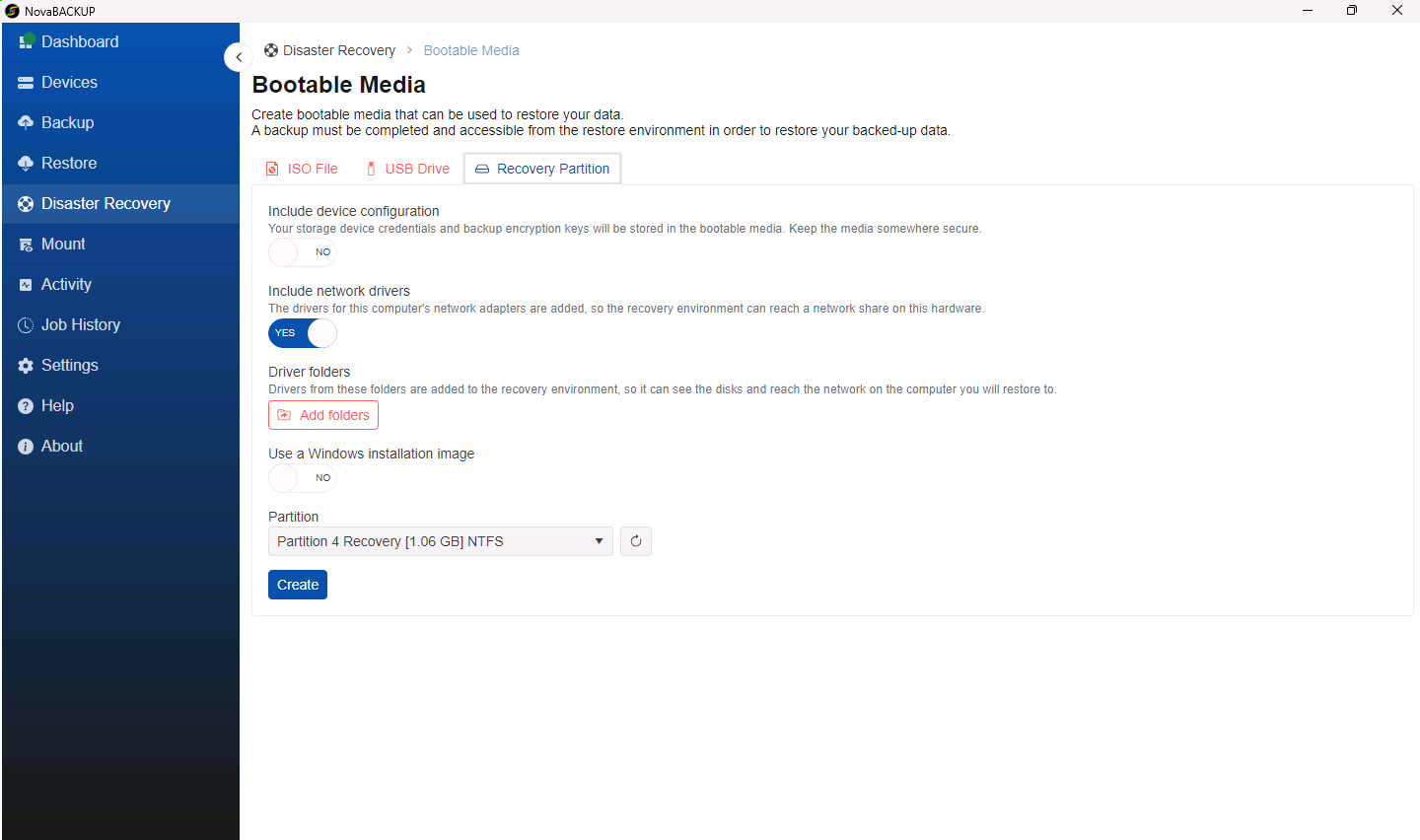
- Click Create.
- If the recovery partition is too small, a Warning dialog shows the current and the new partition layouts, for example shrinking
C:slightly to enlarge the recovery partition. Read it carefully, then click Continue, or click Cancel to stop without changing anything.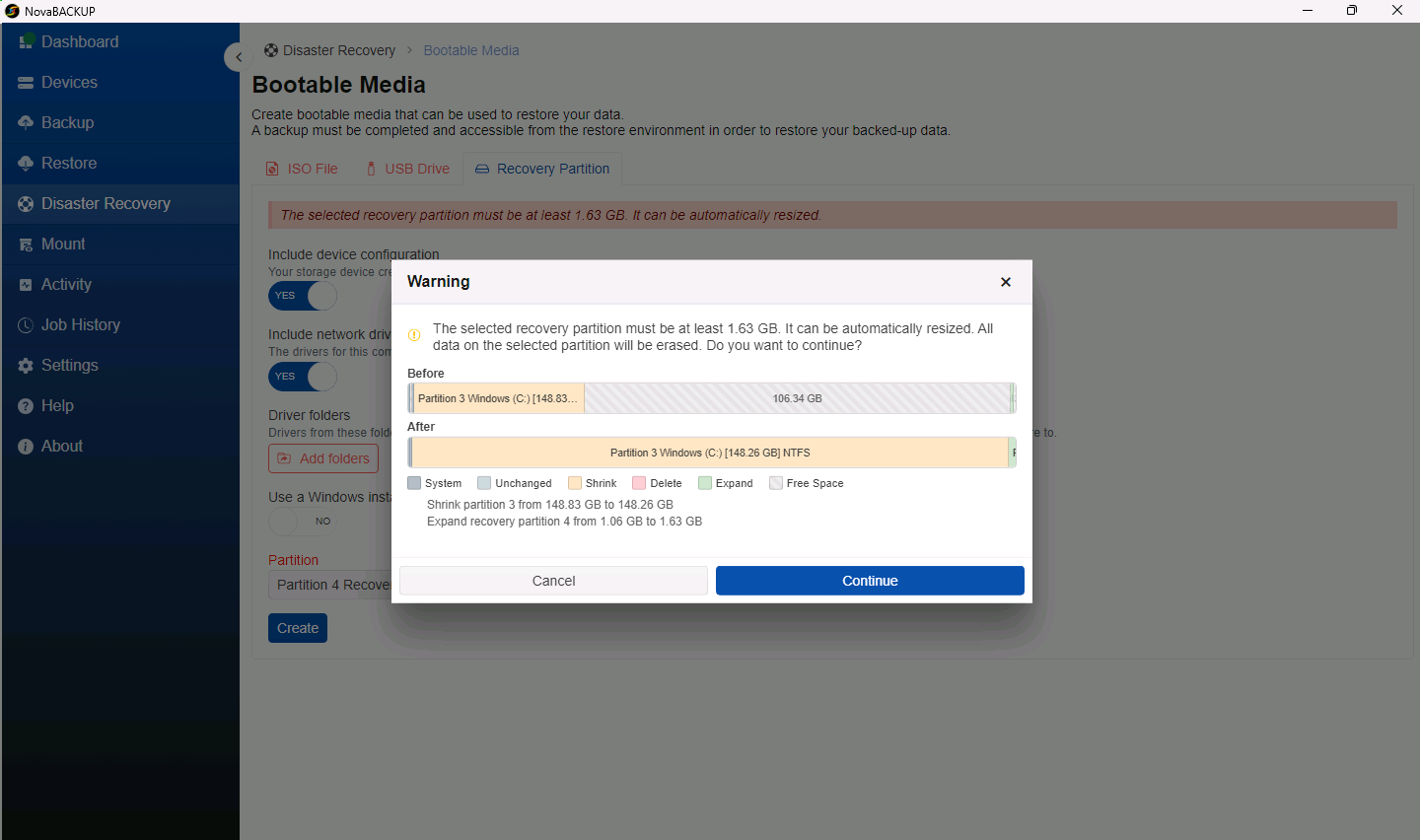
- Wait until the dialog reports that the recovery partition was created.
Important: Resizing partitions changes your disk layout. Make sure you have a current full system backup before you click Continue.
To start the recovery environment from the recovery partition, see Restoring a Computer from Recovery Media.
Test your media
Start a computer from the media once to confirm that it reaches the NovaBACKUP recovery environment and that your backup device is listed. For an ISO file, a Hyper-V virtual machine is a quick way to test without restarting a physical computer.
Requirements for starting from the media
- A 64-bit processor and at least 2 GB of RAM
- A USB port or DVD drive to start from
- A keyboard, a mouse, and a display of at least 800 × 600
Related Articles
- Backing Up a Computer for Full System Recovery
- Restoring a Computer from Recovery Media
- Restoring a Computer to a Hyper-V Virtual Machine
- Getting Started with NovaBACKUP 22
Still Need Help?
Contact NovaBACKUP Support:
- Email: support@novabackup.com
- Phone: +1 805-579-6700 (press 2 for support)
- Submit a ticket: https://16246.share.hsforms.com/21oWGOmxeQpKD1M8jmfKBAQ
- More options: https://www.novabackup.com/support